TB.One > Order Data and Order Processing > Order Management - Basics and Setup > Export Settings in TB.One
Export Settings in TB.One
In the menu "Admin > Export > Orders", specify the settings for the export of orders to your ERP system. Contact your integration consultant to discuss whether to use XML or CSV files for the export.
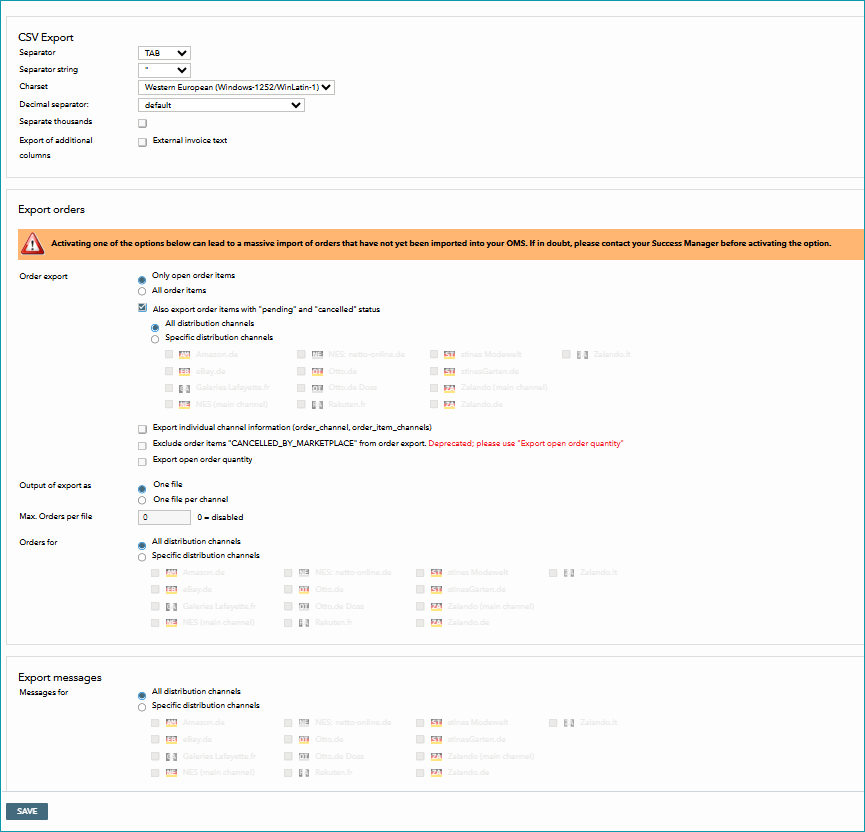
1. CSV EXPORT
Determine the column separators for order exports via CSV file. With the field "Separator string", you can define quotation marks as the text delimiter for the columns' contents. Activate the checkbox "external invoice text" to add the column "POS_BILLLING_TEXT" to your CSV export.
2. EXPORT ORDERS (CSV AND XML)
SECTION "ORDER EXPORT" |
|---|
In the section "Order export" you have the following options: Only export open order items / All order items Choose to only export open order items to your system, or always export all order items, even if some have already been shipped (i.e. an order is partially fulfilled). Example: Also export order items with status "pending" If this checkbox is selected, pending orders are exported to your system. •Only select this option, if your ERP system can make changes to orders after they have been received. For example, add address details or change the status from “pending” to “confirmed”. •Some channels transmit pending and confirmed items in the same order. If this option is selected, all the order’s items will be exported. Otherwise, the export would only list confirmed items. •If this option is selected, TB.One will display additional menu sections allowing you to select whether you want to receive pending orders for all channels or only for specific channels.
Export individual channel information Some channels provide additional information in their order data, that is not included in the standard order export. The type of information may vary from channel to channel. TB.One can export it in the fields “Order_channel” and “Order_item_channels”. •If you select this option, TB.One will export the additional information together with the orders. •If this option is selected, TB.One will display additional menu sections allowing you to select whether you want to receive the information for all channels or only for specific channels. |
SECTION "OUTPUT OF EXPORT AS" |
Decide whether the orders should be separated by channel during export, or if all orders should be exported in one file (default). Of course, both options will contain information about the channel which generated the orders. |
SECTION "MAX. ORDERS PER FILE" |
You can split your order exports in TB.One into smaller, individual files for a specific amount of orders. To include all your orders in one single file, enter “0” as a value in the “Max Orders per file” field. |
SECTION "ORDERS FOR" |
You may export orders for all channels or restrict the export to specific channels. If you choose to export messages for specific distribution channels only, note that you will have to explicitly activate any new channels for export. |
3. EXPORT MESSAGES (XML)
In this section you can configure TB.One so that messages are provided via SFTP. Depending on the setting, messages that have not been exported yet will be provided in the "out" directory as XML files, either for all channels or only for those activated here. Once retrieved, the messages will be marked as "exported".
4. RESET EXPORT STATUS
If you would like to re-export a specific order during the next export, you may reset the export status. Open the tab "Order data" in the the order detail view ("Orders > Order list > [Click on an order number]"). Here you will find a checkbox titled "Reset export status". Activate this checkbox and save.
For further information, see also: