TB.One > Import & Export > Master Data Import via CSV > How to Use the Import Wizard
How to Use the Import Wizard
In this article, you'll learn how to use the Import Wizard to create PANDA CSV files from your product and article data for specific marketplaces.
ATTENTION: The Import Wizard is activated upon request |
What's the Import Wizard?
The Import Wizard is a powerful tool that allows you to quickly and efficiently create a PANDA CSV file from your product and article data that meets the requirements of marketplaces such as Zalando and AboutYou.
It also helps you to compare your product data with the mandatory data of the respective marketplaces and automatically supplement it or create a status report.
How does it work?
Once activated, the Import Wizard can be found under the "Data Exchange" menu (see Fig. 1). Click "Import Wizard" to open it:

Fig. 1: Import Wizard menu in TB.One
You can create two different types of catalogue:
1.A basic a product catalogue: Contains the data required for most channels, but doesn't guarantee that the template created will meet all requirements for a specific channel
2.A channel-specific product catalogue: By selecting the appropriate channel, you can ensure your data fully meets the requirements of platforms such as AboutYou or Zalando.
With the Import Wizard, different options are available to you for preparing or validating product and article data (see Fig. 2). You can:
•Create an empty product catalogue template that contains all the mandatory columns for a channel like AboutYou or Zalando
•Validate an existing PANDA file and add missing mandatory columns
•Create a PANDA file automatically from a Shopify file with your product and article data
•Generate a PANDA file automatically from any CSV file, such as an Excel file in CSV format
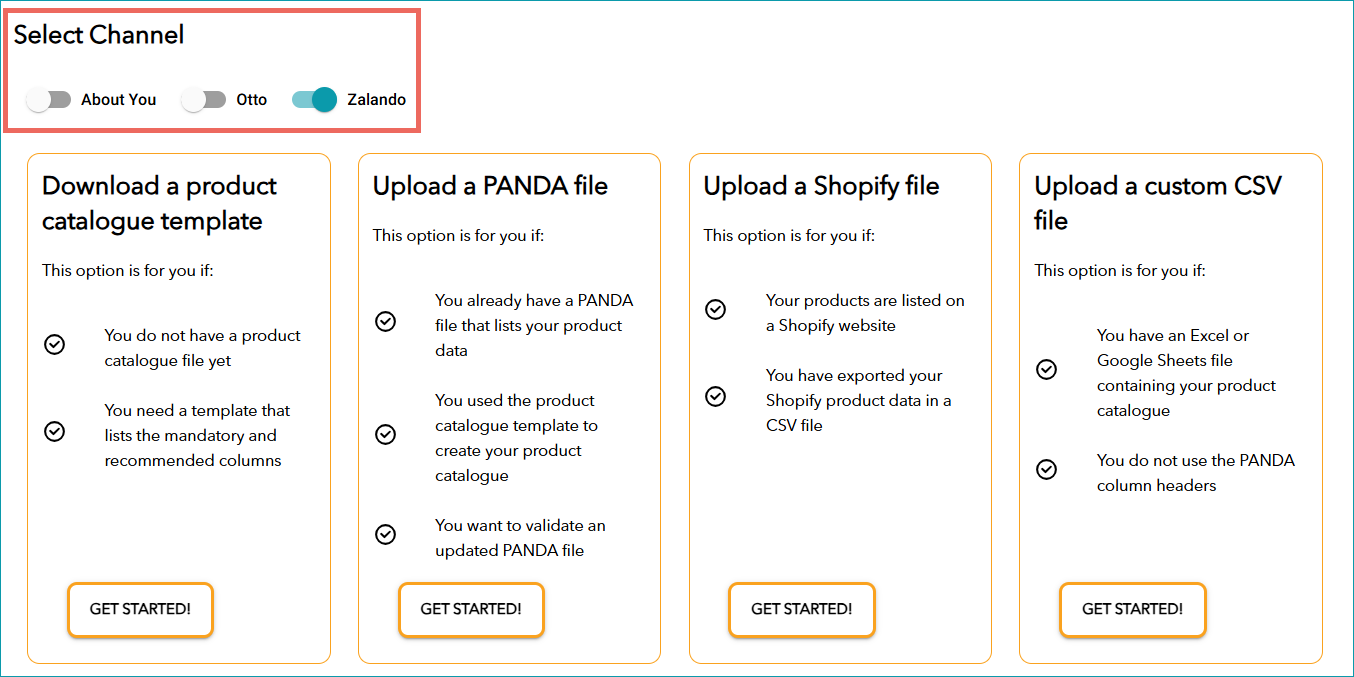
Fig. 2: Import Wizard options
In the sections below, you'll find detailed step-by-step guides to help you use the Import Wizard.
Create a product catalogue template
To create a product catalogue template (see Fig. 3), follow the steps outlined below.
1.Select product categories: Select all the categories you want to sell. Review the pre-selection and make adjustments if needed.
2.Create a template: Based on your categories, a blank PANDA file is created that already contains all the mandatory columns for the selected channels. Click on "Download".
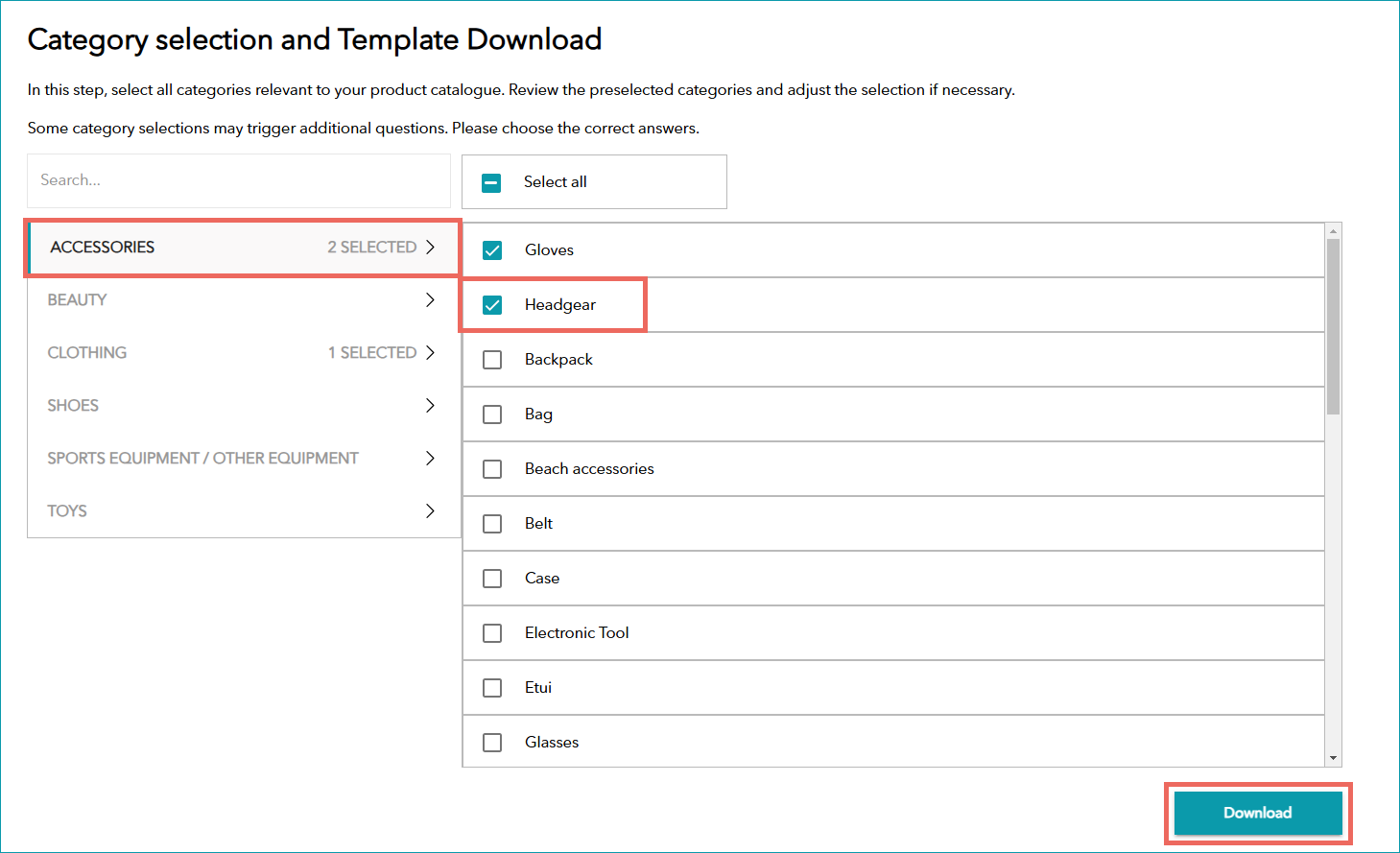 Fig. 3: Product catalogue template creation with the Import Wizard |
Upload and validate existing files
The Import Wizard allows you to upload and validate existing files:
•PANDA file: Upload an existing PANDA file to check and compare it with the mandatory columns. •Shopify file: Upload a Shopify file to automatically convert it into a PANDA file. •Custom CSV: Upload your own CSV file (e.g. an Excel file in CSV format).
To get started, follow these steps:
1.Click on "Upload catalogue file", select the file, adjust the import settings if necessary and then click on "Save and continue" (see Fig. 4):
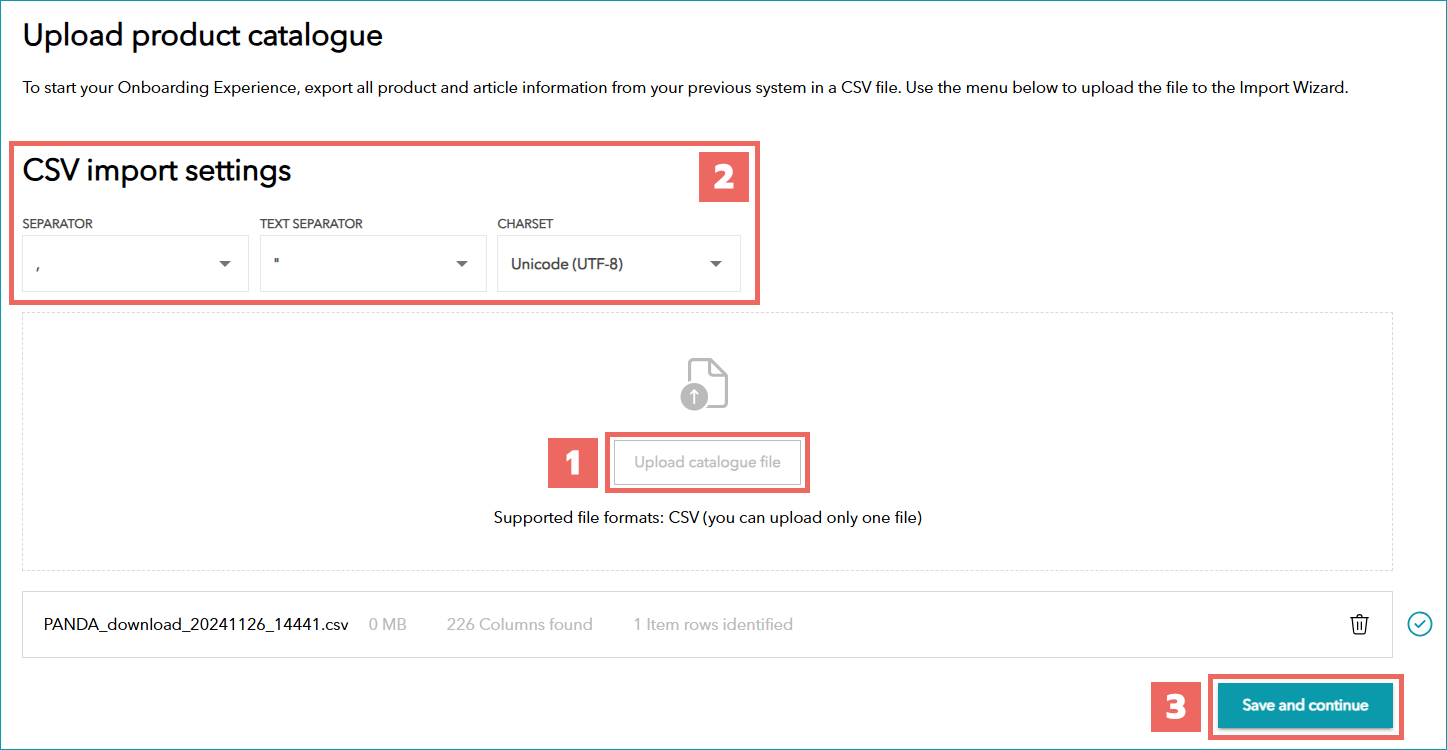 Fig. 4: Uploading a catalogue file in the Import Wizard
2.Then select all product categories included in your file and click "Save and continue" (see Fig. 5):
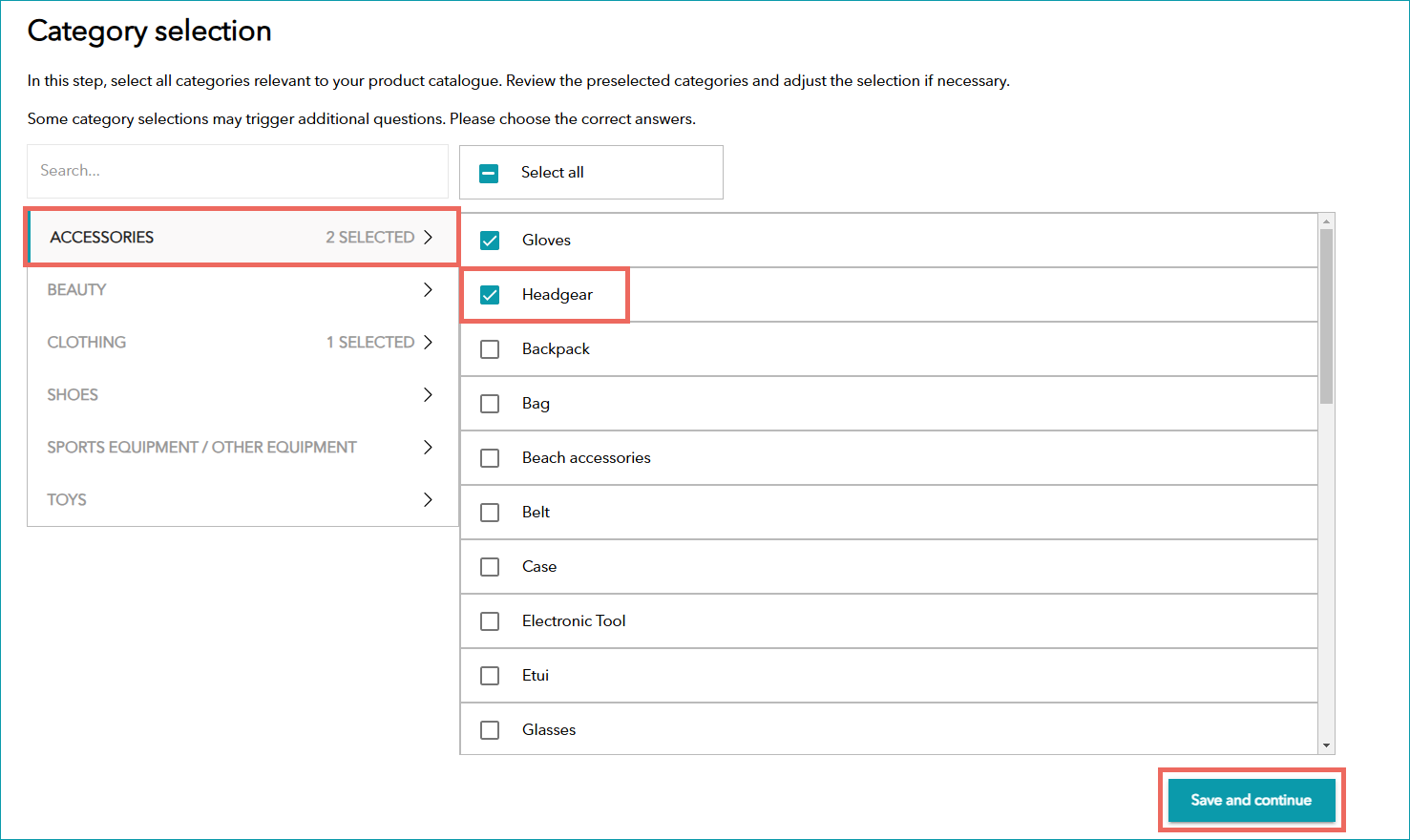 Fig. 5: Selecting product categories in the Import Wizard
3.The Import Wizard automatically maps all existing columns to the mandatory columns (see Fig 6). You can manually map missing mandatory columns if they are included in your file. Recommended and optional columns can also be added.
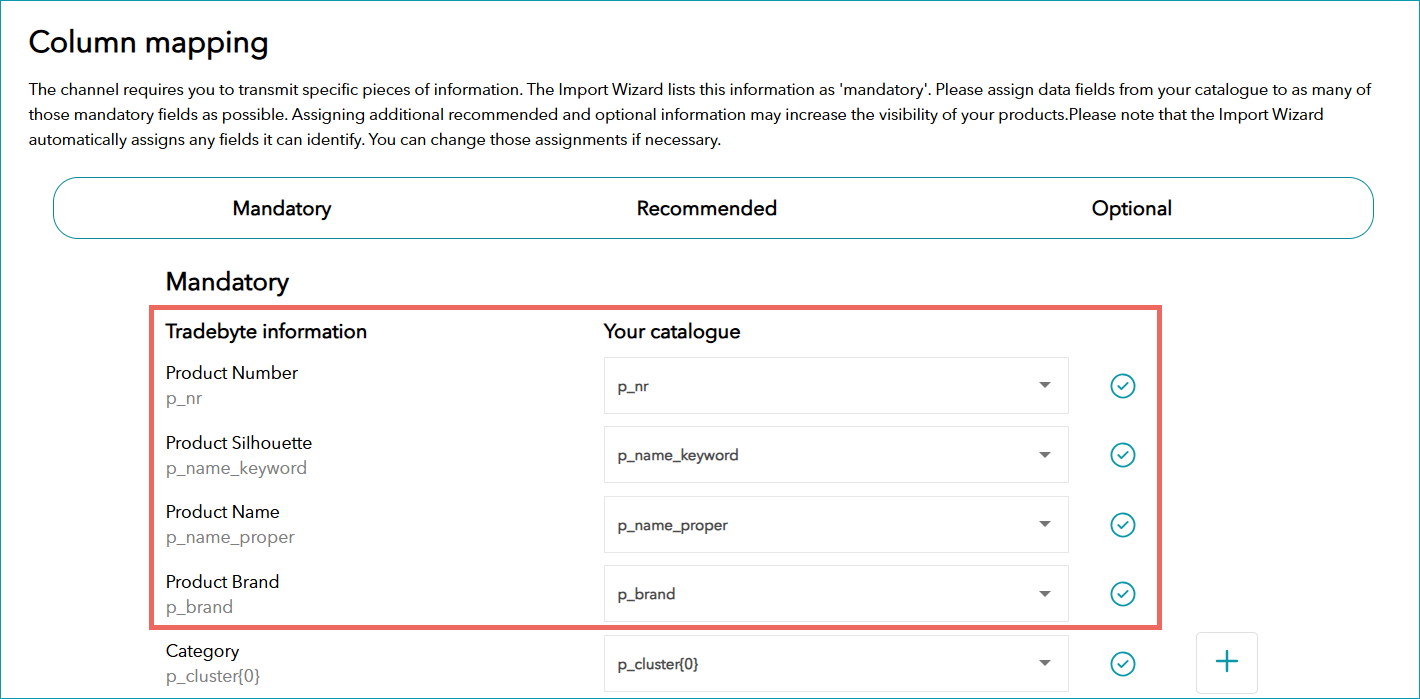 Fig. 6: Mapping columns in the Import Wizard
After processing your file, the Import Wizard will create a status report to flag errors and missing data. Check which mandatory fields are missing or contain errors. The dashboard allows you to directly adjust incorrect data. Hover over the red fields to display the error message. Adjust the data accordingly and confirm the changes by clicking on "Update" (see Fig. 7):
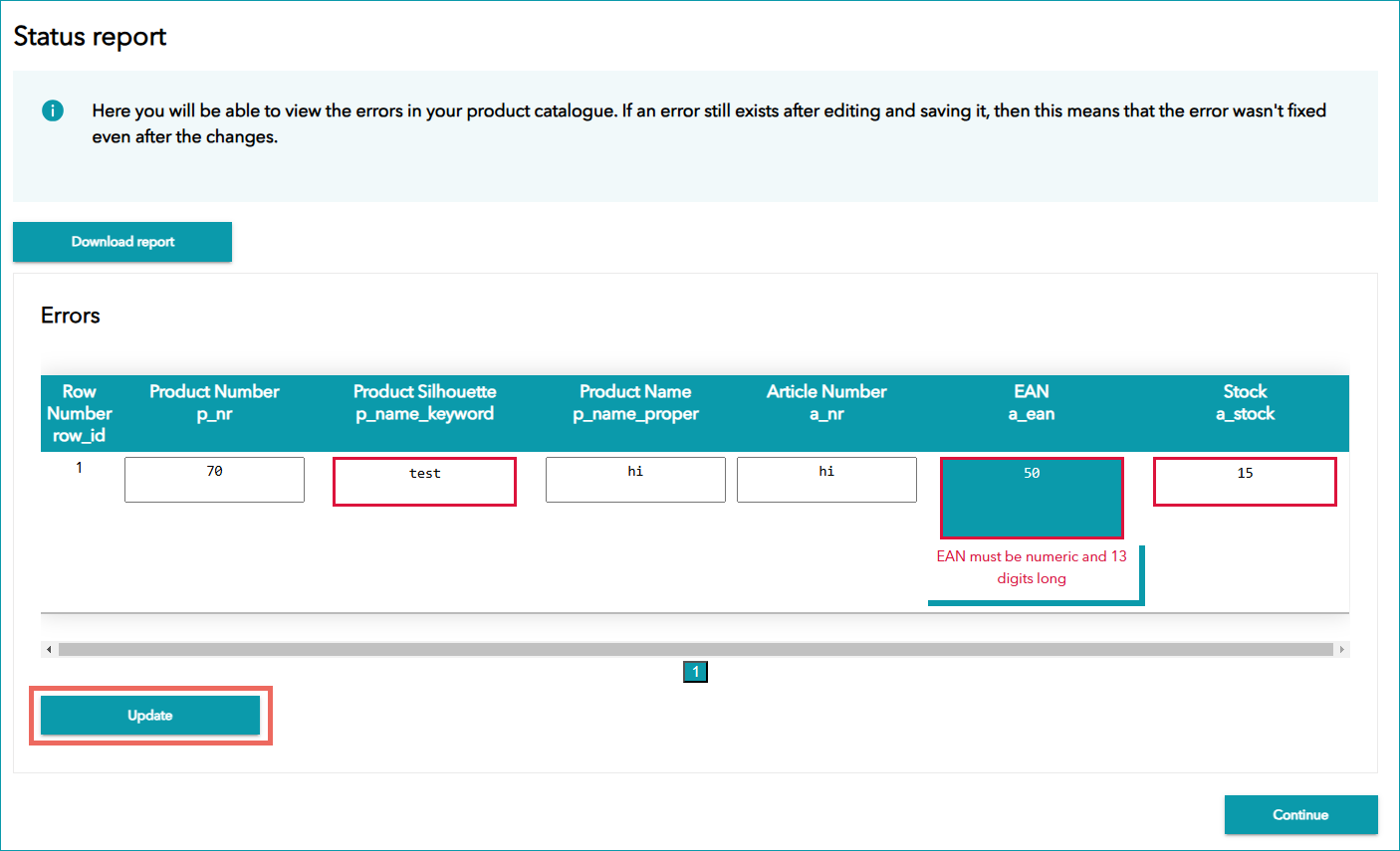 Fig. 7: Example of a status report with errors found in a product catalogue
If the report contains a lot of errors, it may be useful to download the status report and review your data (see Fig. 8):
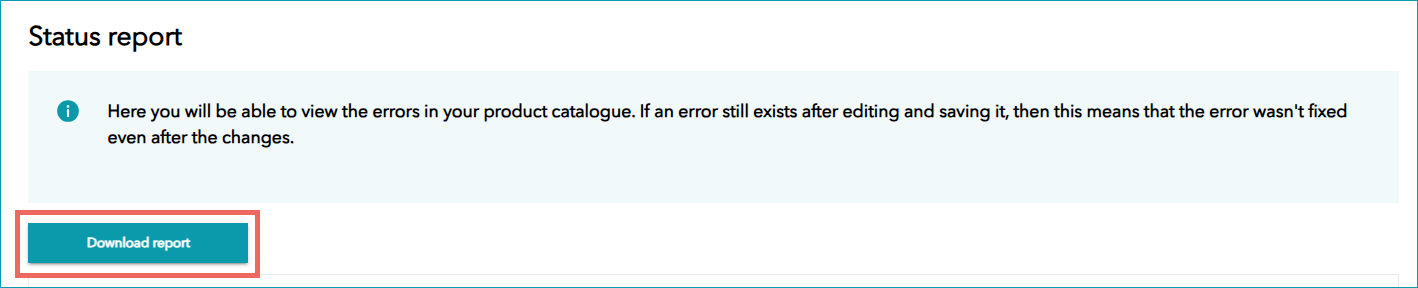 Fig. 8: Downloading a status report in the Import Wizard
The status report shows you in which row an error occurs. Correct the incorrect or missing data in the PANDA file and re-upload the updated file.
If your file looks good, click "Continue" to download your file (see Fig. 9):
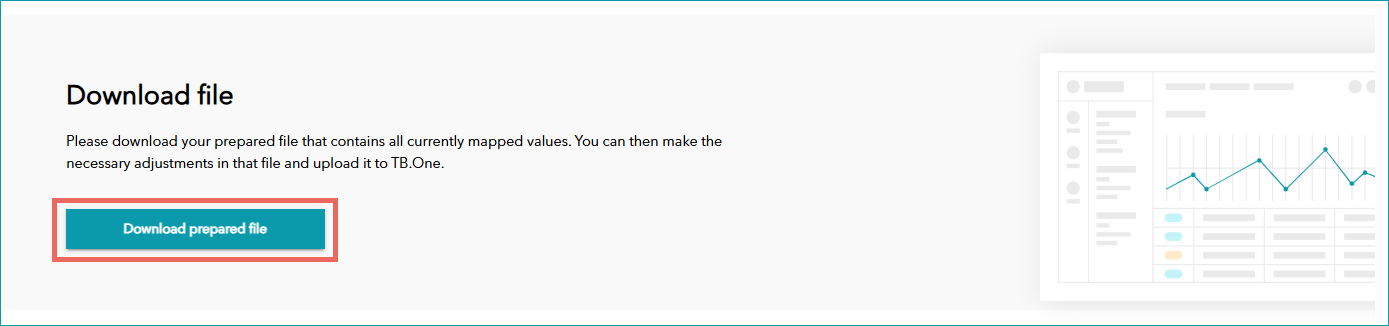 Fig.9: Downloading the prepared file in the Import Wizard
|