TB.One > Value Mapping > The Value Mapping Process > Value Mapping Step 1: Category List
Value Mapping Step 1: Category List
This page describes the left column in the value mapping menu at "Channels > [Channel name] > Value mapping". An overview of the value mapping process can be found here.
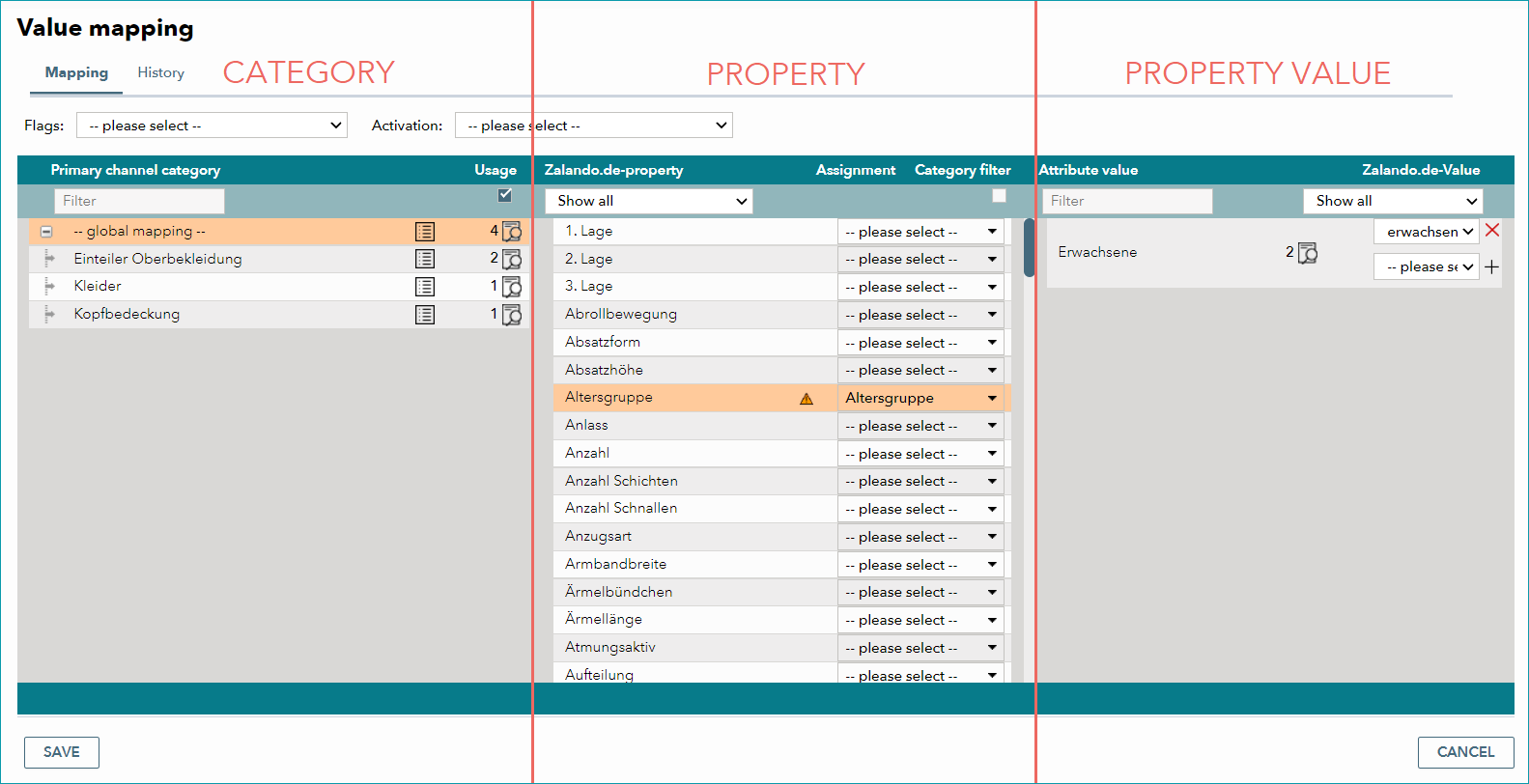
If active products were assigned to a category for the channel, you will see a list of the available channel categories (product types, commodity groups, etc.) in the left column. By default, this list only shows categories that are currently in use. By removing the checkmark form the box "Usage" at the top, you can additionally display categories that you currently do not use. With the text box underneath the header titled "Primary category" you can search for categories that contain a specific text. At this stage in the value mapping, the columns in the middle and on the right are still empty.
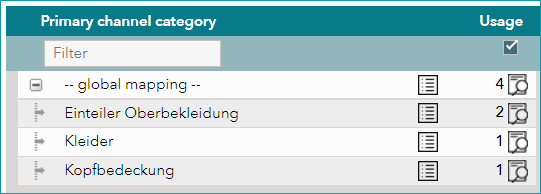
In addition to the channel categories, some channels also provide the option "-- Global mapping --". You can use this option to save time by implementing the mapping for all categories simultaneously. Global mapping is only available if the categories of the channel in question differ little (or not at all) regarding the mapping. In this case, only exceptions to the global (i.e. cross-category) mapping are defined at the category level. The individual channel categories are subsumed under the global mapping and can be displayed by clicking on the "+" icon.
TIP: You have entered the components "Size" for outerwear and "trouser sizes" for pants, because the values are very different. You could map your component "Size" to the channel component of the "Size" and then switch to "trousers" category to assign the deviating trouser sizes to your "trouser sizes" component. |
ATTENTION: |
Each row contains a list icon ( ). Clicking this icon will open an overview of the channel-specific characteristics, including default values (where applicable).
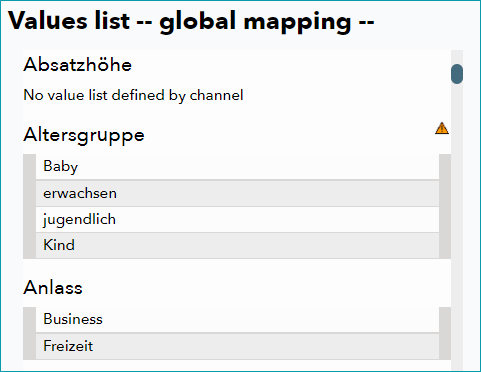
With this list, you can identify and evaluate the channel's requirements before you begin the mapping process. This will help you focus on the most important aspects of the value mapping.
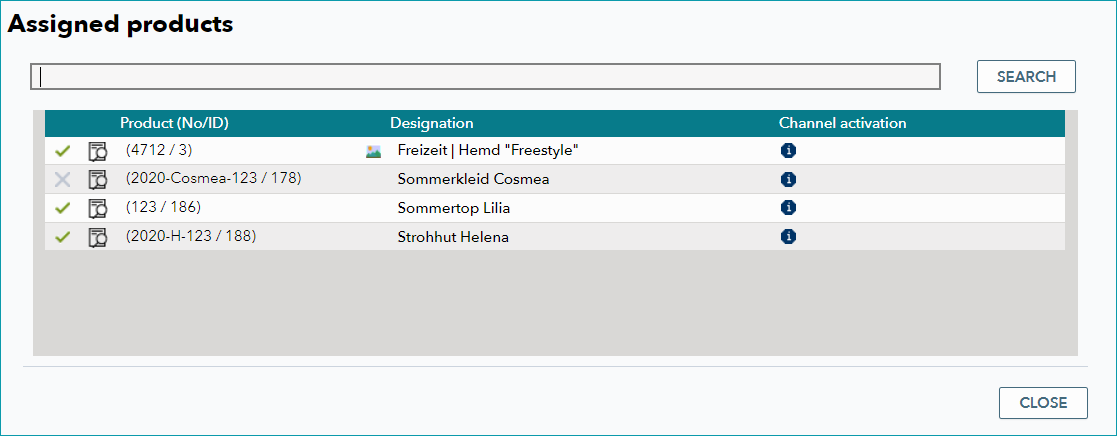
At the end of each row, the number of products assigned to this category is displayed in the column "Usage". By clicking on the magnifying glass icon ( ), you can open a list that displays all assigned products.
TIP: |
For further information, see also: