The structure of the new smart mapping menu differs from the old TB.One value mapping. It moves away from the three-column mapping table towards a, more intuitive graphical user interface:
The value mapping menu is now separated between the category selection and two columns, in which you will map properties and values in three easy steps.
 The channel categories are chosen first.
 The properties: All available channel properties available in this category are displayed. Assign your own properties.
 The property values: Here, you match your property values to the channel's values. Choose the appropriate channel values from the drop-down menus.
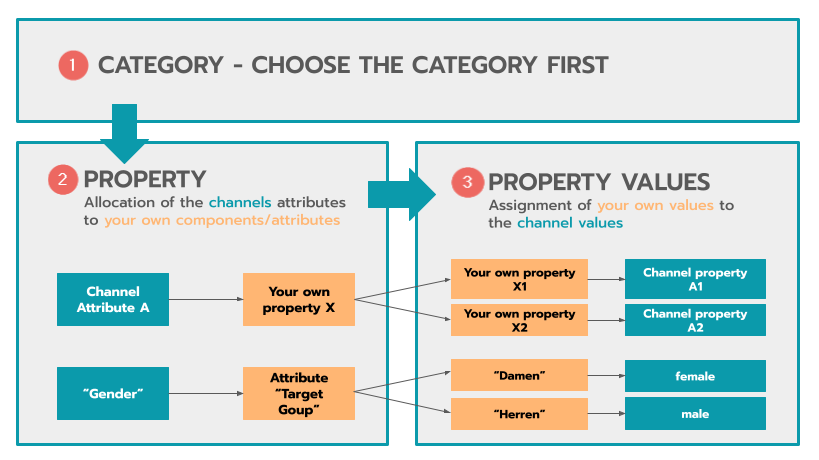
Fig. 1. The smart mapping process
How to smart map
Open "Channels > [Your channel] > Smart Mapping". Follow the instructions on the screen to map your values in three easy steps.
TIP: How "Map with AI" works •Smart Mapping will not suggest any properties for channel assignment. • •Complete the mapping of your product data to the channel's properties before you start the smart mapping via |
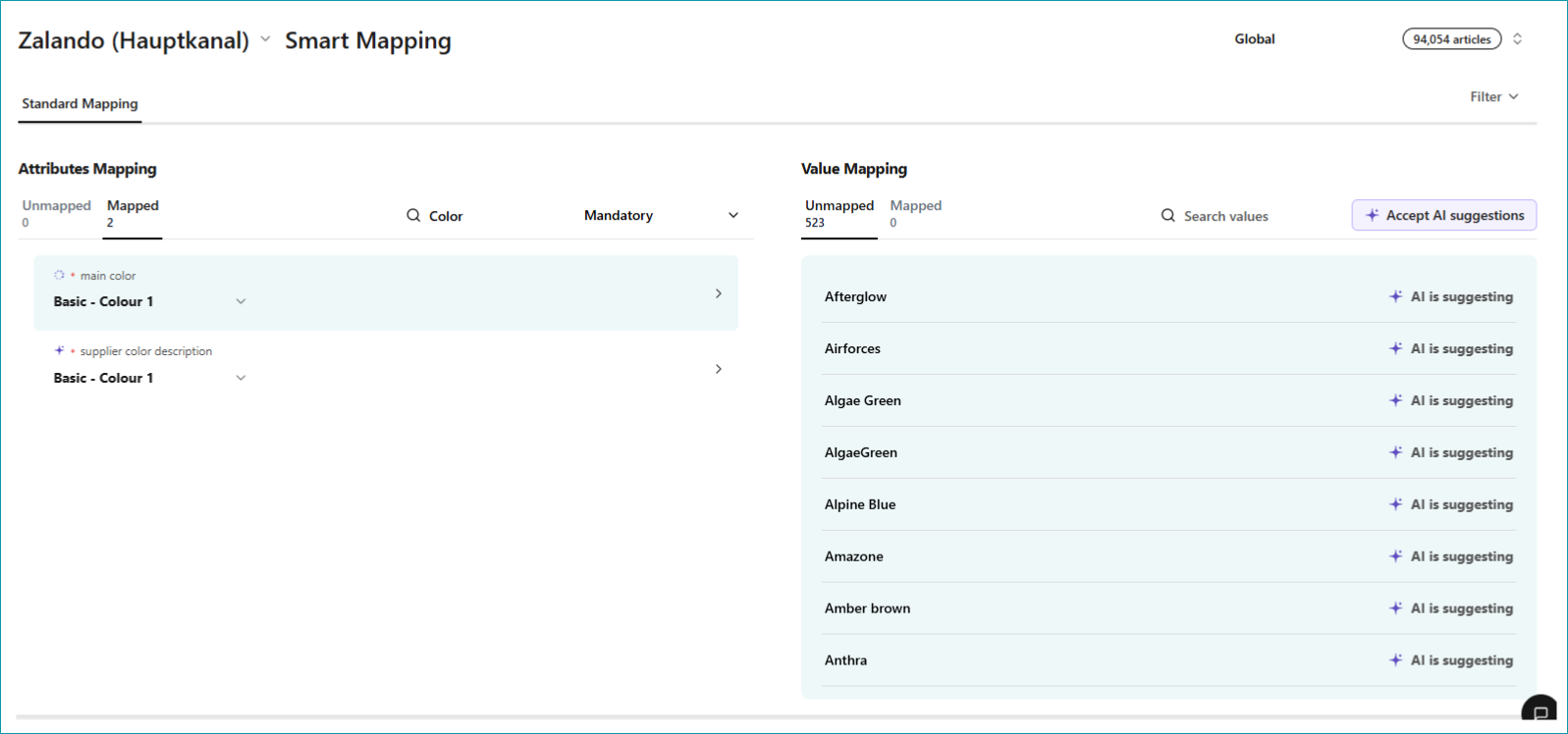
Fig.2: The Smart Mapping Screen
Fig.2: The Smart Mapping Screen
Step 1: Select a channel, category or the global mapping
Select either the category or the global mapping. You can also switch between channels, for which you want to do your mapping. You will then see the availability of channel properties and associated mappings.
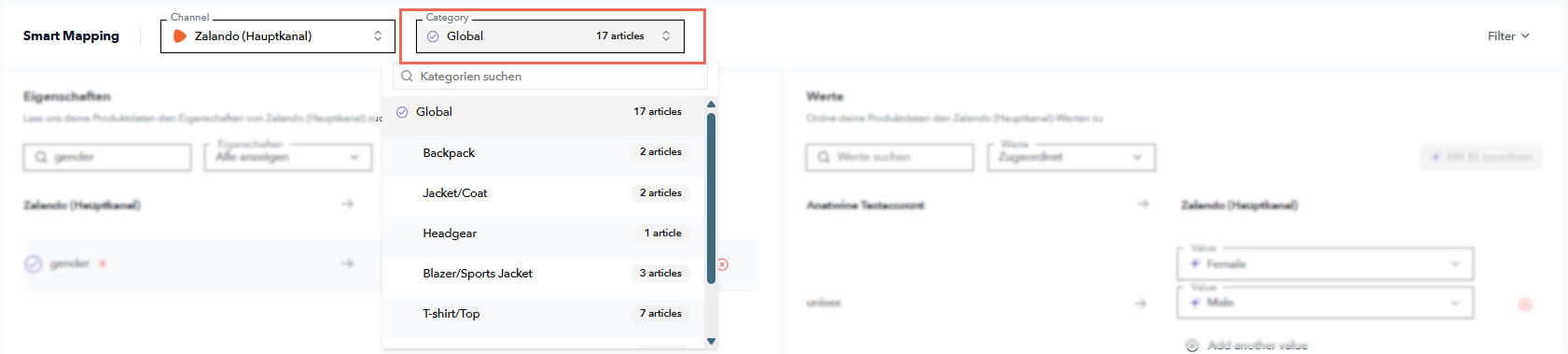
Fig.3: How to select global mapping or a specific category
TIP: Keep in mind: If you switch between channels, the page will take some time to reload. |

Fig. 4. Filter for active articles or display keys
Open the "Filter" to activate the toggle to
•display active article on the channel.
•switch between channel's property names and keys.
Step 2: Match your product data to channel properties
TIP: See the mapping status at a glance
|
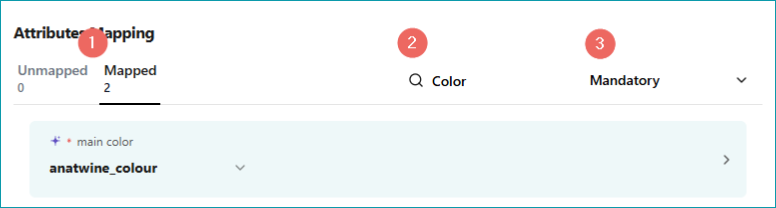
Select a channel property:
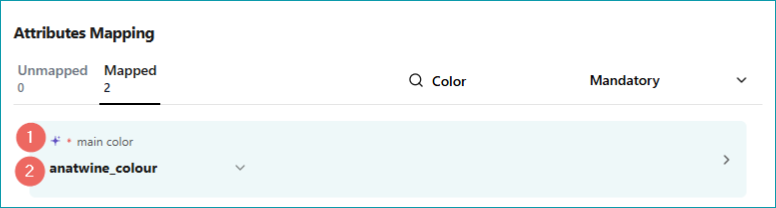
Fig.6: How to match your data to the channel's properties
Match the channel property to your product data. Smart mapping will automatically suggest properties where smart mapping is available:
The channel's properties.  indicates that
  is available for this property's value.
Tip: Map your properties manually first. Only then you can click on and it will take you to Step 3 to match your product data to channel values and to review the generated AI suggestions.
Your attribute/component that is mapped to the channel property. Click on the "x" to delete the existing mapping of your product data to that specific channel property.
Step 3: Matching your product data to channel values
You have selected a property. Continue with mapping your property values.
To use smart mapping, click on "Map with AI" . This may take some time until all suggestions have been generated. Refresh the page, if necessary.
TIP: Map with AI •The "Map with AI" button will be grayed out, if you have selected a channel property where the feature is not enabled. Selected properties are highlighted in light grey. •Mappings marked with |
Step 4: Accept/decline suggestions and save settings
You can now start to review your suggestions and make changes to the suggested assignments. Delete an assignment by clicking the red X-Button.
Alternatively, reject or decline the suggestions made by AI:
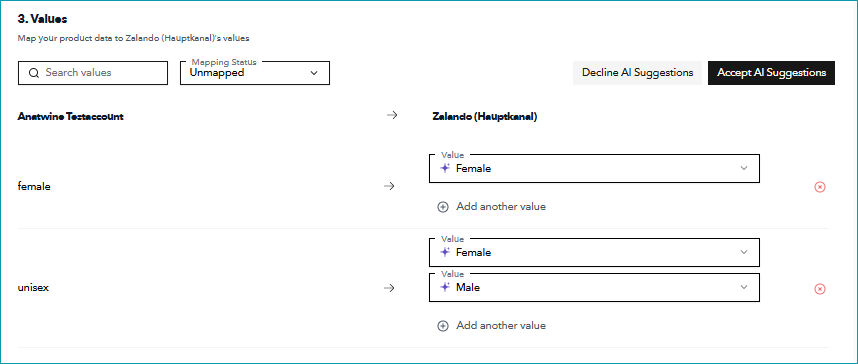
Fig.8: Accept/Decline AI suggestions
You have now finished reviewing and accepting your suggestions.