TB.One > Media > Providing and Managing Media via Import > Import Settings for Updating/Deleting Media
Import Settings for Updating/Deleting Media
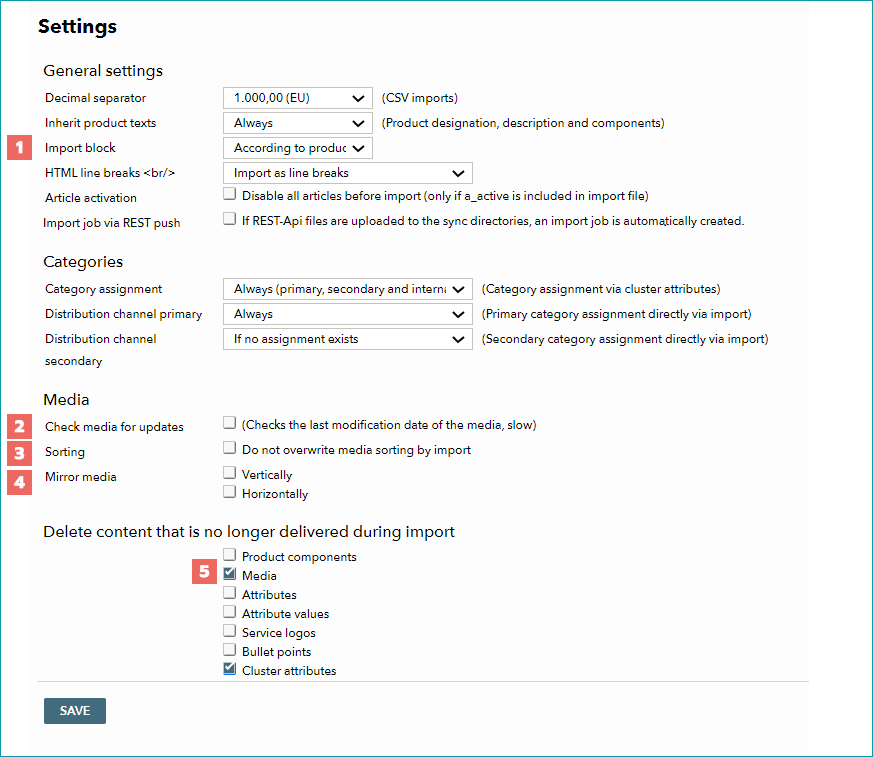
If you would like to update or delete existing media in TB.One via import, you must first check the import settings under "Admin > Import > Settings":
NO. |
EXPLANATION |
||||||||||||
|---|---|---|---|---|---|---|---|---|---|---|---|---|---|
|
Please note that the configurations for import blocks also affect the import of article images. For example, if you have set the import lock on a product and the lock is valid according to the product data, no update will take place. |
||||||||||||
|
When checking your media for updates, the timestamp of the media is checked, if the check box is active. This option makes sense if the file name and the URL of the medium have not changed. This may be the case if, for example, you save an updated image under the same file name.
|
||||||||||||
|
You can decide which system is in charge of the media sorting using the "Sorting" check box. When this box is checked, the order of the images on the product media tab will not be overwritten by providing a different order in the import file. If the check box is not activated (default settings), each import file determines the order of the images again and is therefore the system in charge of sorting. |
||||||||||||
|
"Mirror media" allows you to mirror media automatically at one axis if the channel requires this, without having to create new images. |
||||||||||||
|
Specify whether media that are no longer delivered should be automatically deleted if they are no longer contained in the import file. In this case, however, at least the node itself must be delivered. If this setting is set for the media and you wish to add more media to the existing ones, you must include all previously supplied media plus the one(s) to be added. If the data of a product contains fewer media than the last product data catalogue, the no longer provided values are deleted. The following applies for an activated check box:
|


