1. How it works & Requirements
Use the ASIN (Amazon Standard Identification Number) to add an article to an existing listing in the Amazon shop. Match an ASIN in TB.One, accept the ASIN, and start selling the article immediately.
You'll benefit from:
•fast onboarding of your articles on Amazon
•minimal manual effort for the ASIN Match
•up-to-date overview of your articles' match status
TIP: |
Requirements
•Channel-SPECIFIC ARTICLE ACTIVATION
Activate your articles for the channel "Amazon.xy Mapping". This is an interim channel used for the migration to the new Amazon Listing API. It will be merged with the standard Amazon channels later this year.
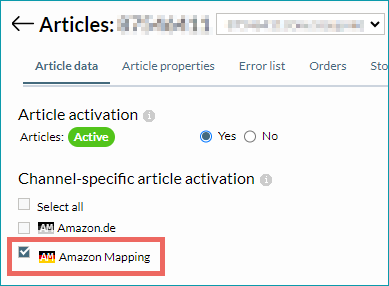
•PRICE AND STOCK DATA
Store the prices and stock for your articles at the standard Amazon.xy channels (not the "Mapping" channels). The warehouse settings ("Basic data > Storage > Warehouse settings") for the standard channels and the mapping channels must be identical.
•ASSIGNMENT BASE FOR SHIPPING TEMPLATES
If you manage shipping settings via TB.One:
Send your Tradebyte contact the shipping template ID from SellerCentral if you have configured it in TB.One under “Channels > Amazon.xy > Settings”, section "Name of the shipping template".
If you manage your shipping templates directly in the SellerCentral:
No further action is required.
2. The ASIN match menu in TB.One
Go to "Channels > Amazon.xy > ASIN Match".
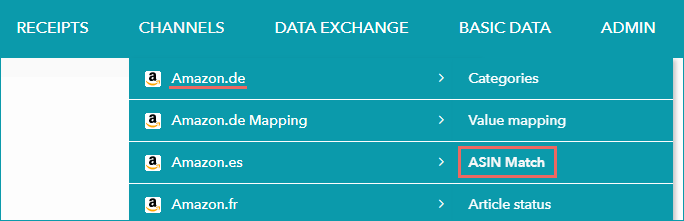
The ASIN Match table lists all articles available in TB.One that are activated for this Amazon channel.
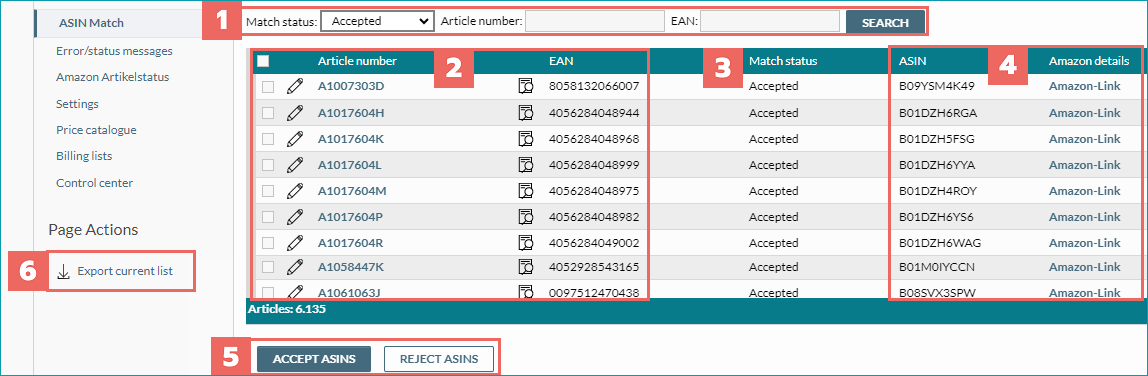
Number |
Description |
|---|---|
|
Filter options •"Match status"
•Accepted
▪Rejected
•Action required Alternative: Request the additional feature ASIN Auto-Match to accept ASINs automatically if only one ASIN is available for an article.
•Not available 1.The article has not been activated for the Amazon.xy Mapping channel yet. 2.The Article is active, the ASIN match process at Amazon is not yet complete. 3.The Article is active, but no ASIN could be found for this EAN; a new listing will be created automatically if your TB.One product data is valid (value mapping required).
▪"Article number": Enter an article number (or part of it) to search for an article. ▪"EAN": Enter an EAN (or part of it) to search for an article. |
|
•All articles available in TB.One are listed with their article number and EAN. •Select one or more articles by selecting the checkboxes next to the article numbers. •Select all articles by selecting the checkbox in the header. •Click on an article number to access the article data. •Click on an EAN to open the menu section "ASIN proposals" (you can also click on a match status or an ASIN to open it). |
|
Current match status of each individual article. |
|
ASIN(s) and link(s) to the article detail page in the Amazon shop provided by Amazon. |
|
Buttons for accepting or rejecting the selected ASINs. |
|
Select this page action to download the table as a CSV file and evaluate it in your spreadsheet app |


3. Step-by-Step Guide ASIN match
1. Prepare your article data
Make sure your articles are activated for Amazon.xy Mapping. Prices and stock are taken over from the standard (non-mapping) channels.
2. Open the ASIN Match menu
Go to "Channels > Amazon.xy > ASIN Match".
ATTENTION: |
3. Filter the ASIN Match table
To view all articles for which you need to accept or reject ASINs at a glance, set the "Match status" filter drop-down to "Action required".
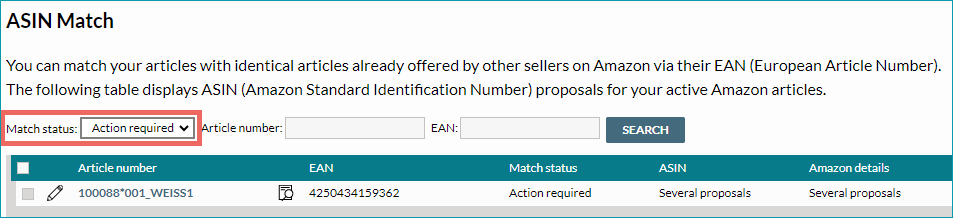
4. Select an article
Click on the article's EAN or match status to open the menu section "ASIN proposals".
5. Menu section "ASIN proposals"
Here, you will find an overview of the ASINs available for your article at Amazon, with additional information such as "Amazon-Item-Name", etc.
Refer to the status information next to the ASIN:
•"Not proposed by Amazon"
oASIN has been stored at your article as the channel article number (a_nr_channel) but is not available at Amazon.
•"From your Amazon Seller Central"
oASIN is already live in your Amazon Seller Central account.
6. Check ASIN via Amazon link
Click on "Amazon-Link" to access the article detail page at the Amazon marketplace and review the available listing.
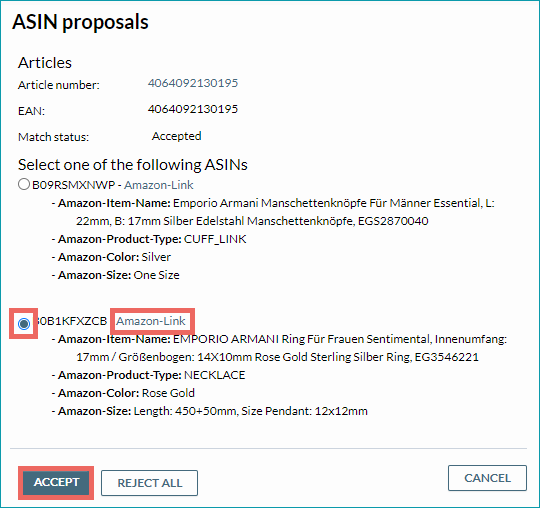
6. Accept or reject ASIN proposal
a) One proposed ASIN
Select "Accept" if the ASIN is a match.
Select "Reject" if the ASIN does not match your article. TB.One will then create a listing with your product data (value mapping required).
b) Multiple proposed ASINs
Select an ASIN in the menu section "ASIN proposals". Confirm your selection via "Accept".
If none of the ASINs match your article, select "Reject all". You can also cancel the process.
4. ASIN Auto-Match
ASINs will always be automatically accepted if
•the ASIN is stored as the channel article number for your article and is already assigned to the EAN on Amazon.
•the ASIN is already live in your Amazon Seller Central.
In addition, you can use the "ASIN Auto-Match" feature. This comes into play when there is a single ASIN available at Amazon for the EAN of an article. It will be automatically accepted. You will no longer need to check the Amazon article detail page and actively accept the ASIN.
ATTENTION: ASIN Auto-Match is an additional feature that needs to be activated for your TB.One. Contact Tradebyte Support if you'd like to use it |