The Business Policies for eBay replace the TB.One Shipping, Return and Payment settings. When you use business policies, you retrieve information on payment, return and shipping policies directly from eBay and reference them in TB.One with an ID. Therefore you are no longer obligated to provide e.g. shipping costs or return instructions manually. Instead, receive and display the corresponding guidelines for all your live listings by using the automatic referencing with an ID.
Business Policy Activation
To install the automatic allocation to the Business Policies in your TB.One, you must activate them in your eBay account first . After successful activation, a new menu option appears on eBay accessible via “My eBay > Sell > Business Policies“. Default conditions will be assigned to your active listings. You can delete or edit them later on.

Fig.1: Where to find the Policy ID
You will find the policy ID in the URL accessing the editing window of the overall conditions. You need the ID number, which you see in the red frame above (see Fig.1). Copy the number from the URL to paste it in the corresponding window in TB.One (see below). At the moment it is only possible to access the ID via the URL.
Integration of Business Policies in TB.One
TIP: |
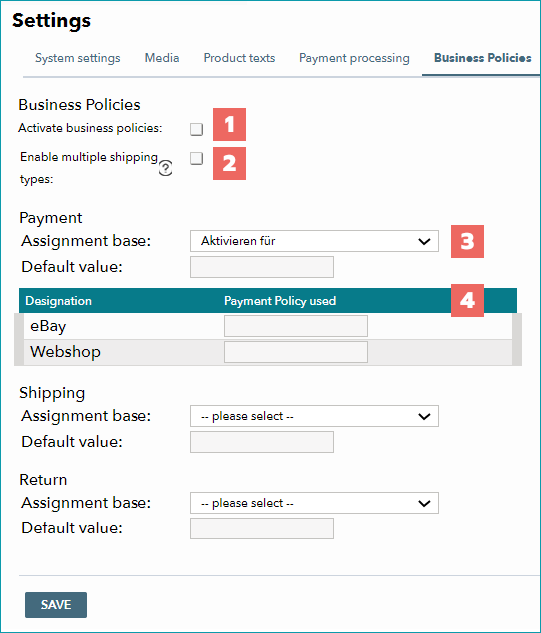
Fig.2: Business policy settings
No. |
Setting description |
|---|---|
|
After filling in the fields "Payment", "Shipping" and "Return" (below), check the box "Business Policies" to activate them. |
|
You can assign multiple shipping types to one listing in eBay's backend. Here, you can activate this option and then retrieve the shipping type selected by the buyer in your order export (via CSV or XML) under "Data Exchange > Directories > Output" or via SFTP in the "out" directory. The shipping type information will also be available in the order data which you can access via the order list ("Orders > Order list"), on the tab "Consignee & Positions". |
|
Under "Assignment base, select a global property based on which you want to assign the policy. This should be a property that exists on as many products as possible (we recommend using the property "Brand"). |
|
Input the ID as the "Default value". The ID is copied automatically to the lower fields which are connected via the "Assignment base". If necessary, you can use the fields in the table to input separate IDs for the different values of the assignment base that exist in your product data. |


