This guide shows you how to include the xsellerpro template in TB.One for eBay.
How to add the xsellerpro template to TB.One
To add the template created by xsellerpro to TB.One, you can:
•Add it to an existing and activated eBay template, or
•Create a new template and activate it for the export to eBay in the channel settings.
Add the xsellerpro template to an existing eBay template
1.Go to "Channels > eBay > Settings" and open the "Product texts" tab. Check your current assignments in the "Template assignment" section (see Fig. 1):
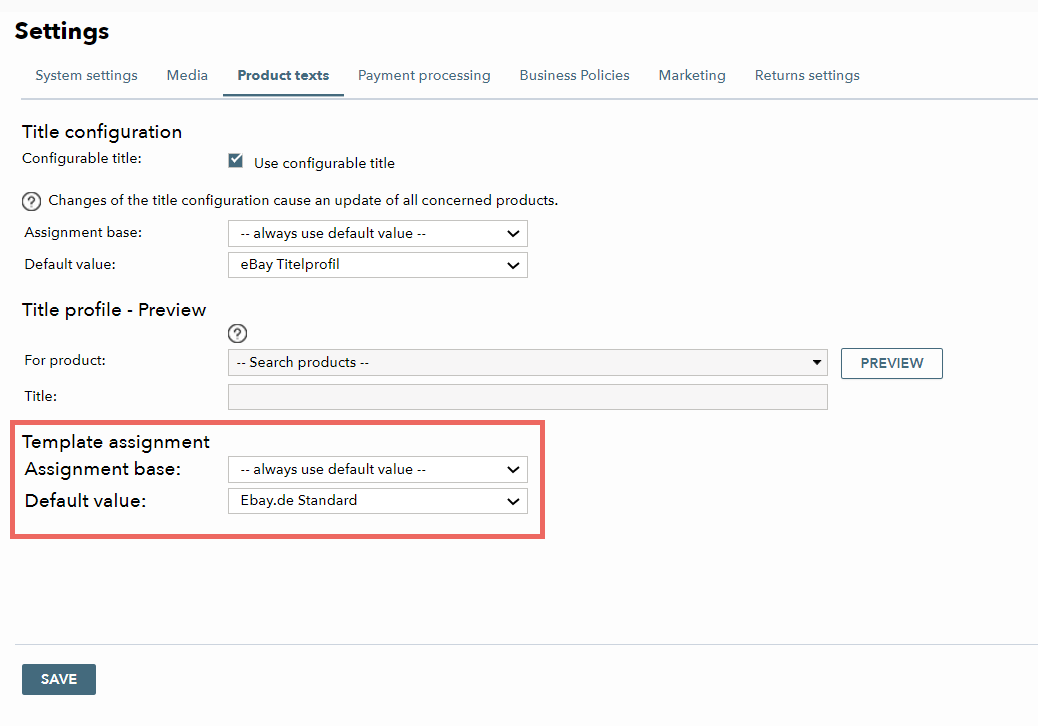
Fig. 1: Example of an existing template assignment in TB.One
2.Go "Basic data > Templates > Templates" and click on the template you want to update.
3.Paste the xsellerpro template code directly before the existing code (see Fig. 2):
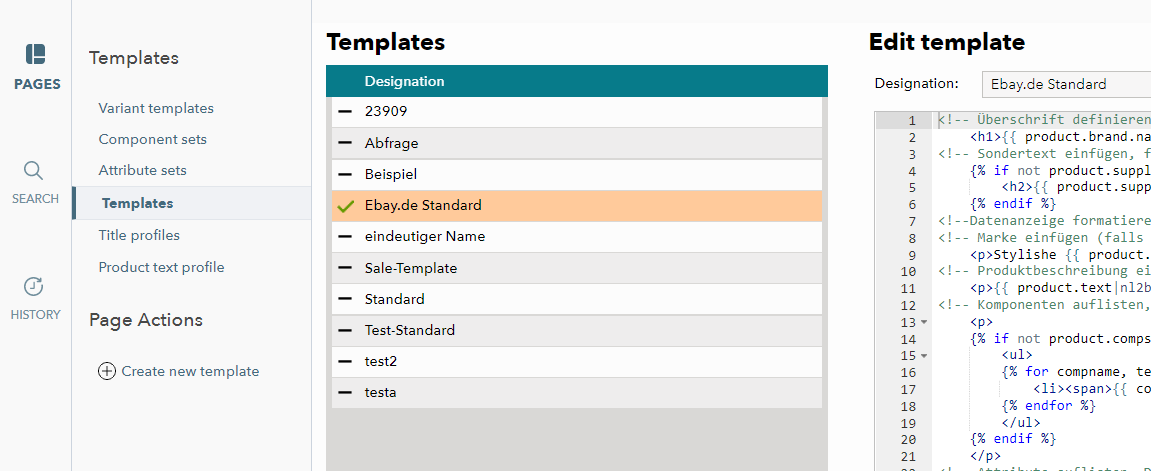
Fig. 2: Copying the xsellerpro template in "Basic Data > Templates > Templates"
4.Save your changes to confirm. During the next export, the xsellerpro template will be transferred to eBay.
Create and activate a new template for xsellerpro
1.Go to "Basic data > Templates > Templates", and click "Create new template" in the left navigation bar.
2.First, enter a designation. For the content of the template, we recommend selecting "Empty template" (see Fig. 3):
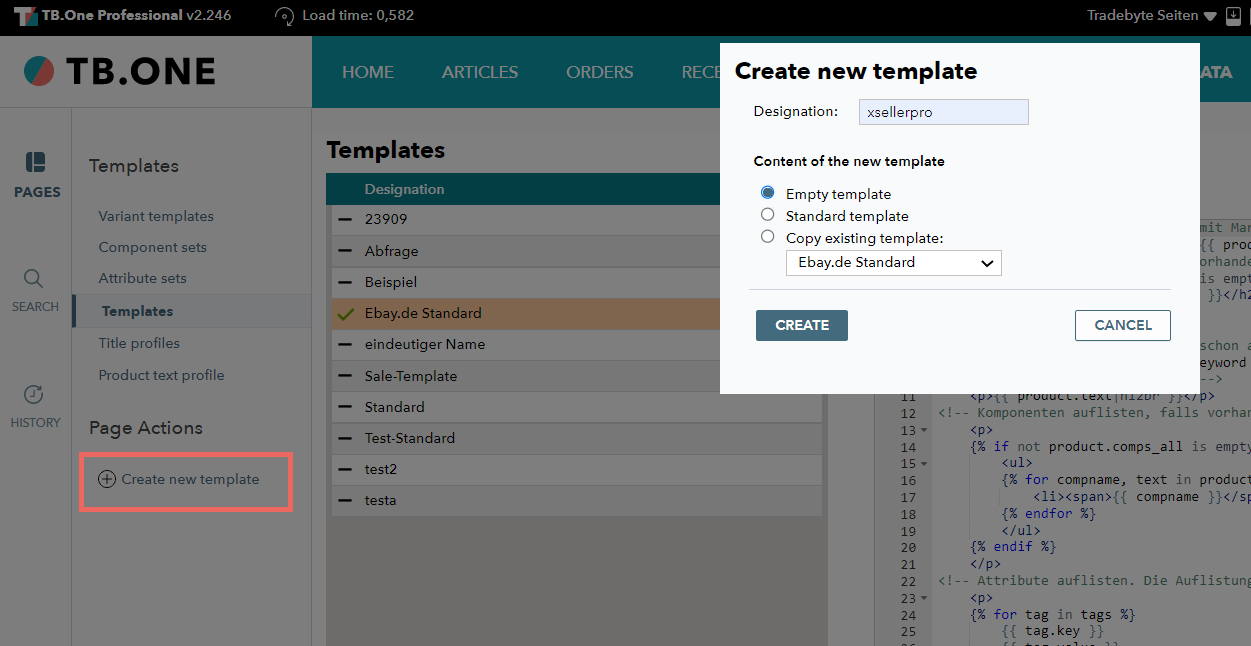
Fig. 2: Creating a new empty template in TB.One
3.After creating it, paste the copy of the xsellerpro template then click "Save".
4.Go to "Channels > eBay > Settings", and open the tab "Product texts" to activate the new template for eBay.
Once activated, the xsellerpro template will be transferred to the channel during the next export.