Marketplaces > Marketplaces A-F > eBay > eBay - Marketing Features and Promotions > eBay - Daily Deals
eBay - Daily Deals
To participate in eBay's promotional programs/sale promotions, such as the Daily Deals, you need to provide so-called Multi SKUs.
The term Multi SKU refers to a product with multiple articles that are all offered at the same price and that share an image in the product media. That image must show all of the product's variants.
1. Prepare a Media Type for Multi SKUs
Create a separate media type for Multi SKU images. This lets you export images from TB.One exclusively to eBay.
•Open the menu "Basic data > Properties > Media types" and click "Create new media type" in the left sidebar.
•Enter a name and an import key.
•Use the master media type "Bild (IMAGE)".
•Exclude all non-eBay channels from exports by selecting the respective checkboxes in the section "Don't export to".
•Save your settings.
•For optimal results, export this media type first:
oGo to "Channels > [Your eBay channel] > Settings".
oOpen the "Media" tab.
oEnter the value "10" for the new media type in the column titled "Sorting".
oEnsure all other media types have a higher value in the "Sorting" column (multiples of ten: 20, 30, 40...).
oSave your settings.
2. Add Product Images
Upload images with the newly created media type to your Multi SKU products in TB.One. They must only be assigned to the product itself, not to any of its articles.
To review whether the images were uploaded correctly:
•Go to "Articles > Product list".
•Open your product by clicking its product number or designation.
•Go to the "Media" tab.
•In the gallery, look for the Multi SKU image.
oThe Multi SKU media type created in step 1 must be selected in the drop-down menu above the preview image.
oNone of the checkboxes below the preview image may be selected (see Fig.1).
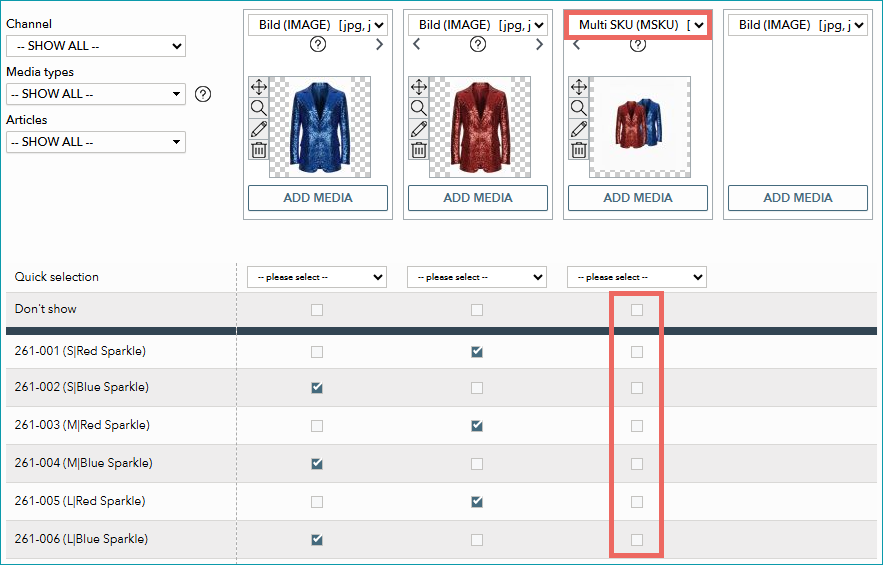
Fig.1: Select the correct media type and ensure that none of the checkboxes are selected
3. Check the Article Prices
For promotional programs/sale promotions, all of a product's articles must be priced the same. Check the prices on the "Article data" tab and adjust them, if they are not identical. It is recommended to provide either the MSRP or a "former RP" along with the current (discounted) retail price to display a strikethrough price on eBay.
4. Protect the Configurations that were Set in the eBay Backend
To participate in one of eBay's promotional programs, you must make configurations in the marketplace's backend. For detailed instructions, please see eBay's guides.
Usually, the next data export from TB.One would override these configurations.
Change your settings in TB.One to avoid this:
•Go to "Channels > [Your eBay channel] > Settings".
•Open the tab "Marketing".
•Enter the product numbers (P_NR) or IDs (P_ID) of all products which are part of a promotional program.
For the products listed on the "Marketing" tab, TB.One exports stock data only. The configurations in the eBay backend are not overwritten.
TIP: |
For further information, see also: