Marketplaces > FAQ - Marketplaces > How to Authenticate for Mirakl with oAuth
How to Authenticate for Mirakl with oAuth
Some channels require an additional verification via a secure oAuth authentication.
1. Connect Your TB.One to Mirakl
ATTENTION: •Contact your Solution Delivery Manager before you connect TB.One to Mirakl. Inform them, when you want to connect your TB.One to Mirakl. •For marketplaces that have sub-channels, you must establish the connection on sub-channel level. |
1.Prepare to connect:
•Log out of TB.One.
•Use either the Firefox or Chrome browser.
2.Follow these steps to connect TB.One to Mirakl via oAuth:
•Log into TB.One via tbone.core.tradebyte.com.
•Go to "Channels > [Your Channel] > Settings" and switch to the tab "System settings".
•Go to the section "Basic settings" and select "Login with Mirakl" (see Fig.1).
•Sign in with your Mirakl SSO credentials.
ATTENTION: |
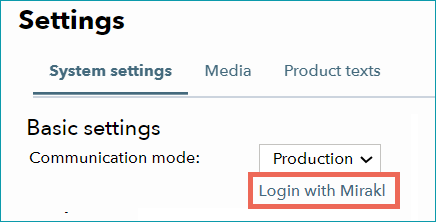
Fig.1: Sign in by clicking "Login with Mirakl"
2. Authenticate
When you first log in with SSO, you may need to grant permission to TB.One:
•Sign in to Mirakl via TB.One and enter your credentials.
•Click on "Bestätigen" (Confirm; see Fig.2) to grant permission for the connection to Tradebyte.
•Sign out of Mirakl once you are done.
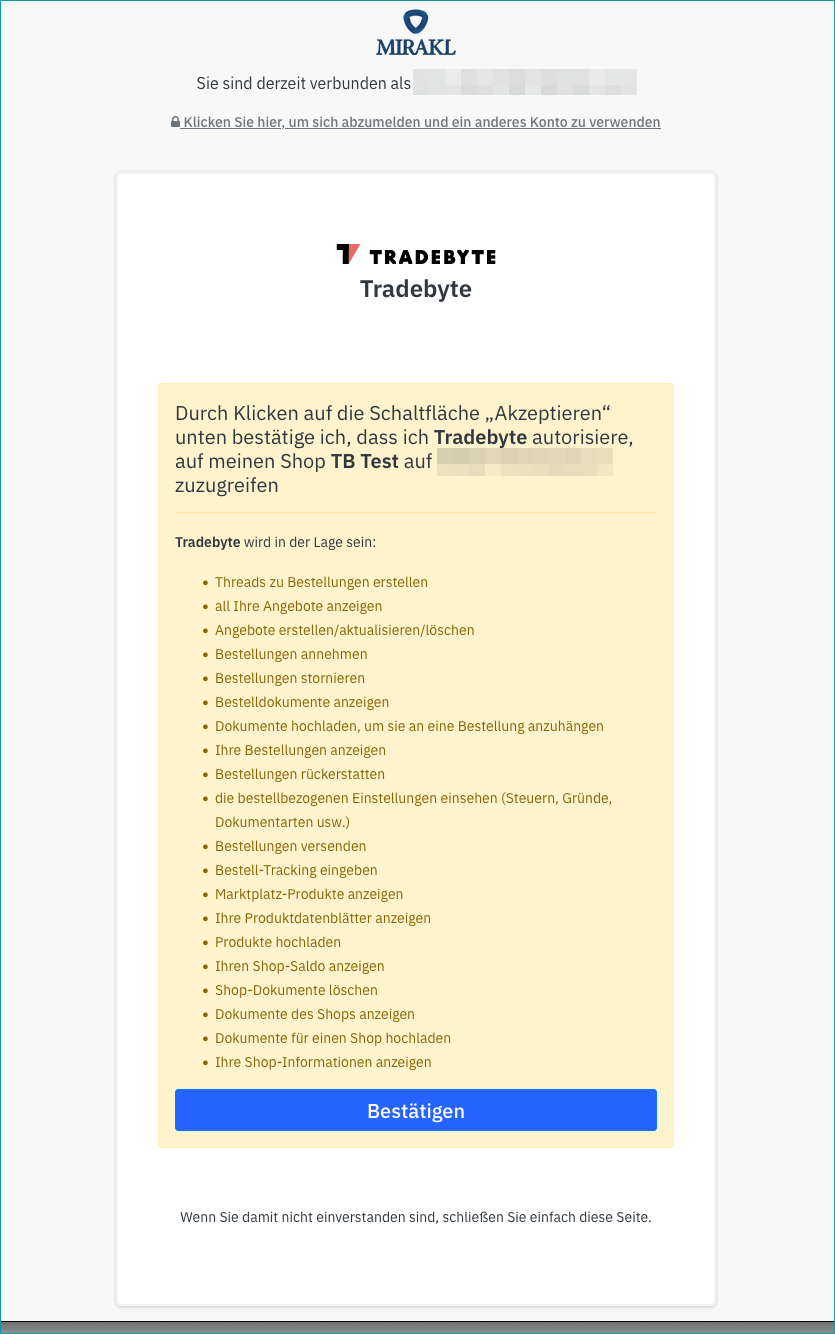
Fig.2: Authorize Tradebyte