Marketplaces > Marketplaces N-S > OTTO Market > FAQ - OTTO MARKET > OTTO Market - How to Solve "Inadmissible variant creation"
OTTO Market - How to Solve "Inadmissible variant creation"
Description
This OTTO Market error occurs when a product's variant dimension has no assignment in the value mapping.
You must assign every variant-forming TB.One property to a variant-forming OTTO Market property in the value mapping.
English: Inadmissible variant creation - "Please ensure that all variant-forming attributes are assigned in the value mapping table" German: Unzulässige Variantenbildung - "Bitte stellen Sie die Wertezuordnung aller variantenbildenden Elemente sicher." |
Solution
Ensure that all variant dimensions are mapped correctly.
1. Identify the Product's Variant Dimensions
•Go to "Articles > Product list" and open the affected product.
•Switch to the "Product data" tab and note the category assigned under "OTTO Market - Kategorienliste".
•Switch to the "Article list" tab and note down all the variant dimensions listed for the product (see Fig.1).
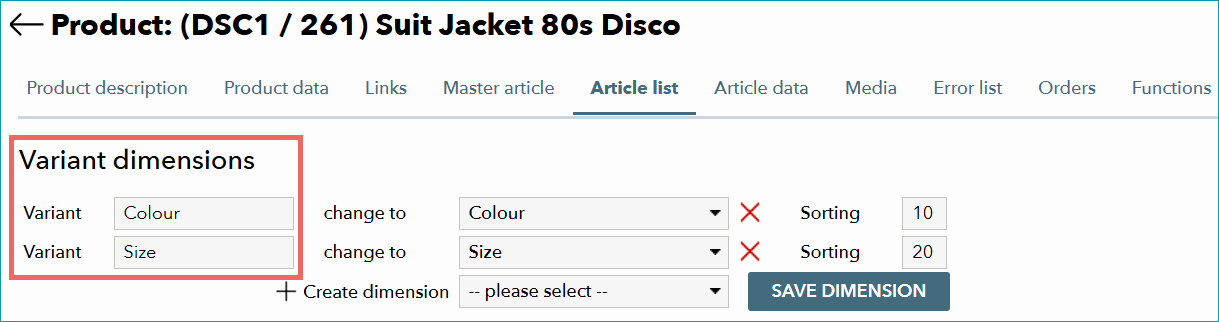
Fig.1: The product's variant dimensions.
2. Review the Product's Value Mapping
•Open the value mapping menu ("Channels > OTTO Market > Value mapping").
•In the left column, select the affected product's category.
•Filter the middle column to display only variant-forming properties (see Fig.2).
•Find which variant dimension is not assigned to a variant-forming OTTO Market property.
•Assign the missing variant dimension(s) to the matching variant-forming OTTO Market property.
•Map the variant dimension's values in the right column and save.
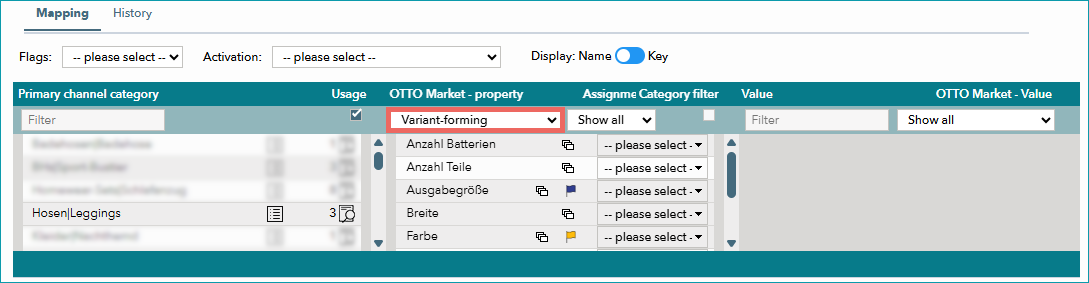
Fig.2: Filter for variant-forming properties.
Troubleshooting
If OTTO Market does not offer variant-forming properties that match your variant dimensions, choose one of the following options:
A) Remove the Variant Dimension from the Product
ATTENTION: |
•Go to the product list ("Articles > Product list").
•Open the affected product.
•Switch to the "Article list" tab.
•Under "Variant dimensions", remove the variant dimension in question by clicking  .
.
•Click "Save Dimension".
B) Block Export of the Variant Dimension
ATTENTION: Example: |
•Go to "Basic data > Properties > Components" and select the affected variant dimension.
•In the "OTTO Market Assignment" section, select "Don't export" (see Fig.3).
•Save.
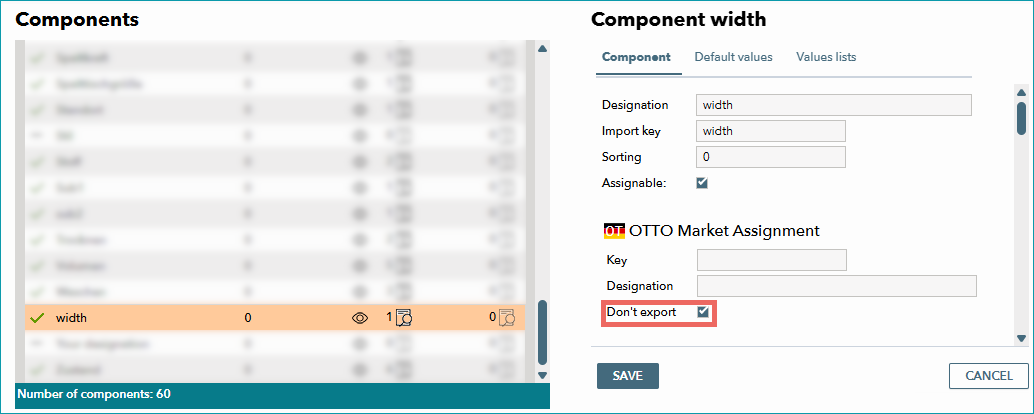
Fig.3: Blocking the export of a component for OTTO Market.
C) Create a Dedicated OTTO Market Variant Dimension
Use this option if you need the original dimension for another channel and cannot block it across all OTTO Market categories.
1. Create a New Component
•Go to "Basic data > Properties > Components".
•In the left navigation bar, click "Create new component".
•Enter a clear designation that shows this component is specifically for OTTO Market (for example "OTTO_size").
•If you import your product data from a third-party system into TB.One, enter an import key.
•Select "Don't export" for all channels except OTTO Market.
•Save.
2. Block the Old Variant Dimension
•Go to "Basic data > Properties > Components".
•Select the affected variant dimension.
•Under "OTTO Market - Assignment", select "Don't export".
•Save.
3. Add the New Component to Products as a Variant Dimension
Add the new component as a variant dimension to all products that need it. Do not add it to the product(s) that originally caused this error.
•Go to "Articles > Product list" and open each product that requires the new variant dimension.
•Switch to the "Article list" tab.
•In the "Create dimension" field, select the newly created component and click "Save dimension".
•The table in the lower section of the menu now contains an additional column for the new variant dimension. Enter the variant values here. Usually, they are identical to those from the variant dimension you use for other channels.
•Save your settings.
ATTENTION: |
4. Update the Value Mapping
Because you have blocked the component originally used for variant creation for OTTO Market, you now need to map the new component instead.
•Go to "Channels > OTTO Market > Value mapping".
•In the left column, open a category for which the blocked component is mapped.
•In the middle column, update the assignment with the newly created component.
•In the right column, map all unmapped values.
•Save.
•Repeat these steps for all categories that use the blocked component.
For further information, see also: