Marketplaces > Marketplaces N-S > OTTO Market > FAQ - OTTO MARKET > OAuth2 & Shipping profiles for OTTO Market
OAuth2 & Shipping profiles for OTTO Market
Shipping Profiles (Versandprofile) are mandatory for OTTO Market. These shipping profiles contain detailed shipping information, such as the order processing time and the days of the week on which you process orders.
The following step-by-step guide will show yo comply with these requirements, and how to:
•Install/update the OAuth2-App in TB.One.
•Create shipping profiles in OTTO Partner Connect (OPC).ye
•Assign the shipping profiles in TB.One.
Install/update the OAuth2-App in TB.One.
TIP: ▪To authenticate successfully, you require the permission "Dienstleister-Freigabe" ("Service provider approval") for the Otto Partner Connect portal. ▪Otto Partner Connect admins have this permission by default. ▪The installation and authentication of the OAuth2-app only needs to be done once by an admin with the required permissions. It is then valid for all the account's users. |
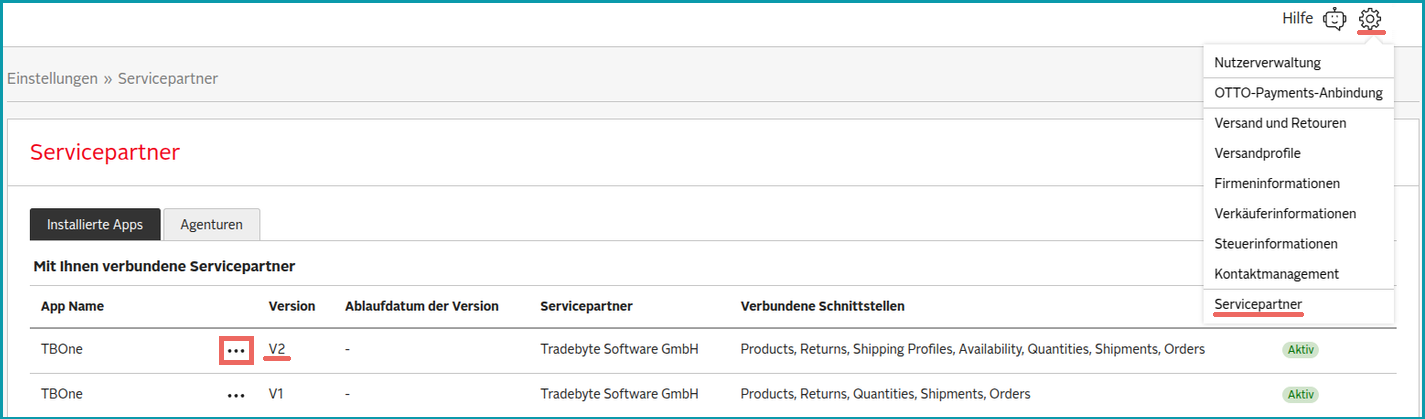
ATTENTION: 1.Log into your OPC account. Click on the gear icon in the upper right and select the menu "Servicepartner". 2.Delete the Servicepartner "TBOne V2" by clicking on the three dots and selecting "Zugriff entziehen". 3.ATTENTION: Do not delete the service partner "TBOne V1" under any circumstances.
|
Installation
Step |
Description |
|
|---|---|---|
|
Log into TB.One. |
|
|
Open the channel settings at "Channels > OTTO Market > Settings" and switch to the tab "System settings". |
|
|
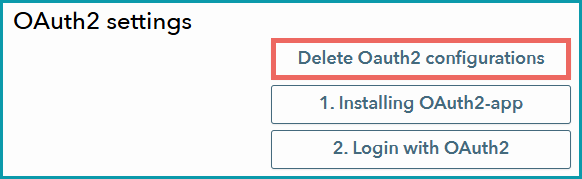
If you are reinstalling OAuth2, because a new version is available, click on "Delete Oauth2 configurations". If you're currently integrating OTTO Market this should be the first time Oauth2 is being installed for your TB.One system. In that case, you do not need to delete the configurations. |
|
|
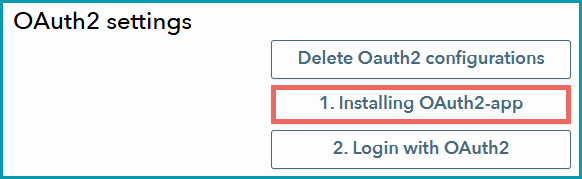
Go to the section "OAuth2 settings" and click on "1. Installing OAuth2-app". |
|
|
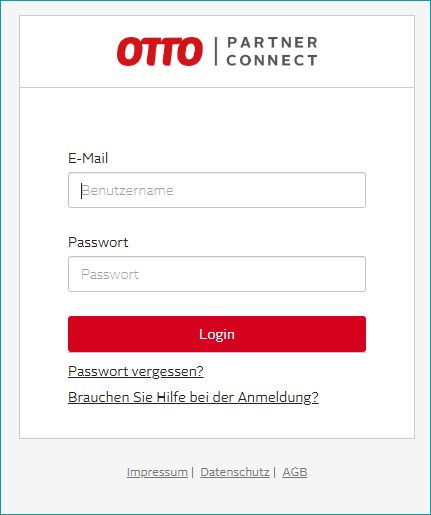
A new window will open. Log in to Otto Partner Connect with your login details. |
|
|
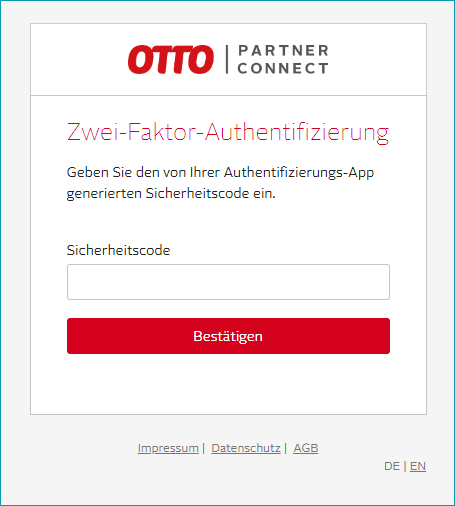
Otto Partner Connect requires multi-factor authentication. Enter your multi-factor authentication code. |
|
|
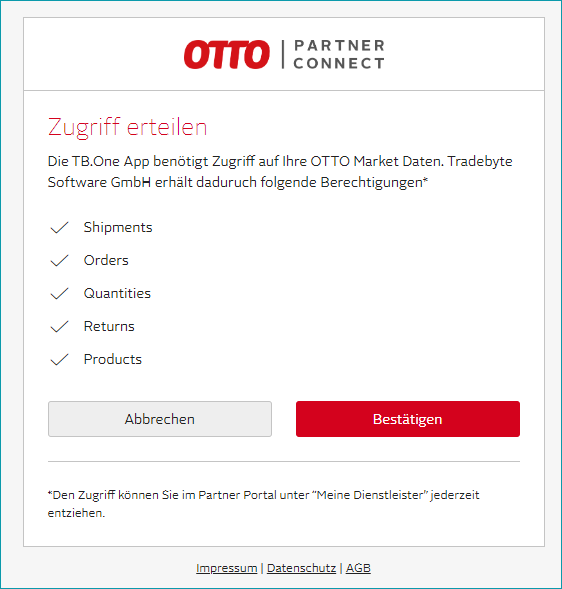
Grant TB.One access to OTTO Market by clicking on "Bestätigen". |
|
|
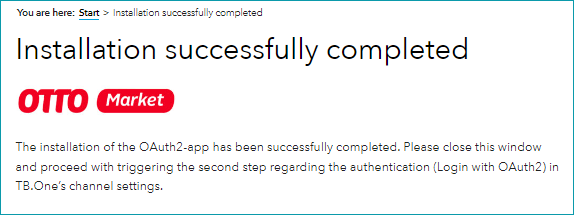
Once the OAuth2 application has been successfully installed, you will be redirected to an InfoCenter message. The message is displayed in German. Find the translation on the right. |
|
|
Open the channel settings in TB.One ("Channels > OTTO Market > Settings") and switch to the "System settings" tab. |
|
|
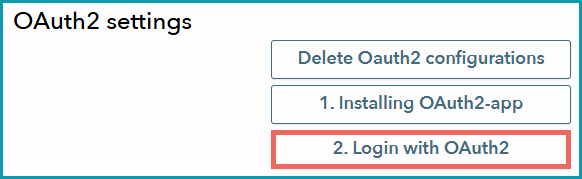
Go to the section "OAuth2 settings" and click on "2. Login with OAuth2". |
|
|
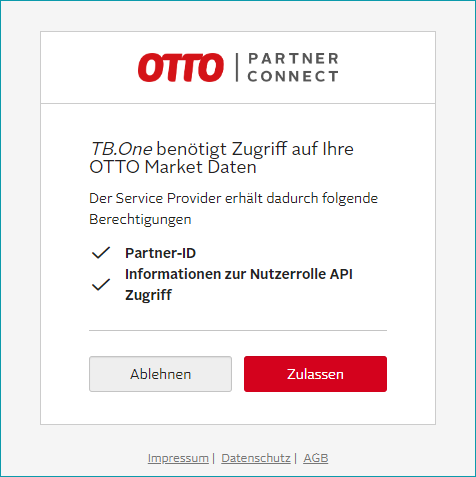
A new window will open. Click on "Zulassen" to grant the necessary permissions, close the window and return to TB.One. |
|
|
TB.One will now inform you that authorization has been granted. |
|












Verification on the OTTO Partner Connect Portal
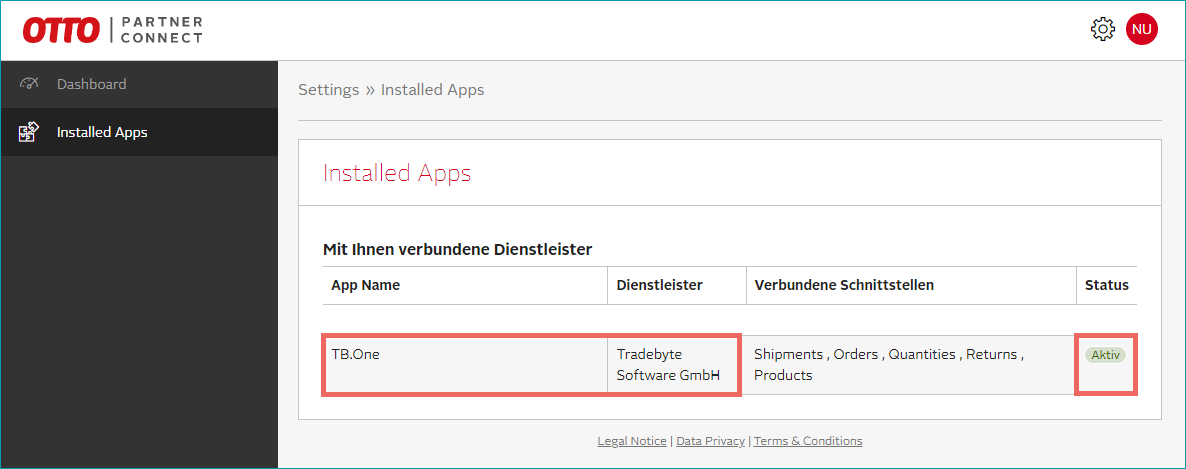
Check whether all steps have been completed in the OTTO Partner Connect portal.
TIP: •TB.One as connected service provider ("Mit Ihnen verbundene Dienstleister"). •The status "Aktiv" ("active").
|
Create Shipping Profiles in OTTO Partner Connect
1.Log into your OPC account.
2.Click on the gear icon and select "Versandprofile" ("shipping profiles").
ATTENTION: |
Step |
Description |
|---|---|
|
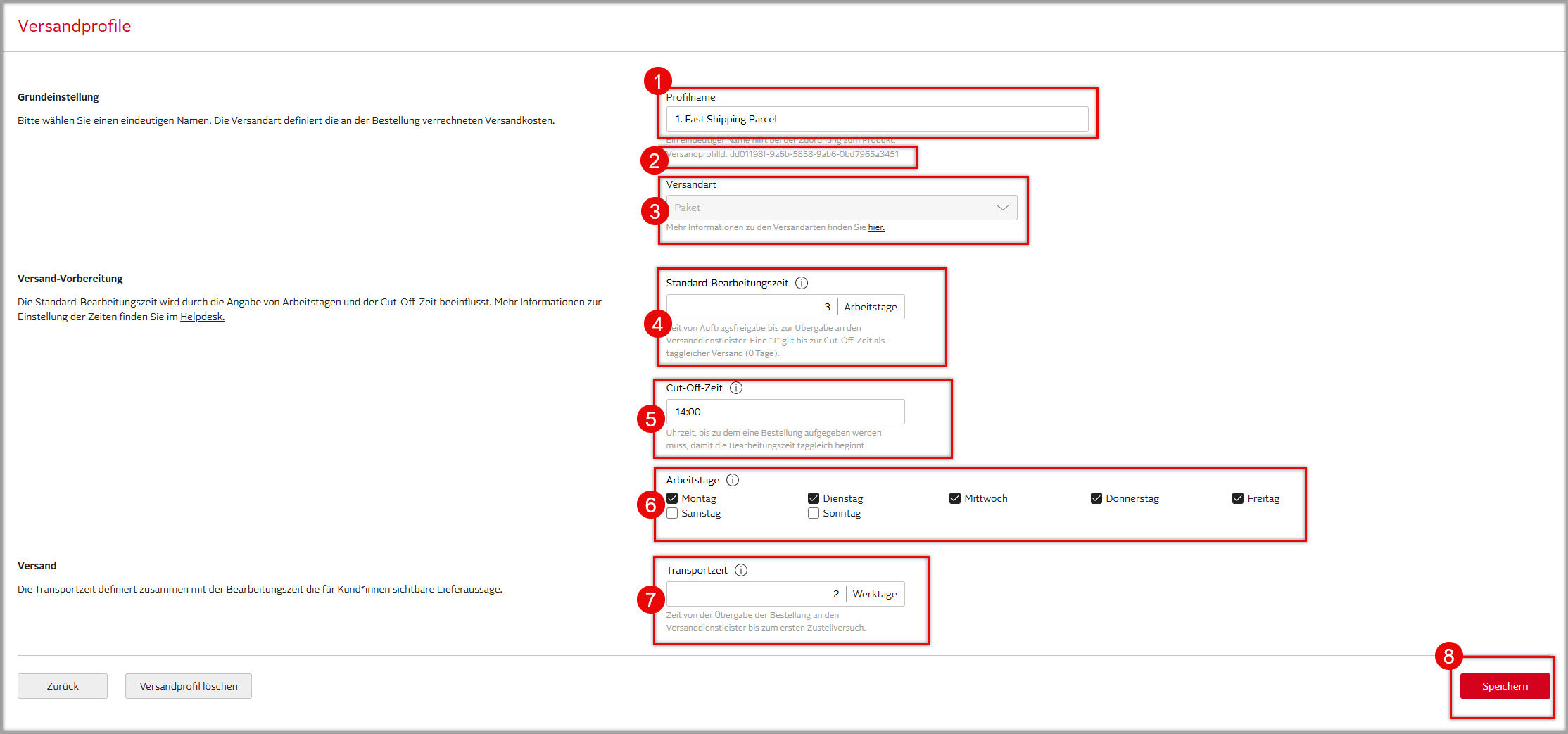
Select a unique name for your shipping profile. |
|
Your shipping profile ID (Universal Unique Identifier/UUID) is displayed here. Copy/note down this number. You will need it later. |
|
Choose the shipping type you use to ship the assigned products: a.Paket: For individual packages/parcels. b.Spedition (Wunschort): Shipping to a place of the customer's choice (e.g. their living room). c.Spedition (Grundstücksgrenze): Curbside delivery. d.Spedition (Schwerlast 40t): Shipping by 40 ton truck. You cannot change the shipping type later on. To change the shipping type, you would have to create a new shipping profile. |
|
Indicate the standard processing time. This is the time you need to hand the shipment over to the carrier. However, during exports, this value will be overwritten by the "Delivery time" value exported from TB.One. |
|
Indicate a cut-off time. For orders that come in before the cut-off time, processing must start on the same day. |
|
Indicate on which days of the week you process orders. This setting only refers to the standard processing time, not to the carrier's shipping process. |
|
Indicate the time it takes your carrier to make the first delivery attempt. |
|
Save your settings. |
Set Delivery Time Offset in TB.One
ATTENTION: •"Standard-Bearbeitungszeit": Standard processing time. The time between you receiving the order and handing it over to the carrier. This value is overwritten by the "Delivery time" from TB.One with each export. •"Transportzeit": Transit time. The time it takes the carrier to make the first attempt at delivery to the customer. Why is this problematic? The "Delivery time" in TB.One already represents the combined processing and transit time. The new calculation via shipping profiles therefore effectively doubles the transit time ("Transportzeit"). |
You can solve this issue easily in TB.One: Configure a delivery time offset for OTTO Market.
1.Open your TB.One account and go to "Basic Data > Storage > Warehouse settings".
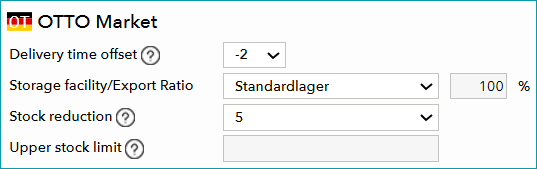
2.Go to the section for the channel OTTO Market.
3.Select a value from the drop-down menu "Delivery time offset". The value selected here indicates the number of days that will be added to or subtracted from the delivery time (depending on the +/- sign), before it is forwarded to OTTO Market.
4.Use the "Delivery time offset" to subtract a number of days equal to the "Transportzeit" from your shipping profiles. This way, the delivery time displayed at the OTTO Market shop should match the delivery time configured in TB.One.
Assign standard shipping profile
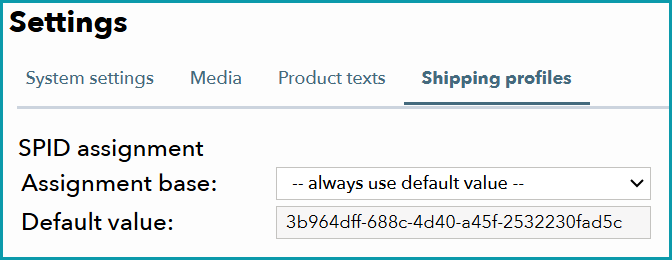
1.In TB.One, go to “Channels > OTTO Market > Settings”.
2.Switch to the tab "Shipping profiles".
3.Determine which of your shipping profiles from the OTTO Partner Connect portal is valid for most of your products, and enter its shipping profile ID (UUID) in the field "Default value".
4.Click on "Save".
TIP: |
Assign additional shipping profiles
This step is only necessary if different products require different shipping profiles.
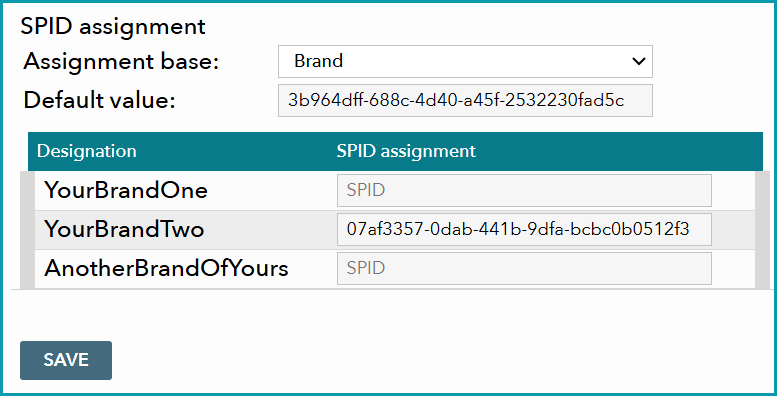
1.Choose an existing TB.One property (e.g. attribute, component, brand) as the assignment base.
TIP: |
2.TB.One will list all available values for the selected assignment base in a table.
3.For each value where the default profile does not apply, enter the shipping profile ID (UUID) of the appropriate shipping profile under “SPID assignment”.
4.Click "Save" to finalize the setup.