Marketplaces > Marketplaces T-Z > Zalando > Error Messages for Zalando > How to Solve ACSREJ_106
How to Solve ACSREJ_106
Description
The ACSREJ_106 error appears when images intended for one color variant are incorrectly assigned to another color variant, or when images that show specific articles are used at the product level (Zalando displays product-level images for all articles).
Article rejected because images showing multiple color variants within one Variant ID. Please review and submit only intended images. |
Solution
To resolve this issue, review and correct the image assignments in TB.One.
1. Check Article-Specific Image Assignments
•Go to the product list ("Articles > Product list") and open the affected product.
•Switch to the "Media" tab.
•In the "Channel" drop-down menu, select "ZALANDO (MAIN CHANNEL)".
•In the "Articles" drop-down menu, select the affected article.
•Review all assigned images. If there are no wrongly assigned images, go to step 2.
EXAMPLE: |
•Remove any images that do not fit the article's color by clearing the checkboxes below them (see Fig.1).
•Save your settings.
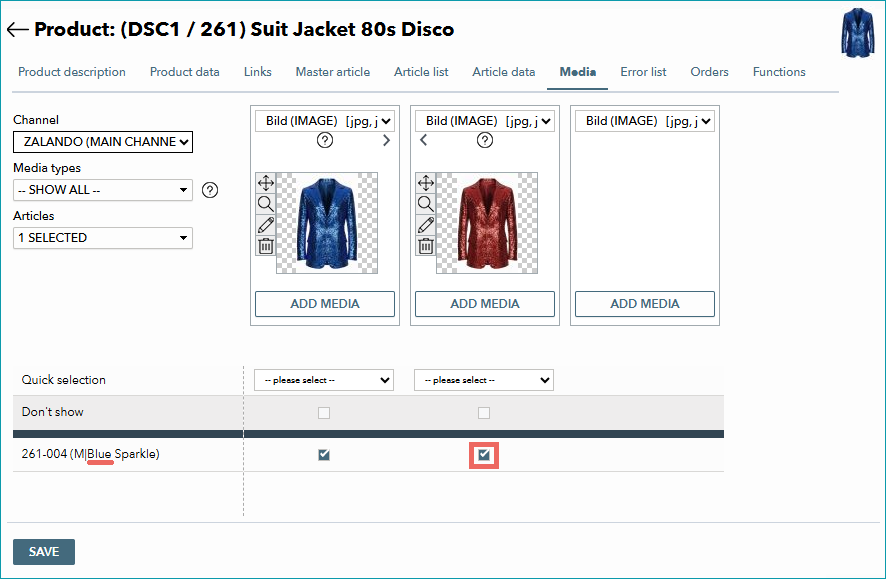
Fig.1: An image of the red jacket is assigned to the blue version of the jacket. Clear the checkbox.
2. Check Image Assignments at the Product Level
Images that are not assigned to a specific article are treated like they belong to all of the product's articles. This can cause the error "ACSREJ_106", if one of these images shows multiple colors, or a specific color.
•In the "Articles" drop-down menu, select "--none--" so that all images that are not assigned to a specific article appear. Zalando uses these images for all articles.
•If an image is intended for a specific color variant, assign it to that variant.
oOpen the "Articles" drop-down menu and click "de-select all".
oLook for the wrongly assigned image and select the articles to which it belongs using the checkboxes (see Fig.2).
oSave your settings.
•If the image is not needed, delete it: Click  next to the preview of the image (see Fig.2). This will delete the image entirely.
•Save your settings.
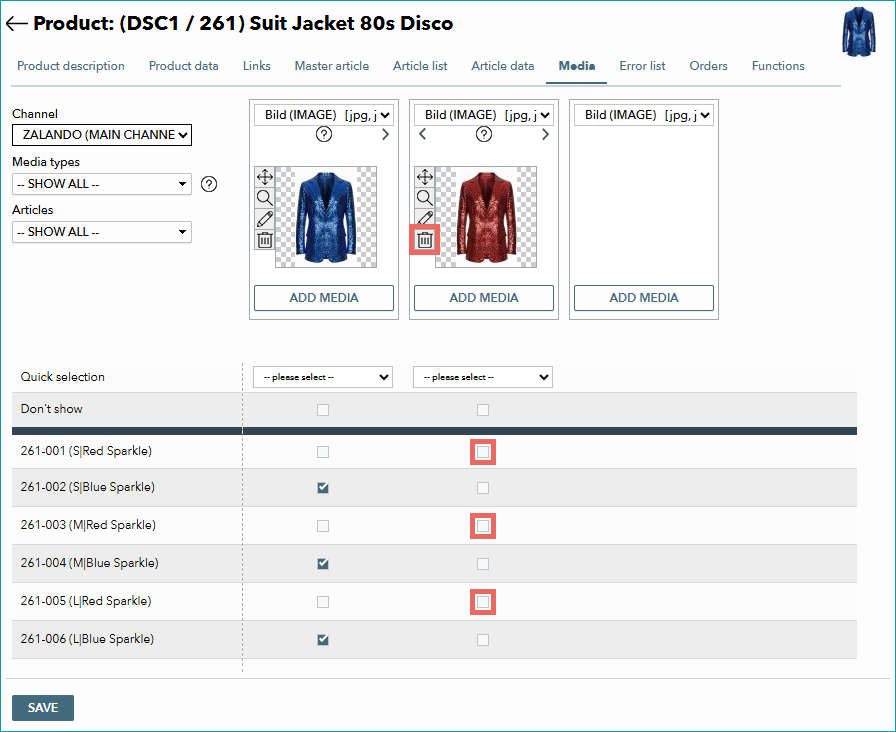
Fig.2: Assign the image to the correct article(s) or delete it.
ATTENTION: |
3. Wait for the Next Export of Product Data from TB.One to Zalando
•When you have configured all settings, wait for the next daily Zalando export.
•Monitor the status in zDirect to confirm that the error is resolved.
For further information, see also: