Marketplaces > Marketplaces T-Z > Zalando > Error Messages for Zalando > How to Solve PSERR_200-208
How to Solve PSERR_200-208
TIP: The screenshots use PSERR_200 (outer fabric material missing) as an example scenario. |
Description
The Zalando errors PSERR_200-208 indicate the following:
Error |
Description |
|---|---|
PSERR_200 |
No outer fabric material information was provided to Zalando. |
PSERR_201 |
No shoe sole material information was provided to Zalando. |
PSERR_202 |
No shoe insole material information was provided to Zalando. |
PSERR_203 |
No shoe upper material information was provided to Zalando. |
PSERR_204 |
No shoe lining material information was provided to Zalando. If the shoe has no lining, use the same material as for "shoe upper material". |
PSERR_205 |
No bag outer fabric material information was provided to Zalando. |
PSERR_206 |
No width measurements were provided to Zalando. |
PSERR_207 |
No height measurements were provided to Zalando. |
PSERR_208 |
No length measurements were provided to Zalando. |
Article Status Report Messages
PSERR_200: PSERR_201: PSERR_202: PSERR_203: PSERR_204: PSERR_205: PSERR_206: PSERR_207: PSERR_208: |
Solution:
1. Locate the Outer Fabric Material Property in the Value Mapping
•Go to the value mapping menu ("Channels > Zalando (main channel) > Value mapping").
oIf you map on the global level, select "--global mapping--" in the left column.
oIf you map on category level, select the category of the affected product instead.
TIP: |
•In the middle column, look for your channel property or key (see table):
Error |
Channel property (name-based display) |
Channel property (key-based display) |
|---|---|---|
PSERR_200 |
outer fabric material |
upper_material_clothing |
PSERR_201 |
shoe sole material |
sole_material |
PSERR_202 |
shoe insole material |
decksohle |
PSERR_203 |
shoe upper material |
upper_material |
PSERR_204 |
shoe lining material |
futter |
PSERR_205 |
bag outer fabric material |
upper_material_bags |
PSERR_206 |
width measurements |
width |
PSERR_207 |
height measurements |
height |
PSERR_208 |
length measurements |
length |
•Check the value assigned to the channel property in the middle-column drop down menu.
•If nothing is assigned, select the component or attribute you use for the upper material and save.
•Note down the name of the component/attribute that is assigned to the affected property.
2. Ensure that the Product has the Required Information
•Open the affected product via the product list ("Articles > Product list").
•Scroll down to the sections "Product components" and "Product attributes".
•Look for the name of the component or attribute assigned to the affected property in step 1.
•If the component/attribute is missing, add it to the product and enter a value (for example, "100% Suede").
•Save your settings.
•Note down the component/attribute value (in this example "100% Suede", see Fig. 1).
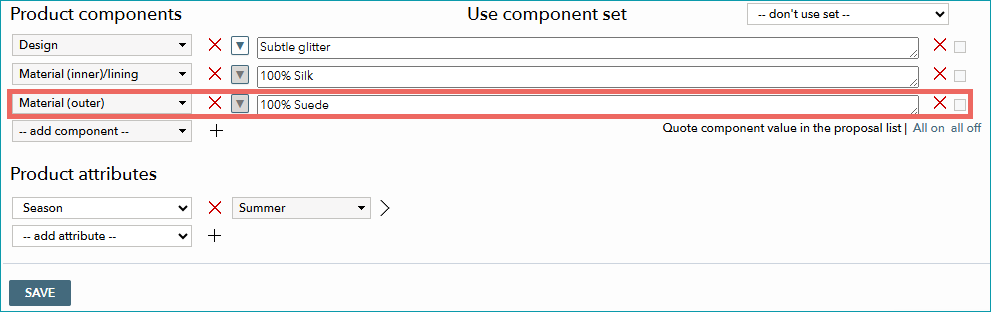
Fig. 1: This product uses the component "Material (outer)" for the Outer Fabric Material. The outer material is 100% Suede.
ATTENTION: |
3. Recheck the Value Mapping
•Go back to the value mapping menu ("Channels > Zalando (main channel) > Value mapping").
•In the middle column, select the affected channel property.
•In the right column, set the filter to "Show all" and search for the value you assigned to the product (see Fig, 2).

Fig. 2 Show all Zalando Values.
•Ensure that a Zalando value is mapped for the property value you noted in step 2. If the mapping is missing, add it.
•Save your settings.
5. Wait for the Next Export to Zalando
•When you have configured all settings, wait for the next daily Zalando export.
•Monitor the status in zDirect to confirm that the error is resolved.