Marketplaces > Marketplaces T-Z > Zalando > Error Messages for Zalando > How to Solve PSERR_81
How to Solve PSERR_81
Description
Zalando may transmit the error "PSERR_81 - Season is not allowed for new article creation. It is only allowed for EAN-matching". The error indicates that the season attribute is not correct. This guide shows the steps to resolve the issue and ensure your season data are mapped correctly.
Please adjust the article to the current season. For articles you are newly onboarding it is your responsibility to set the correct current season, Zalando cannot change it on your behalf at this stage. |
Solution: Update the Season in TB.One
To resolve the PSERR_81 error in Zalando, verify and adjust the season attribute settings in TB.One.
•Check the current season of the affected product in TB.One.
•Check and correct the assigned value in the value mapping (global).
•If necessary, adjust the mapping at the category level .
•Wait for the product export to Zalando.
1. Check the Current Season Set for the Product in TB.One
•In TB.One, go to "Articles > Product list".
•Open the affected article's parent product.
•You should be on the "Product Description" tab. If not, switch to that tab.
•Go to the "Product attributes" section. The season is usually indicated there (see Fig.1).
•Note the name of the attribute containing the season and its current value.
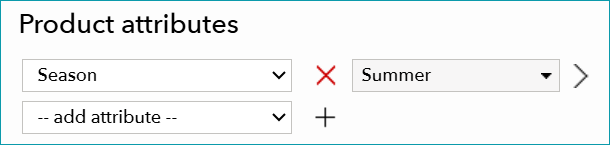
Fig.1: Season as a product attribute
TIP: One attribute can have more than one value. But Zalando only reads the first season value. Ensure the first value is correct. Delete outdated season values from the attribute. |
2. Check the Assigned Value in the Zalando Value Mapping
TIP: |
•In TB.One, go to "Channels > Zalando (main channel) > Value mapping" .
•Select "-- global mapping --" in the left column.
•Turn the "Display" switch to "Key".
•Find the property with the key "seasons" in the middle column.
•Ensure that the attribute you have noted in step 1 is assigned to the "seasons" property.
•Select the "seasons" property in the middle column. The list of value assignments opens in the right column (see Fig.2).
•In the right column, find your product's season value.
•Check if the correct Zalando value for the current season is assigned. Correct it if it is wrong.
•Save your settings.
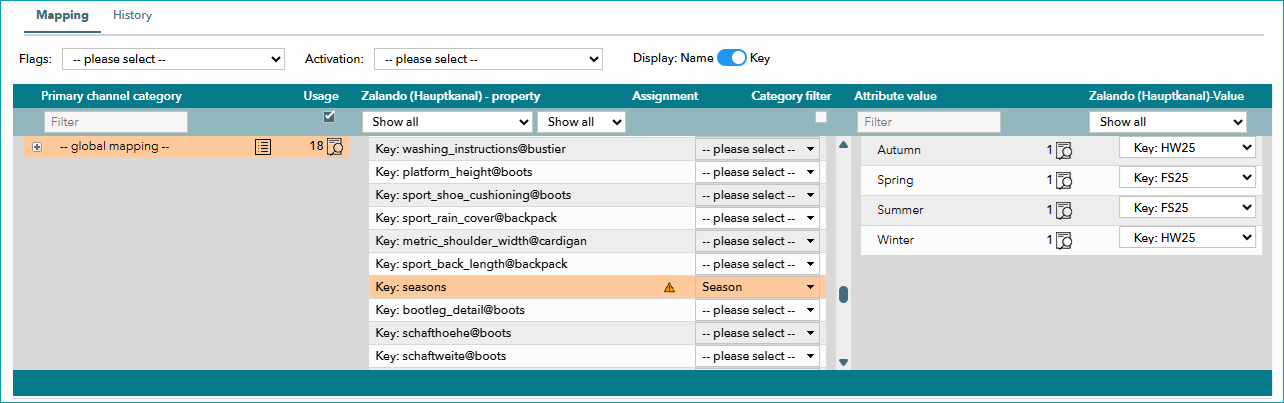
Fig.2: The three columns of the value mapping menu: category selection, property assignment, value assignment. The "Seasons" property is selected in the middle column.
3. Check Mapping at the Category Level
Check the category-level mapping. Mappings at the category level overwrite the global mapping.
•Select your product's Zalando category in the left column.
•Turn the "Display" switch to "Key".
•Find the property with the key "seasons" in the middle column.
•Manage assignment:
oIf there is no assignment at the category level, skip to step 4.
oIf an attribute is assigned in the middle column, ensure that it is the attribute you have noted in step 1.
oSelect the property in the middle column to open the list of value assignments in the right column.
oIn the right column, find your product's season value.
oCheck if the correct Zalando value for the current season is assigned.
oAlternative: Remove the assignment in the middle column by setting the drop-down menu to "please select" and save. The property will then use the global mapping instead.
TIP: |
4. Wait for the product export to Zalando
•After you have completed your adjustments, wait for the next export to Zalando. Exports take place daily.
•Monitor the status in Zalando's zDirect platform to confirm that the error is resolved.
For further information, see also: