TB.One > Product and Article Data > Product-Related Basic Data > Product Text Profiles
Product Text Profiles
Product text profiles allow you to automatically generate channel-specific text descriptions for your products from various pieces of information you have provided (such as the brand, bullet points, product title, etc.).
Using product text profiles is a two step process:
1.Create a product text profile.
2.Assign the product text profile to a channel.
This allows you to use one product text profile for multiple channels.
TIP: |
1. Creating a Product Text Profile
TIP: |
1.Open the menu "Basic data > Templates > Product text profiles".
2.Click on “Create new product text profile” in the page actions (see Fig.1).
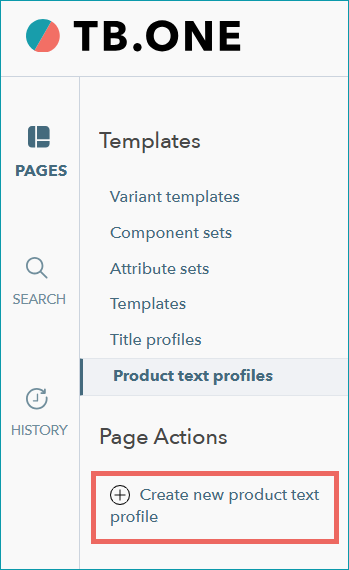
Fig.1: Click on the page action "Create new product text profile"
3.In the pop-up window "Create new profile" (see Fig.2), enter a name ( ) and select "Empty product text profile" (
 ), or copy an existing product text profile (
 ) and use it as the basis.
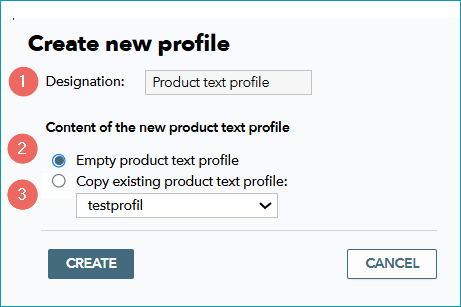
Fig.2: Naming the new product text profile and selecting whether to use an existing profile as the basis
4.Select "Create".
5.Select the product text profile (see Fig.3) to access the editing window.
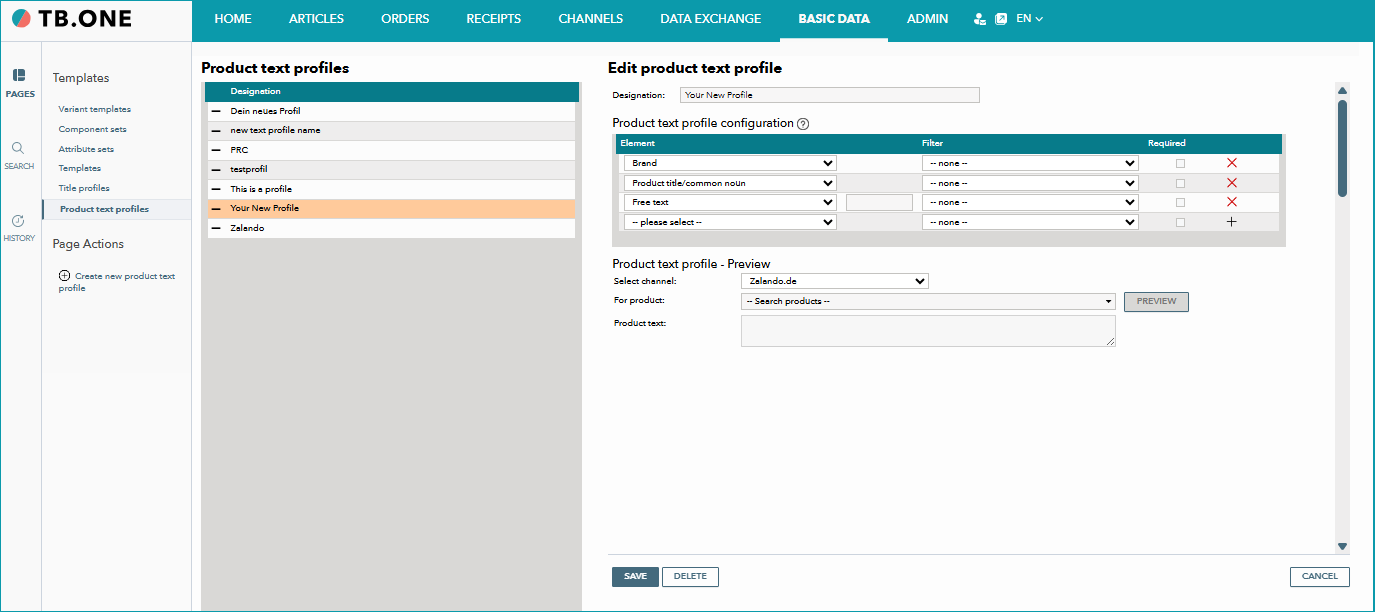
Fig.3: Selecting a product text profile to edit
6.Edit and save your product text profile. The editing window is described in detail below (see Fig.4).
The Editing Window
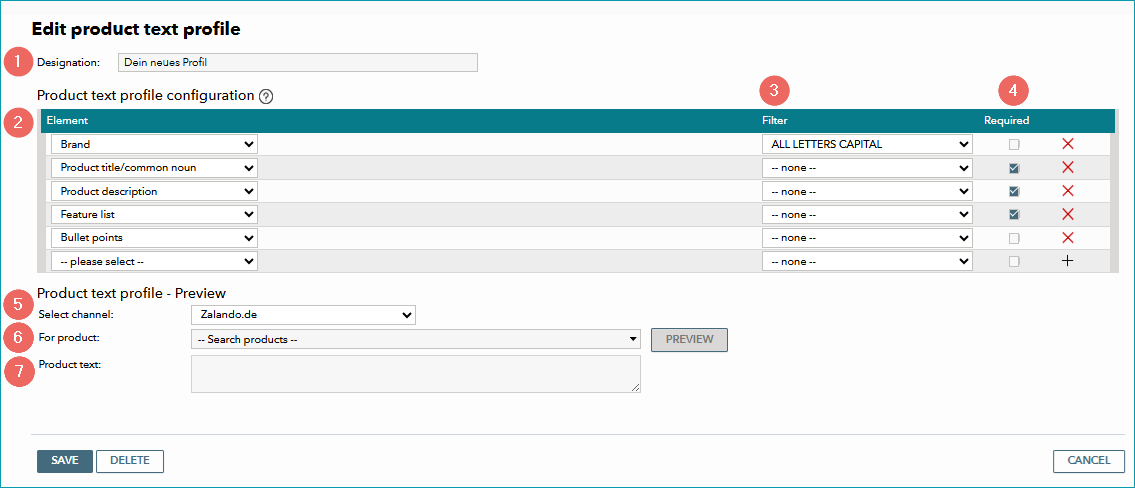
Fig.4: Edit your product text profile
The Editing Window (Fig.4) |
||
|---|---|---|
|
Change the designation of the product text profile here. |
|
|
Select the elements to use for the product text. TB.One will create the product text by combining the selected elements top to bottom. •You can select the format of the separators for elements that contain price information (e.g. "Base price"). •Create text to connect the individual elements with the "Free text" element.
|
|
|
If necessary, use the filters to change the formatting of the respective element (upper case, lower case, every first letter capitalized). |
|
|
Use this box to mark an element as "required". If the product text exceeds the maximum character limit of a channel, the elements not marked as "required" are dropped first. Then the elements marked as "required" are shortened word by word from back to front until the maximum permitted character length is reached. |
|
|
Select a channel for the preview (the character limit for that channel will be applied in the preview). |
|
|
Select a product for the preview. |
|
|
Displays the preview text for the channel and product selected in 5&6. |
|


2. Assigning a Product Text Profile to a Channel
To assign a product text profile to a channel, do the following:
1.Open "Channels > [Your Channel] > Settings", tab "Product texts".
2.Select "Use configurable product text" (see Fig. 5).
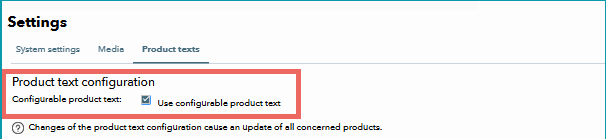
Fig.5: Use configurable product text
There two ways in which you can now use product text profiles for the channel:
•Option 1: All products use the same product text profile
•Option 2: Products use different product text profiles
Option 1: One profile for all products
1.Select the assignment base: "--always use default value--".
2.Select your newly created product text profile as the "Default value" (see Fig.6).
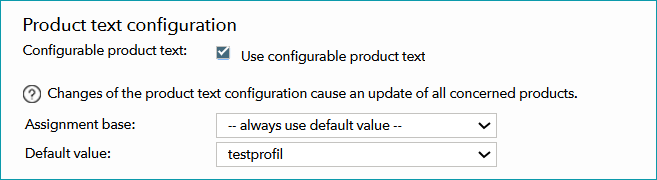
Fig.6: One product text profile used for all products
Option 2: Products use different profiles
1.Select an assignment base. The assignment base defines which product information is used to determine the text profile used. It can be an attribute, the brand, or a flag, among other things.
2.Under "Default value" select the product text profile you want to use for most of your products.
3.The product text profile assigned as the default value is automatically entered for each possible permutation of the assignment base.
4.Select other product text profiles for individual elements of the assignment base by picking them from the corresponding drop-down menus (see Fig.7).
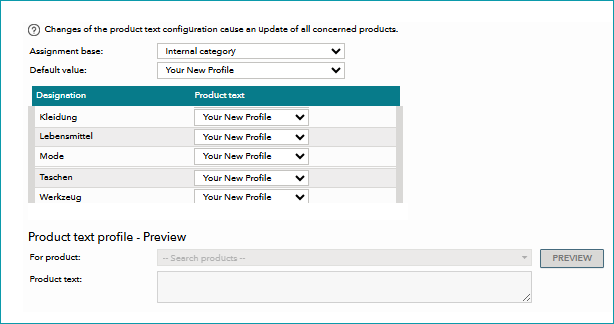
Fig.7: The assignment base determines, which product text profile is used for a product