TB.One > Product and Article Data > Data Quality & Error Management > Component Check
Component Check
You need to indicate important features of your products in your master data as product or article components. If such information is part of the product description, it is advisable to extract it to a component.
Properties that apply to all variants of a product are created as product components; variant-specific features that only apply to individual articles are defined as article components.
If a channel were to change e.g. the mapping values for colours (e.g. "Blue" instead of "blue"), you can use the component check to determine at which products/articles these values are used and make quick adjustments. The component check feature can be found at "Articles > Component check".
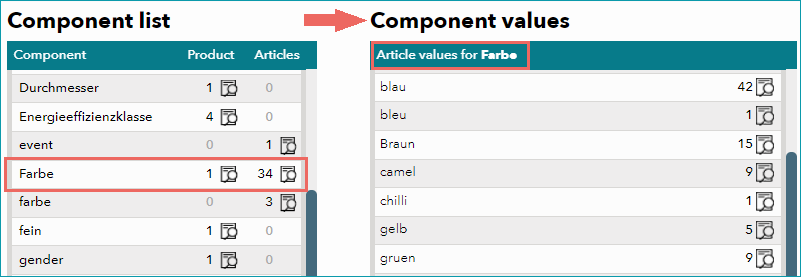
Here, you can see your components and the number of the respective component values at the product and/or article level. Clicking on the magnifying glass icon in any component's row will show the values corresponding to that component in the window on the right. This view can help you find errors in data maintenance. Note that it is not possible to edit values directly in this window.
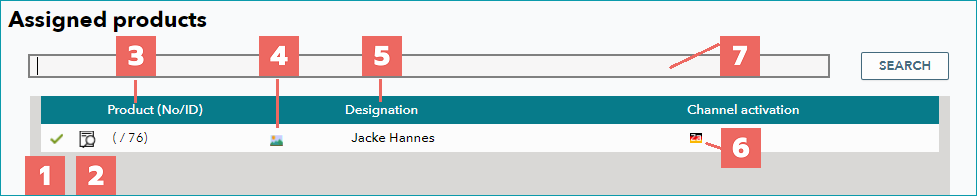
Select the magnifying glass icon in the right window ( - shown to the right of each component value), to display a list of all products that use the respective value in their master data.
NUMBER |
DESCRIPTION |
|---|---|
|
The icon indicates whether or not the item is active. |
|
A click on the detail icon ( |
|
Product number and product ID |
|
Indicates whether a medium is stored for the product |
|
The product designation or common noun and proper name |
|
Hover over this icon to display the channel flags of channels for which the product is active |
|
You can search for any type of text with this field. Enter the text and click "Search". The minimum number of characters for searches is 2. |

 : active
 : inactive


For further information, see also:
•Proof of data quality - overview