TB.One > Product and Article Data > Templates > Creating and Assigning Product Text Profiles
Creating and Assigning Product Text Profiles
The so-called "product text profiles" are templates for your product text. They are used to enrich product text with content and are exported to channels working with the product text configuration. Configure them under "Basic data > Templates > Product text profiles". Configuration and assignment are separate. So you can use a product text profile across multiple channels.
TIP: In the export, product text exceeding the limit will automatically be shortened to the permitted length. |
CREATING A PRODUCT TEXT PROFILE
Go to "Basic data > Templates > Product text profiles". Select the tab "Pages" in the left navigation bar and click on "Create new product text profile".
▪Enter a designation.
▪Via the radio buttons, specify whether you create a new empty product text profile or copy an existing one.
▪To copy an existing product text profile, select it from the drop-down list.
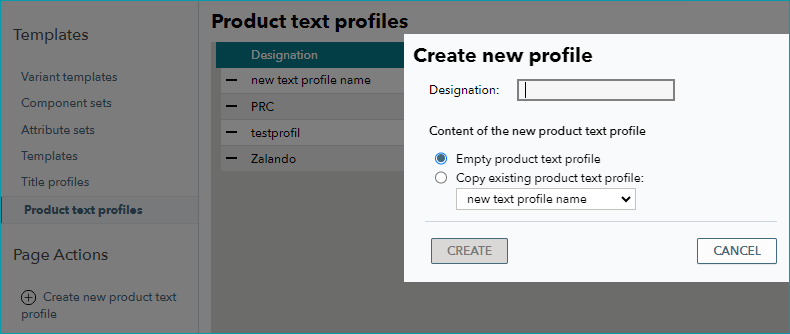
Once you have clicked "Create", the new profile is available in the list of product text profiles. Click on the designation to edit it.
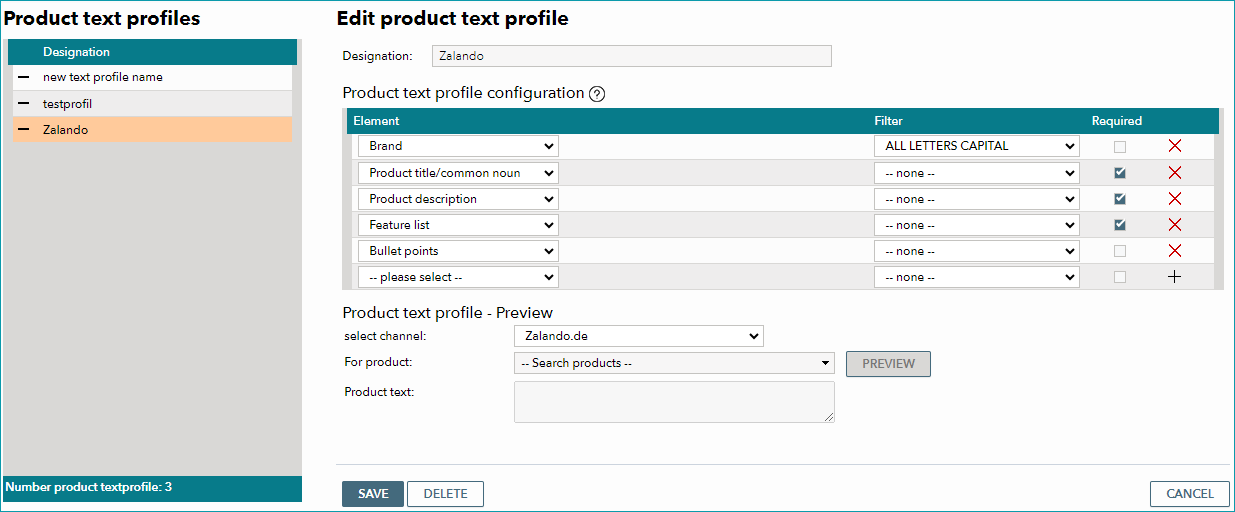
In the menu section "Edit product text profile", compile your template from various elements.
•Select the elements from the drop-down in the column "Element". You have free choice of elements and their order. For some elements (e.g. "Component" or "Attribute"), further drop-downs will appear to define them in more detail.
•Use the drop-down menus in the column "Filter" to configure the text formatting (e.g. uppercase, lowercase, first letter of a word capitalized).
•Select checkboxes in the column "Required" to prioritize elements.
If the text length exceeds the maximum number of characters permitted by a channel, the elements with low priority will be removed first. If the product text is still too long, the other elements will be shortened. The text will be cut back to front until it reaches the permitted character length.
In the section "Product text profile - Preview", check your settings by selecting a channel and a product. The channel's requirements for product text (e.g. length) will be applied. The product you choose for the preview must be valid and active on the selected channel. Click on "Preview".
PRODUCT TEXT PROFILE ELEMENTS
The following elements may be part of a product text profile:
ELEMENT |
DESCRIPTION |
|---|---|
Brand |
Adds the brand name to the product text. |
Product title/ |
Adds the common noun of the product. |
Proper name |
Adds the proper name of the product. |
Designation |
If you maintained your product designations in a single field (instead of common noun/proper name), select this option. |
Typification |
The category to which the product belongs („Basic data > Classification > Typification“) is added to the text. |
Component |
If you choose "Component", an additional drop-down menu opens in the middle, where you can select a component to add its value to the text. This element only adds the component's value, not its name. If a product has been assigned the component "colour" with the value "blue", the element "Component" will add the word "blue" to the text, not the word "colour". If you select a variant forming component with multiple values, they will all be listed (separated by commas). |
Attribute |
If you choose "Attribute", an additional drop-down menu opens in the middle, where you can select an attribute. If an article has multiple values for one attribute, they are all added to the text separated by commas. This element only adds the attribute's values, not its name. If a product has been assigned the attribute "season" with the values "autumn" and "winter", the element "Attribute" will add the text "autumn, winter", not the word "season". |
Component name |
If you choose "Component name", an additional drop-down menu opens in the middle, where you can select a component to add its name to the text. This element only adds the component's name, not its value. If a product has been assigned the component "colour" with the value "blue", the element "Component name" will add the word "colour", not the word "blue". |
Attribute name |
If you choose "Attribute name", an additional drop-down menu opens in the middle, where you can select an attribute. This element only adds the attribute's name, not its values. If a product has been assigned the attribute "season" with the values "autumn" and "winter", the element "Attribute name" will add the word "season" to the title, not the text "autumn, winter". |
Split variants |
A product with variants can be split up into multiple products if a channel does not permit variant dimensions in that product's category. If "Split variants" is chosen, the values which are no longer used as variants will be added to the text in brackets. In the middle column, you can choose a character to separate multiple variant values (e.g. size and color). Make sure to comply with the channel's requirements regarding the separator (some channels do not allow certain characters in the text). This element is not displayed in the preview. |
Variant properties |
Adds the variant properties of the article to the product text (e.g. "T-shirt Streetstyle blue XL"; "blue" and "XL" are the variant properties). In the middle column you can choose a character to separate multiple values with. Make sure to comply with the channel's requirements regarding the separator (some channels do not allow certain characters in the text). This element is not displayed in the preview. Only usable for Amazon. |
Variant value |
If you choose the element "Variant value", an additional drop-down menu opens, where you can select a variant-forming component. This element adds that component's value. This element is not displayed in the preview. |
Free text |
Here you may enter any text that should be added to the product text. It will be added to the product title in the chosen place. |
Price (from) |
The lowest price across the product's articles is determined and added to the text. |
Base price |
It is a legal requirement to display base prices in immediate vicinity of the retail price. Since some channels do not calculate the base prices themselves or display them in the wrong place you may want to add them to the product text. |
Product number |
Adds the product number. |
Special text |
Adds the special text. |
Article number |
Adds the article number. Multiple values: comma-separated. |
Article number 2 |
Adds the article number 2 to the product text. Multiple values: comma-separated. |
Manufacturer's article number |
Adds the manufacturer's article number. Multiple values: comma-separated. |
EAN |
Adds the EAN to the title. Multiple values: comma-separated. |
TWIG |
Here, you can add any tag from the Twig Templating Language. The available tags are listed in the TTL manual. |
Product description |
Adds the product description to the product text. |
Bullet points |
Adds the bullet points to the product text. |
Feature list |
Adds the feature list to the product text. Note: Use the feature list only in exceptional cases, consulting your Solution Delivery Manager or Tradebyte Support. |
ASSIGNING A PRODUCT TEXT PROFILE
To use the created title profile, open the settings of the respective channel ("Channels > [Your Channel] > Settings") and go to the tab "Product texts".
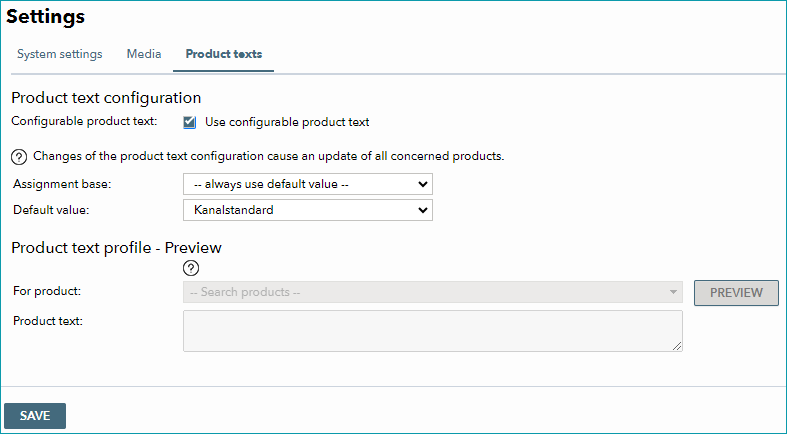
•Select the checkbox "Use configurable product text".
•Select an assignment base from the drop-down menu.
The possible values this assignment base may take are listed below. Via drop-down menus, you can assign them individual product text profiles. They are used for your products according to this assignment base.
•In the drop-down menu "Default value", assign a product text profile.
The default value will be automatically applied for each element of the assignment base. You can overwrite it for each element with a product text profile from the drop-down.
ATTENTION: |