TB.One > Setup, Configuration & User Accounts > Order-Related Basic Data > Payment Settings
Payment Settings
1. PAYMENT TYPES
To be able to import orders, at least one payment type needs to be assigned to your activated channels. If multiple payment types (e.g. PayPal and prepayment) are active for one channel, the method used is channel-dependent. The default payment types are created automatically when a channel is activated in TB.One. If a channel offers multiple payment types, you can deactivate any types you don't want to use in the respective channel menu ("Channels > [Channel] > Settings"). By default, all available payment types are active.
ATTENTION: |
To create a new payment type, open the menu "Basic data > Payments > Payment types. Select the tab "Pages" in the left navigation bar, choose the page action "Create new payment type", and assign a meaningful name as the designation. If you export orders to an ERP system and edit them there, you also need to specify an import key that your ERP system can interpret.
You can adjust several other settings for each payment type, such as specifying a reimbursement type or an icon that represents the payment type in TB.One. Based on the payment type, you can also specify whether the invoice will always be printed before the cancellation invoice in event of a return.
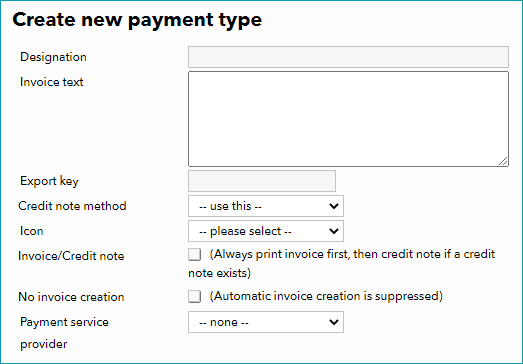
For each payment type, you may also define an invoice text, which will be printed on the invoices you create via TB.One. If invoicing is done by the channel, this field has no effect. Once you have assigned the payment type to one or more channels, you can define channel-specific invoice texts that deviate from the standard invoice text.
TIP: |
2. PAYMENT SERVICE PROVIDERS
The menu "Basic data > Payment > Payment service providers" is currently only relevant for PayPal. If you would like to use TB.One's payment service API to receive payment reports from PayPal directly in TB.One, create an entry for PayPal in this menu and submit your PayPal credentials. To do so, select the tab "Pages" in the left navigation bar and click on "Create new payment service provider". The account can then be selected as the payment service provider for your payment types ("Basic data > Payment > Payment types").
For further information, see also:
•Importing payment type information to your system from a TB.One order list (CSV/XML)