TIP: |
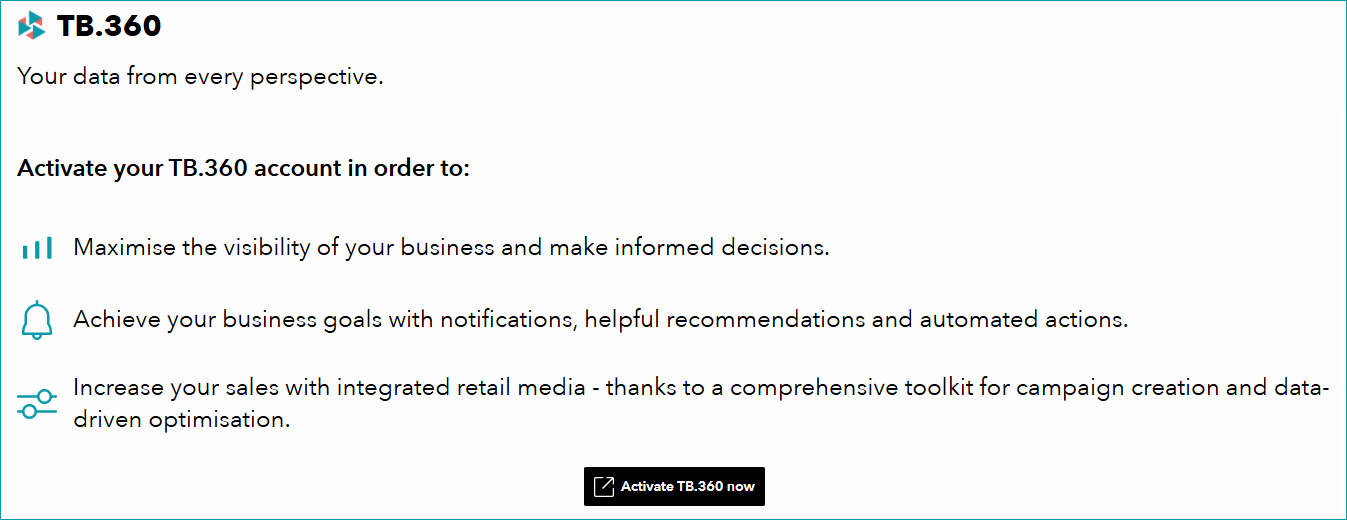
1. ACTIVATE TB.360
You must activate TB.360 to use the dashboard:
•Go to "Home > Dashboard".
•Select "Activate TB.360 now".
•Sign in with your TB.One credentials if prompted to request activation.
TB.360 will be activated for your TB.One account after ~1 business day.
2. THE DASHBOARD'S ELEMENTS
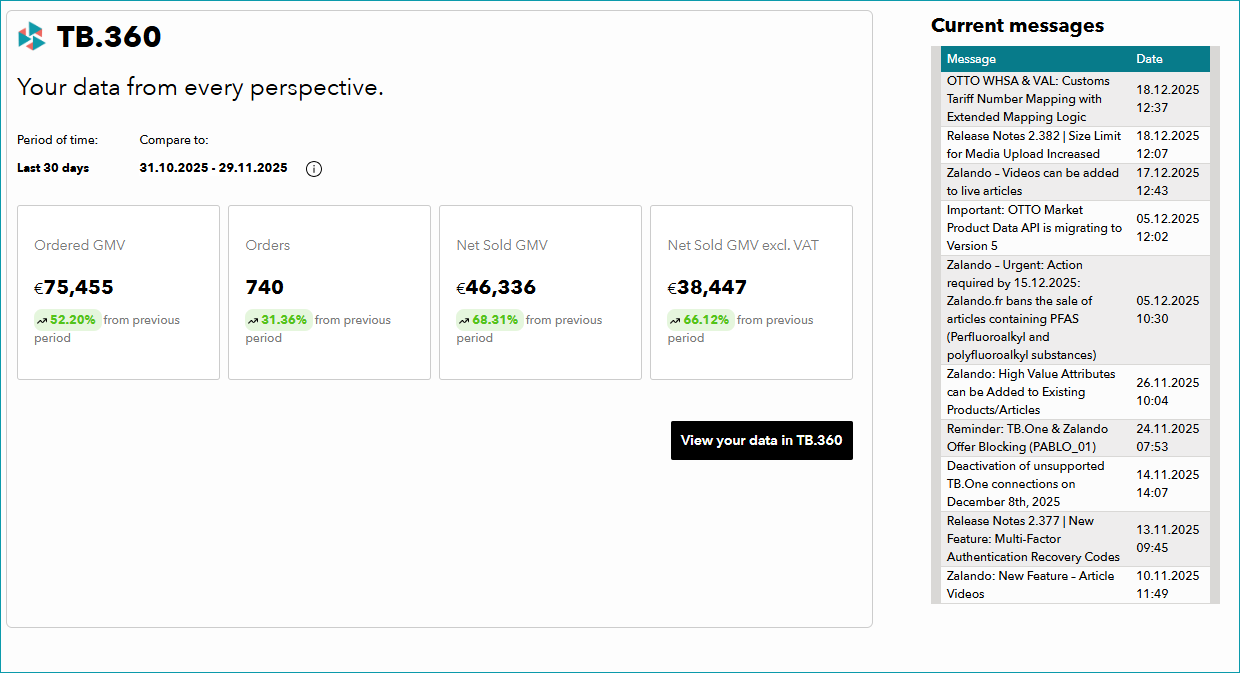
The "TB.360" section provides an overview of important business metrics for the past 30 days, including:
•Ordered GMV
•Orders (total number)
•Net Sold GMV
•Net Sold GMV excl. VAT
The dashboard compares these figures to the previous period (the preceding month) and displays the percentage of change.
TIP: 1.Select TB.360 at the bottom of the left sidebar. 2.Click "View your data in TB.360" directly on the dashboard. |
The section "Current messages" displays the headlines and dates of the 10 most recent messages published in the InfoCenter. Select a headline to read the full message.
TIP: |