TB.One > Import & Export > TB.One Interfaces > Importing Files using the Graphical User Interface
Importing Files using the Graphical User Interface
ATTENTION: •The file's name. Files named incorrectly may not be recognized. •The file's structure. CSV files must contain the correct columns and XML files must contain a specific node structure. You can use the validator to check your files. •The file's content. Even small errors in imported files can have a large impact. For example, if you use the wrong import key in a CSV column header, you may unintentionally activate articles for the wrong channel. |
1. Import the File
•Go to "Data exchange > Directories > Input" (see Fig.1).
•Select "Choose Files" (this button may be labeled differently, depending on your browser).
•In the pop-up menu, find the file you want to import.
•Select "Start upload" to load the file into the "Import" directory. It is now awaiting import.
•Import processes start every 10 minutes. All files that are in the "Import" directory when the process starts are imported.
•The import process may take a few minutes. When the file is processed, TB.One moves it to the "Archive" directory ("Data exchange > Directories > Archive").
TIP: |
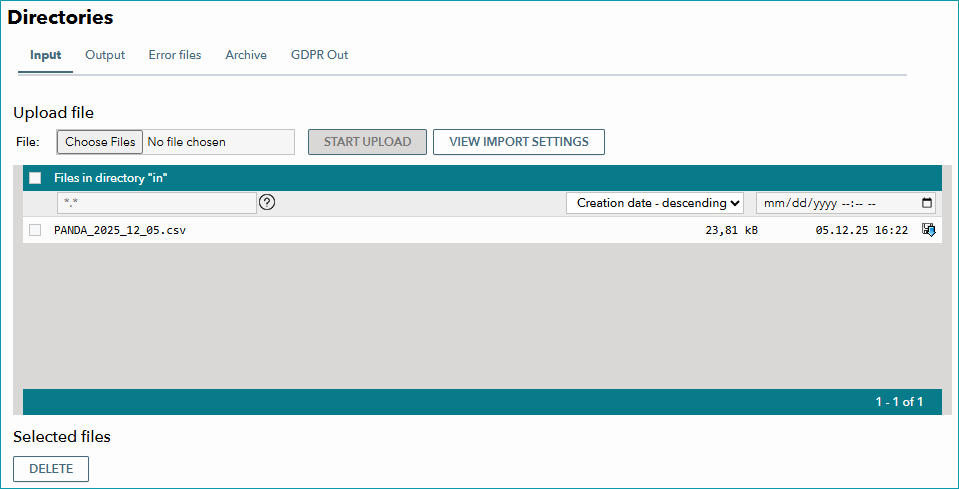
Fig.1: The import directory contains a file that is waiting to be processed with the next import.
2. Check whether the Import was Successful
After processing, TB.One renames your file and moves it to the "Archive" directory ("Data exchange > Directories > Archive").
The file's name in the archive shows whether the import was successful:
•Files that were imported successfully have the prefix "_done".
•Files that were not imported, or only partially imported, have the prefix "_done_with_errors".
TIP: Find a full explanation of the file names used for archived files here. |
•If your file was "_done_with_errors", go to "Data exchange > Directories > Error files".
oWhenever an import fails, TB.One generates an error file there.
oDownload the error file. It logs all errors TB.One found in your file.
oFix the errors in your original file and restart the import process.