TB.One > Media > Providing and Managing Media via Import > Updating Media via Import
Updating Media via Import
There is a new image of significantly higher resolution for the front view of "Jacke Herrmann" for the red variant. You now have the option of replacing the previous low-resolution image with the new image and carrying out an update in this way.
Or, you can keep the previous image and simply save the newer image as an addition. Please note that the new image must then have a different name. In both cases, you must check in advance whether media that are no longer delivered are deleted or not during the import.
Updating Existing Media
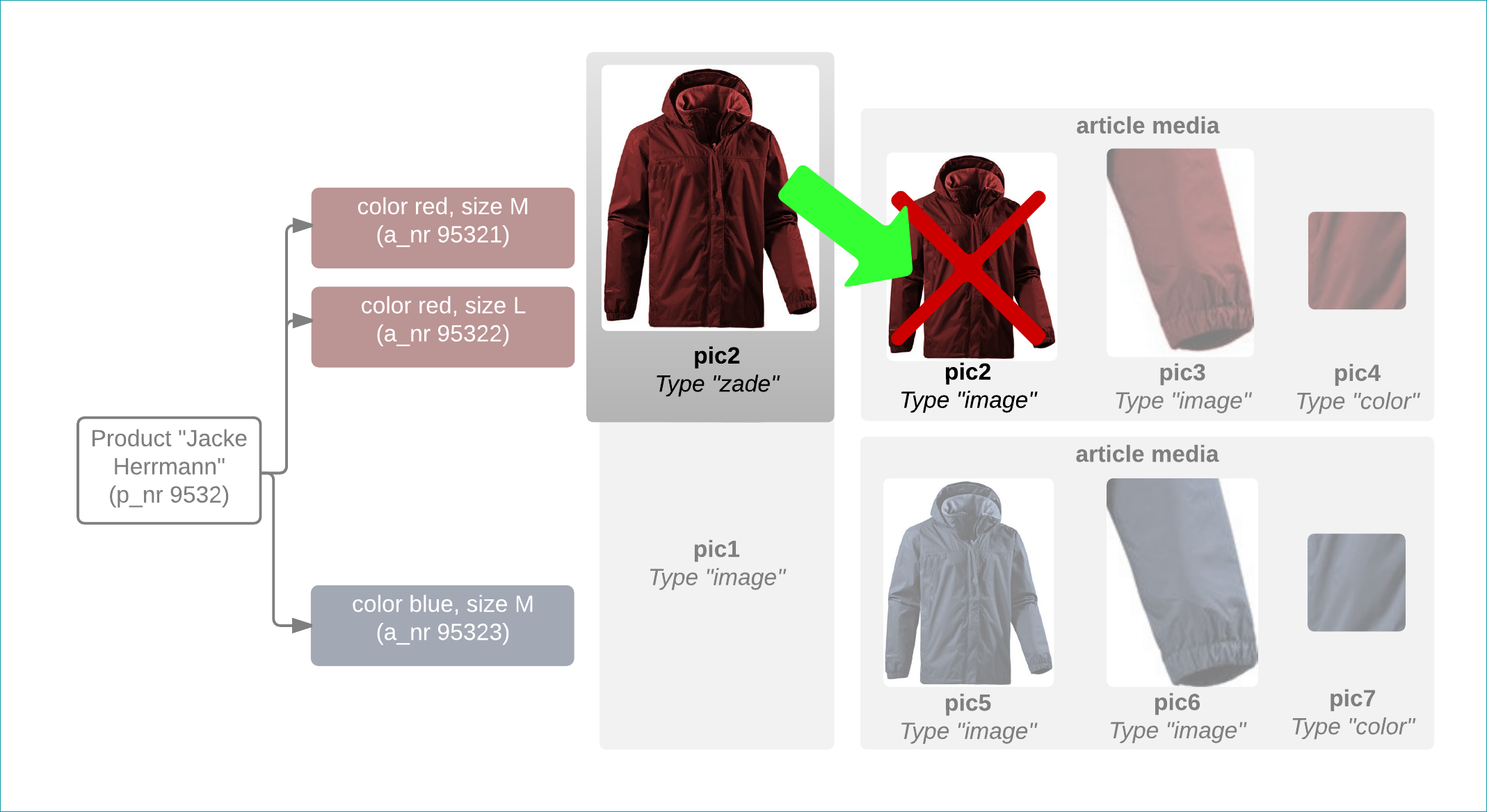
To replace an old image with a new one, the new image must have the same name as the old one, in this case "pic2", and the same sorting value. The media type may be different however, as in this example (pic2 (old) → media type "image", pic2 (new) → media type "zade"). In addition, the setting "Check media for updates" must be activated, because otherwise the saved data from the new and old image cannot be matched. The structure of the import file now depends on whether the import setting for deleting media that are no longer delivered is active or inactive.
Option 1: Media that are no longer delivered are not deleted (according to Import Settings)
Because you would like to replace exactly one article medium, it is sufficient to only reference one new medium in one "ARTICLE" file. This is a classic Delta import, because all existing media of the product or its variants, for which nothing should be changed, are no longer part of the file.
ARTICLE_URL_update_20150413_1109.csv:
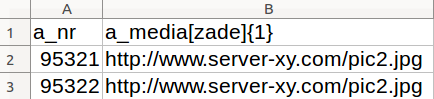
TBCAT_URL_update_20150413_1109.xml:
<TBCATALOG> <PRODUCTDATA> <PRODUCT> <P_NR>9532</P_NR> <ARTICLEDATA> <ARTICLE> <A_NR>95321</A_NR> <A_MEDIADATA> <A_MEDIA type="image" sort='1'>http://www.server-xy.com/pic2.jpg</A_MEDIA> </A_MEDIADATA> </ARTICLE> <ARTICLE> <A_NR>95322</A_NR> <A_MEDIADATA> <A_MEDIA type="image" sort='1'>http://www.server-xy.com/pic2.jpg</A_MEDIA> </A_MEDIADATA> </ARTICLE> </ARTICLEDATA> </PRODUCT> </PRODUCTDATA> </TBCATALOG> |
ARTICLE_ZIP_update_20150413_1109.csv:
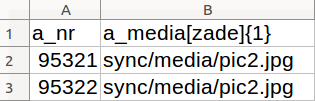
TBCAT_ZIP_update_20150413_1109.xml:
<TBCATALOG> <PRODUCTDATA> <PRODUCT> <P_NR>9532</P_NR> <ARTICLEDATA> <ARTICLE> <A_NR>95321</A_NR> <A_MEDIADATA> <A_MEDIA type="image" sort='1'>sync/media/pic2.jpg</A_MEDIA> </A_MEDIADATA> </ARTICLE> <ARTICLE> <A_NR>95322</A_NR> <A_MEDIADATA> <A_MEDIA type="image" sort='1'>sync/media/pic2.jpg</A_MEDIA> </A_MEDIADATA> </ARTICLE> </ARTICLEDATA> </PRODUCT> </PRODUCTDATA> </TBCATALOG> |
Option 2: Media that are no longer delivered are deleted (according to Import Settings)
You would only like to replace one article medium, however, due to the active import setting, all media must be referenced in the import file, because otherwise they would be deleted and only the updated article medium "pic2" would remain in TB.One. This is therefore a media full load (like the initial media import, see here).