Mappings for Amazon channels are unique because they have an effect on each other. Mapping one property can make another property mandatory or prohibited.
To review these rules and verify that your data complies, go to "Channels > [Your Amazon Mapping channel] > Smart mapping" and select the "Conditional Mapping" tab.
TIP: 1.Select "Filter". 2.Activate "Display Keys". |
Work with the Conditional Mapping Screen
TIP: •The Conditional Mapping tab uses the same basic work flow as Smart Mapping, while showing Amazon rules directly on your screen. Find a general guide on how to use the Smart Mapping menu here. •If a category contains the "Size System" property it is highly recommended to start there. |
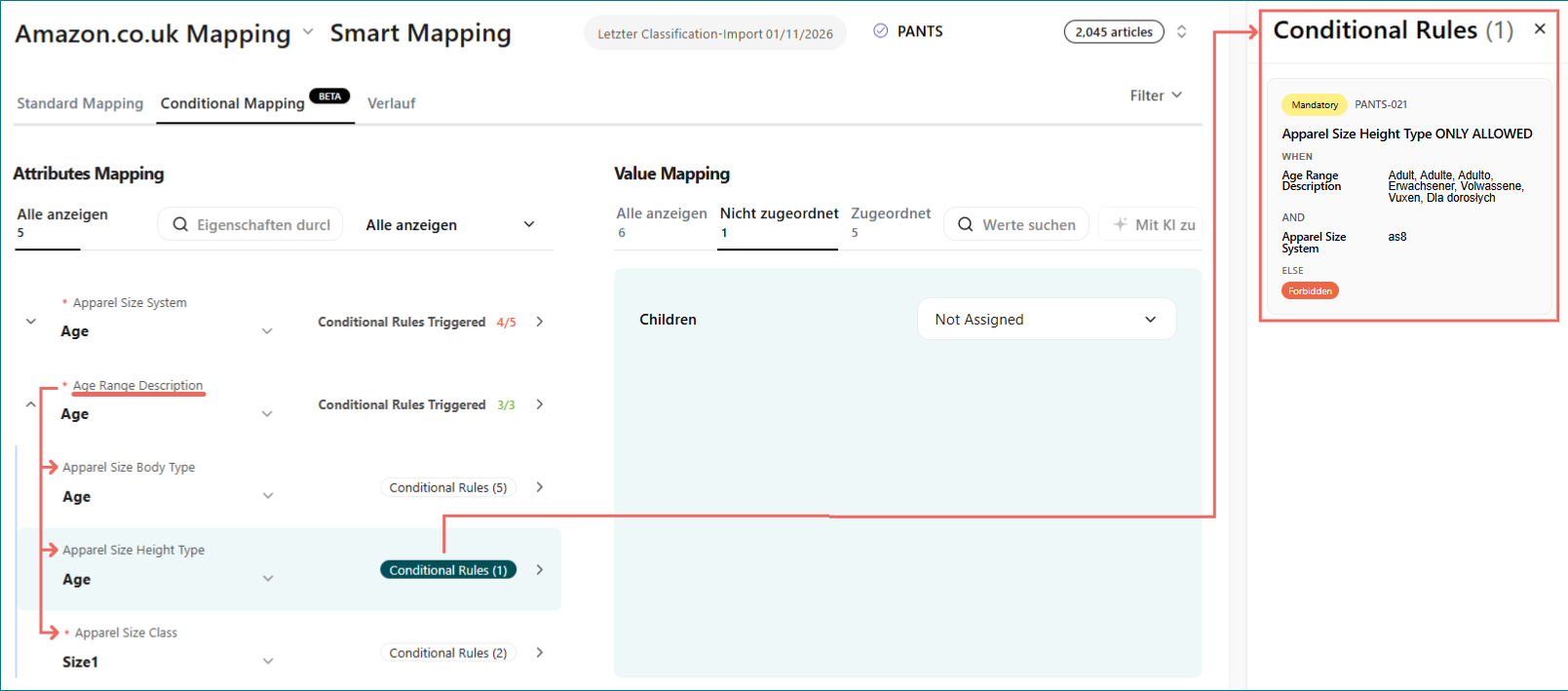
Fig.1: Navigating the Conditional Mapping menu
1.The "Conditional Mapping" tab lists each property that can make other properties mandatory.
2."Conditional Rules Triggered" shows how many related properties you may need to map. For example, 2/3 means this property affects 3 other properties, and you already mapped 2 of them.
3.Click  next to a property to view all linked properties. In the screenshot (Fig.1), the property "Age Range Description" was expanded. It affects the properties "Apparel Size Body Type", "Apparel Size Height Type", and "Apparel Size Class".
4.Select a property. The menu "Conditional Rules" section on the right shows every rule that applies to it. In the screenshot (Fig.1), the property "Apparel Size Height Type" triggers the conditional rule "PANTS-021"
TIP: Follow these Steps to Review Rules STEP 1: Click the arrow next to a property to view all linked properties ( STEP 2: Select one of the linked properties. STEP 3: Review the rules in the right panel. STEP 4: If your articles match the rule conditions, map the selected property to meet the requirements. |
The Two Types of Amazon Rules
Amazon has two types of mapping rules:
•Rules with allowed values: You must map the property and select only from an approved list.
•Rules with an 'else' condition: You must map the property when conditions match, but you must not map it when they do not match.
1. Rules With Allowed Values
These rules come with a list of permitted values. Do not use other values (see Fig.2).
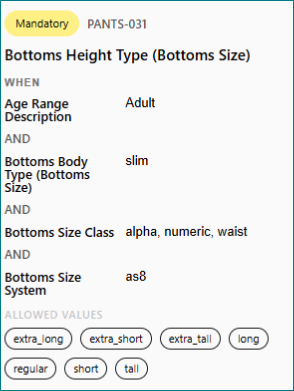
Fig.2: A mandatory mapping with a list of allowed values
EXAMPLE: 1.The article's value for "Age Range Description" is: •"Adult". AND 2.The article's value for "Bottoms Body Type (Bottoms Size)" is: • "slim". AND 3.The article's value for "Bottoms Size Class" is: •"alpha" OR "numeric" OR "waist". AND 4.The article's value for "Bottoms Size System" is: •"as8" When all 3 conditions match, map "Bottoms Height Type" to one of these values (ALLOWED): extra_long, extra_short, extra_tall, long, regular, short, tall |
2. Rules With an 'Else' Condition
These rules show under what conditions the mapping is required and forbid using the mapped property for articles that do not meet the conditions (see Fig.3).
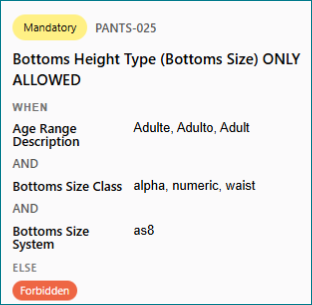
Fig.3: A mandatory mapping that prohibits other uses through an 'else' condition
EXAMPLE: 1.The article's value for "Age Range Description" is: •"Adulte" OR "Adulto" OR "Adult" AND 2.The article's value for "Bottoms Size Class" is: •"Alpha" OR "Numeric" OR "Waist". AND 3.The article's value for "Bottoms Size System" is: • "as8". If one or more of these conditions do not apply for an article, you must not use the property "Bottoms Height Type" for those articles ("ELSE: Forbidden"). |
How to Read Rule Logic
Keep these points in mind when you review rule logic:
•Rules apply on an article-by-article basis; they tell you which properties must be mapped for an article.
•All "WHEN" conditions must match: Your article data must meet every condition listed under WHEN for the rule to apply.
•Multiple values in a condition mean "OR": Each condition names a property and a list of values. Your article only needs to match one value from that list. For example, if a rule lists "Alpha, Numeric, Waist" (see Fig.3), any one of those three values meets the condition.
•Use allowed values only: If a rule lists values under Allowed, select only from that list.
•Follow "Else: Forbidden" rules: If a rule states "Else: Forbidden", map that property only when all WHEN conditions match. For all other articles, do not use/map that property.