Marketplaces > Marketplaces T-Z > Zalando > Zalando.ch - Channel Specifics
Zalando.ch - Channel Specifics
This page provides an overview of the channel specifics for Zalando.ch. This channel has unique requirements that you must keep in mind if you are not located in Switzerland.
What do I need to know about Zalando.ch?
When connecting to Zalando.ch, you must consider the following channel specifics:
•Pricing - All prices must be specified in CHF
•Pack sizes and weight - For Zalando.ch, your packages must respect specific requirements.
•8-digit tariff number and country of origin - This information must be specified for each of your articles.
•Material composition - You must provide compliant information about the material composition for all articles subject to the Textile Labeling Regulation.
•Customs process - Due to customs regulations for Zalando.ch, TB.One provides an interface to the service provider MS Direct AG, who may process the import of your goods, as well as returns check and returns for you if necessary. Check this section for more information.
•Shipping process - For Zalando.ch, the shipping within Switzerland will be handled by the Swiss Post.
•Shipping labels - You can create Swiss Post shipping labels via TB.One if you store your Swiss Post credentials. Set up a corresponding number range under "Basic data > Shipping > Number ranges".
How are Zalando.ch orders processed?
The image below (Fig. 1) summarizes the order process for Zalando.ch orders:
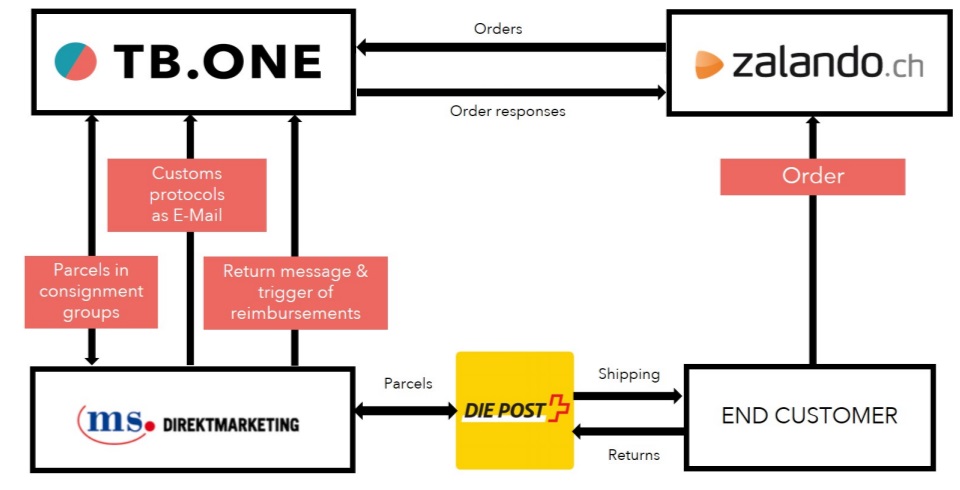
Fig. 1: Overview of the Zalando.ch logistics process
1. Pack your orders
First, process your orders individually as usual, and use the Swiss Post as your delivery service provider (use the correct "package type").
Individual customer packages are labeled with Swiss Post shipping labels, and each contain:
•A delivery note
•A returns slip
•A return instruction sheet with integrated returns label from the Swiss Post
2. Ship your orders
Packages addressed to end customers are packed into a larger box or on a pallet, and recorded in TB.One as consignment groups. The so-called consignment group list is used as identification by the service provider MS Direct AG.
Consignment group lists are printed when you close/complete consignment groups in TB.One. Attach them to the outside of the pallet or box containing the consignment group.
Send the pallet/grouped packages to the agreed collection point MS Direct AG collection point, using a shipping provider of your choice.
You can choose to include all orders of a day into a single consignment group, or use multiple groups per day.
MS Direct forwards the customs protocols to you via email and transfers the individual packages of the consignment group to the Swiss Post.
3. Returns handling process
Returns from end customers are sent to MS Direct AG via Swiss Post. Use the address of MS Direct AG's logistics center as the returns address.
MS Direct AG will check the condition of returns and send a corresponding returns message to TB.One, which triggers reimbursements via transfer to Zalando.ch.
The returns packages are then collected and shipped back to you in bulk.
Delivery and dispatch advice creation
1.Add the delivery note, the returns slip and the returns note including the Swiss Post return label provided by Zalando.ch to the package (invoice cannot be included).
2.Inform the channel of the delivery. There are two ways to do this:
oOn the "Consignee & Positions" tab, use the button "Meldung", or
oOpen the tab "Delivery & Cancellation", then select the appropriate package type and enter the relevant ship-code for shipment tracking.
3.Save your settings to create the message. During the next data transfer, your dispatch advice will be transmitted to the channel (generated messages can be found in the tab "Messages & Documents").
4.Pack several packages (e.g. once a day or similar) in a carton or on a pallet that is then shipped to MS Direct AG. You need a consignment group list for each collected pallet/box.
5.Print the consignment group list and fasten it on the outside of the container containing the collected shipments of the consignment group.
ATTENTION: Important considerations for delivery and dispatch advice •Create delivery notes before the dispatch advice to ensure the correct ship code for the Swiss Post is generated. •Do not forget to set the correct package type for the Swiss Post before creating the dispatch advice - The Swiss Post shipping label includes the end customer's contact details and is placed on the package. You can collect several of these packages in a sending group and send them to MS Direct AG. •Even if only one package is sent to the MS Direct collection site in Germany, you must create a consignment group list for the identification at MS Direct AG and place this on the outer packaging (carton or pallet). |
Returns are managed as follows for Zalando.ch:
1.Returned packages are sent to the MS Direct AG logistics center you have defined in your return address.
2.There, the condition of the returned articles is checked. MS Direct AG automatically notifies your TB.One system about the returns. TB.One sends the appropriate messages and you do not need to take action. This automatically triggers reimbursements.
3.MS Direct AG collects incoming returns and then sends the goods back to you in bulk.
ATTENTION: By default, your stock is increased by the returned quantity as soon as the returns message arrives in TB.One: However, at that point, you articles are still at MS Direct AG and are not yet available for resale yet. Therefore, during the integration phase, agree with your Tradebyte consultant on stock maintenance and updates regarding the returns process. |
Data maintenance for Zalando.ch
1. Component for material composition
A Material composition component is mandatory for Zalando.ch.
2. Retail pricing
Specify all your prices in CHF.
3. Article details
Zalando.ch requires more article information. Therefore, switch to the article detail view and add information on:
•Pack sizes,
•Country of origin,
•IntraStat number.
For the customs process, it is mandatory to provide:
•The article's country of manufacture (the country of origin)
•The 8-digit IntraStat number
There are two ways to enter this information in TB.One:
•Use the menu "Basic data > Shipping > Package templates" to create one or more package templates. When you assign a package template to an article, it inherits the pack dimensions and weight.
•Use the master article (product detail view, tab "Master article") to add the dimensions or a package template, the country of origin, and Intrastat numbers for all of a product's articles simultaneously.
Delivery times
Open the menu "Basic data > Storage > Warehouse settings", to determine whether you want to specify a delivery time offset from your standard delivery time for Zalando.ch.
The delivery time includes the time it takes for your package to reach the collection site of the logistics service provider MS Direct AG.
Number ranges
Tradebyte takes care of the setup of the number ranges in the menu "Basic data > Shipping > Number Ranges" for the Swiss Post.
To that end, send the interface data you received from Swiss Post via email to your Solution Delivery Manager.
To enter package dimensions (see Fig. 2), please follow the Swiss Post guidelines:
•The creation of labels is only possible for default packages of Swiss Post, which requires to comply with the girth and with the number of packages.
•The girth of a package must not exceed 340 cm (girth = 1 x l + 2 x w + 2 x h).
•The longest side is checked in the export, the other side constraints result from the maximum girth:
MAX. DIMENSIONS |
DEFAULT PACKAGE |
|---|---|
Length (l) |
100cm |
Width (w) |
60cm |
Height (h) |
60cm |
Girth |
340cm |
Weight |
30kg |
Pack piece |
1 |

Fig. 2: Entering package information in TB.One
ATTENTION: If your package sizes exceed those limits, surcharges may apply! |
Returns
Under "Basic data > Returns > Return addresses", you can store a return address for each channel. For Zalando.ch, the return address must be the address of MS Direct AG's logistics center.
Ask MS Direct AG which return address you need to specify.
Consignment groups
The setup of consignment group types under "Basic data > Shipping > Consignment group types" (see Fig. 3) is done by your Tradebyte Solution Delivery Manager.
To that end, forward us your MS Direct AG data via email, and let us know which component you use in TB.One to define the material composition of your products according to the Textile Labelling Regulation. This component must be exported to MS Direct AG for customs processing.
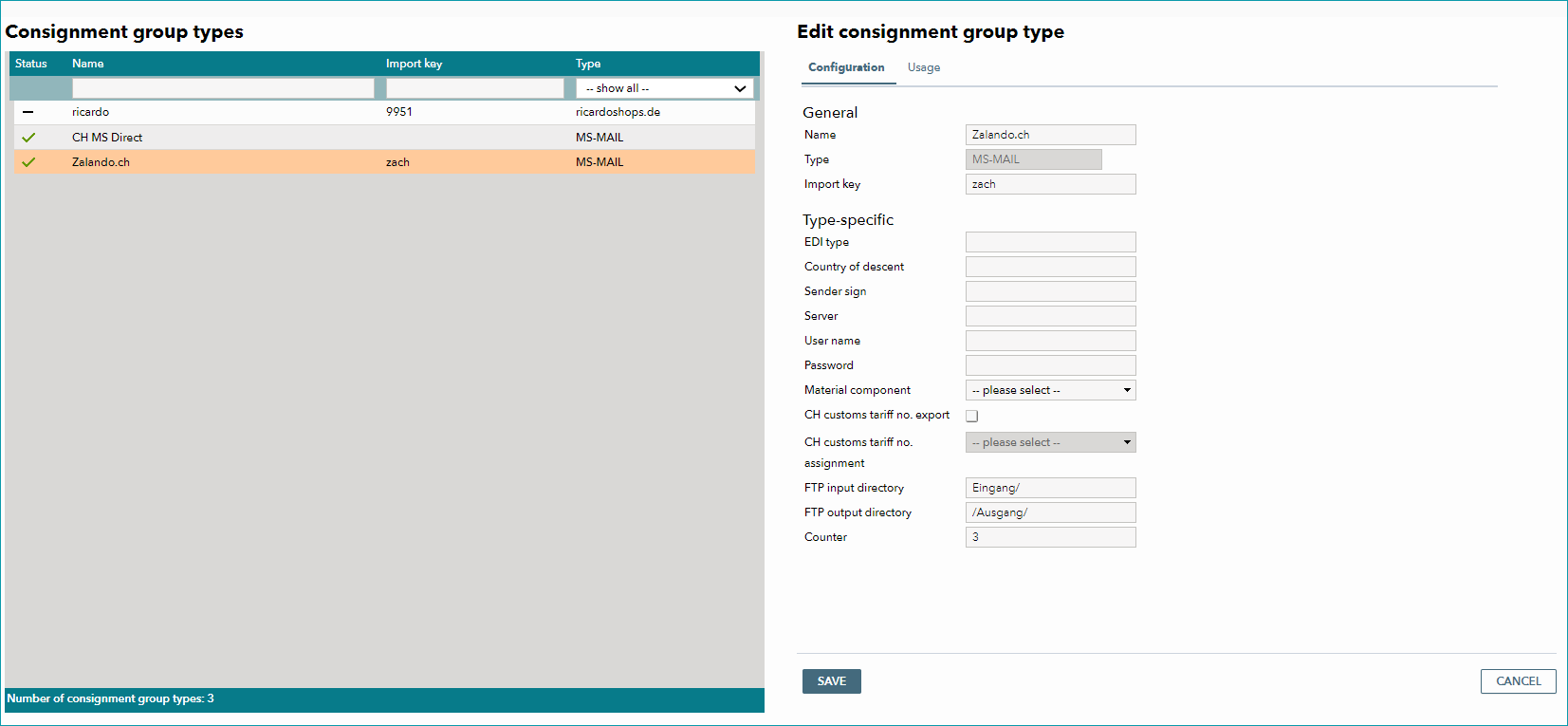
Fig. 3: Sending groups management in TB.One
How to create a new consignment group in TB.One
To create a new consignment group:
1.Go to "Orders > Consignment groups" and create a new consignment group.
2.Set the consignment group type to the one configured for Zalando.ch (usually, "Zalando.ch") and assign a unique key (see Fig. 4).
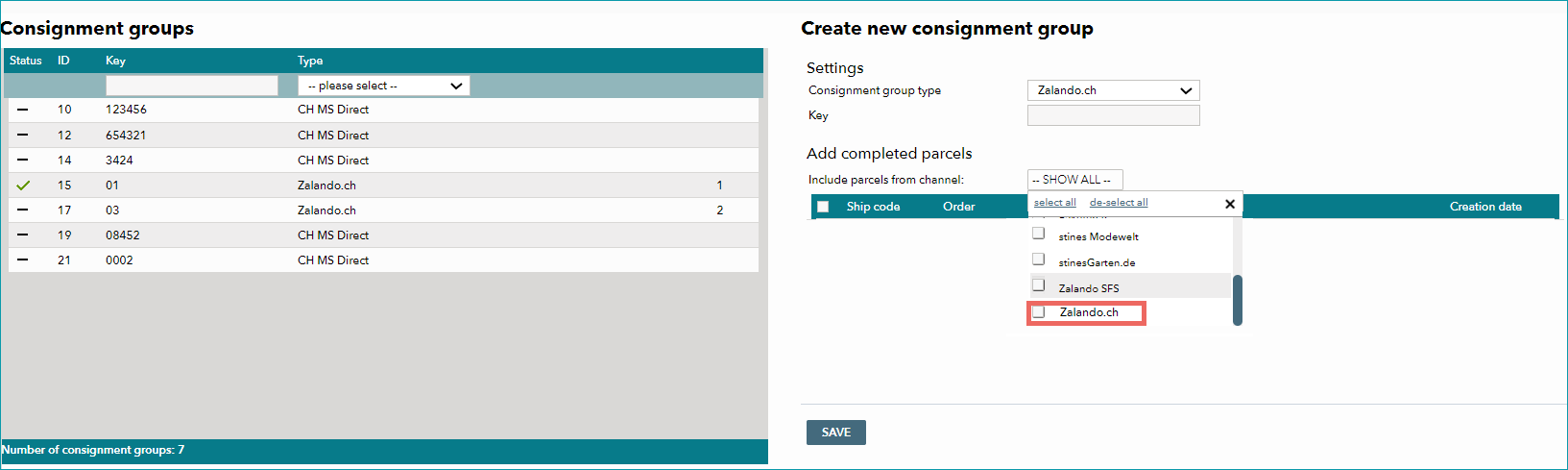
Fig. 4: Creating and configuring a sending group for Zalando.ch in TB.One
3.In the section "Add completed parcels" (see Fig. 5), add the packages completed for Zalando.ch. Select the channel name from the drop-down to receive a list of packages completed for Zalando.ch.
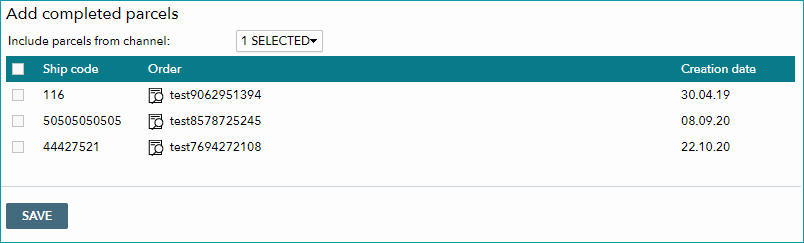
Fig. 5: "Add completed parcels" menu in TB.One
4.Select a checkbox to add a parcel to a consignment group, then save your entries. If you want to add more packages later, open a sending group by clicking the respective line (see Fig. 6).
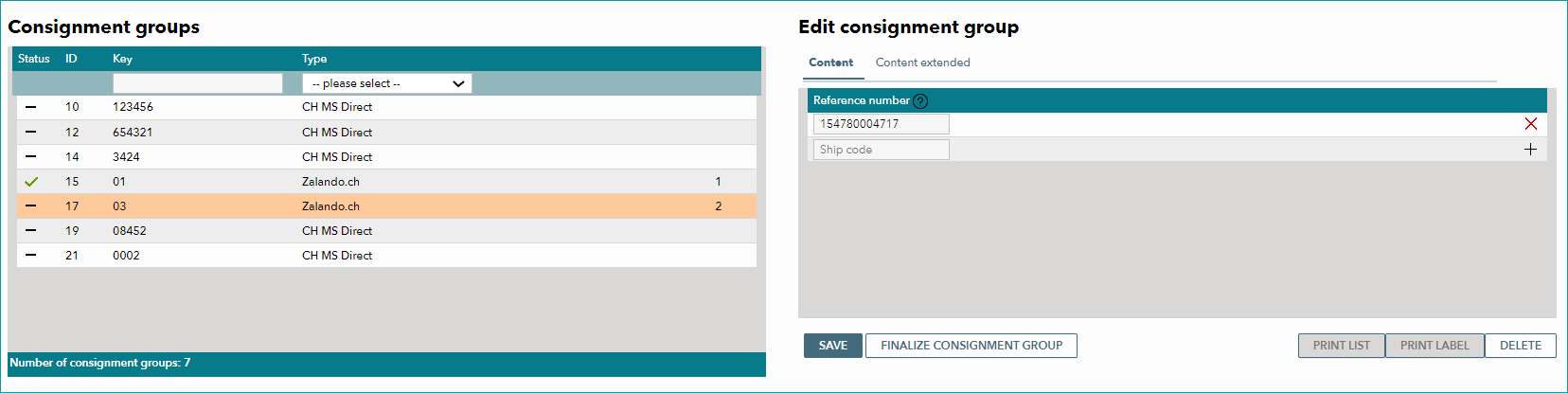
Fig. 6: Adding more packages to a Zalando.ch sending group in TB.One
5.You can use a bar-code scanner to fill in the ship codes of your packages, or enter them manually.
TIP: Copy and paste the ship codes from the Excel list to the sending group. Save one row at a time or click the "+" icon. |
6.When you gathered all ship codes, select "Close sending group".
Shipping configuration
Package and shipping types are configured at "Basic data > Shipping > Shipping types" (or package types).
Shipping surcharges
You can't raise shipping costs at Zalando.ch.
The channel collects flat rate shipping costs from the end customer and uses it to pay the cost of customs clearance, transport to Switzerland and shipping within Switzerland.
Stock management
When managing stock numbers, take into consideration the time difference between technical returns messages and the actual arrival of returned goods for Zalando.ch.
More information on returns management can be found here.
As trader, you bear the shipping costs within Germany.
When exceeding the pack sizes of default packages of the Swiss Post predetermined by Zalando.ch, you'll receive a separate billing from the channel.