Marketplaces > Marketplaces T-Z > Zalando > Error Messages for Zalando > How to Solve ACSREJ_174
How to Solve ACSREJ_174
Description
The Zalando error ACSREJ_174 indicates that insufficient material information was provided for additional accessories like belts, pockets or keychains to Zalando."
Article rejected, because no information describing the material from the additional accessory, like belts, pocket squares or attached keychains, is provided. Please submit the material information. |
Solution: Include Detailed Material Information for all Additional Accessories that are Part of the Product
Zalando currently doesn't provide appropriate value mapping properties for additional accessories. Provide the additional accessory information via the "Special Description". Follow these steps to resolve the issue:
1. Create a New Product Component
•Go to "Basic data > Properties > Components"
•Create a new component by clicking on the page action "Create new component".
•Go to the component editor that opens on the right.
•Add a designation that makes clear what this component represents (for example, "Additional Accessory" or "Accessory Material")
oOptional: enter an import key if you would like to import this component via CSV or XML later on.
oOptional: if you want to use this component for Zalando only, set the "Don't export" checkbox for all other channels.
•Save your settings.
2. Assign the Component to your Product
•Go to "Articles > Product list" and open the affected product.
•Stay on the tab "Product description" and find the menu section "Product components".
•Use the drop-down menu to add the component created in step 1.
•In the free text field that opens on the right, enter a value for your component (for example, "Belt Material: 100% leather").
•Save your settings.
ATTENTION: |
3. Verify that Product Components are Exported in the Special Description
•Go to "Channels > [Your Zalando channel] > Settings".
•Open the "Product texts" tab.
•Go to the "Product texts" section and find the "Special Description" checkboxes.
•Select the checkbox "Product components" if it is currently not selected. "Enable manual control" first, if necessary (See Fig. 1)
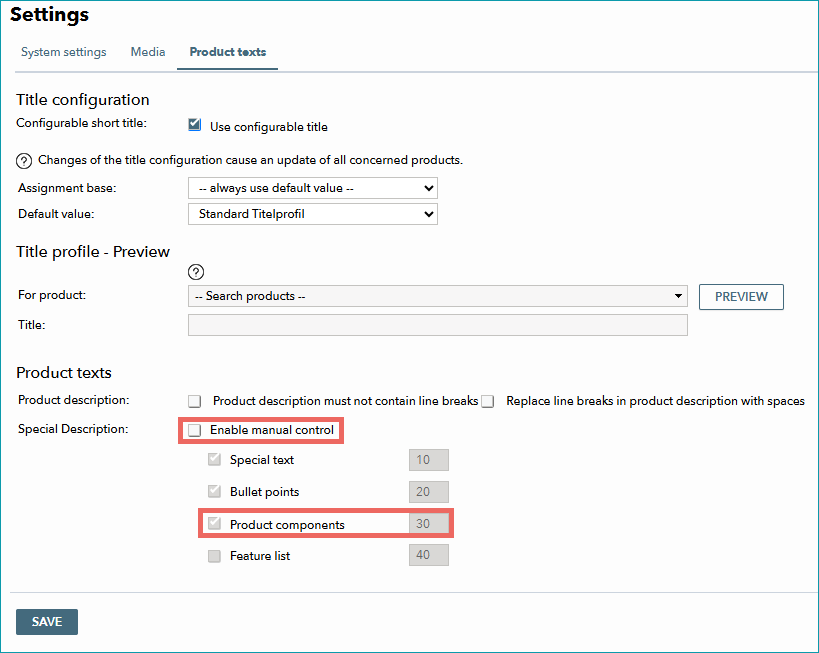
Figure 1: "Product components" must be selected; if you cannot change the settings "Enable manual control".
•Save your settings.
4. Wait for the Next Export to Zalando
•When you have configured all settings, wait for the next daily Zalando export.
•Monitor the status in zDirect to confirm that the error is resolved.
For further information, see also: