TB.One > Product and Article Data > Product-Related Basic Data > Creating Components
Creating Components
Components can be created manually or via import. If you choose to add them via import, check the import settings at "Admin > Import > Settings". Especially the sections "Delete content no longer provided in the import" and "Create import keys from import file automatically" are important. Export locks and the tabs "Default values" and "Values list" can only be configured manually. It is also possible to generate the values list semi automatically by adding the values of a product/article.
CREATING COMPONENTS MANUALLY
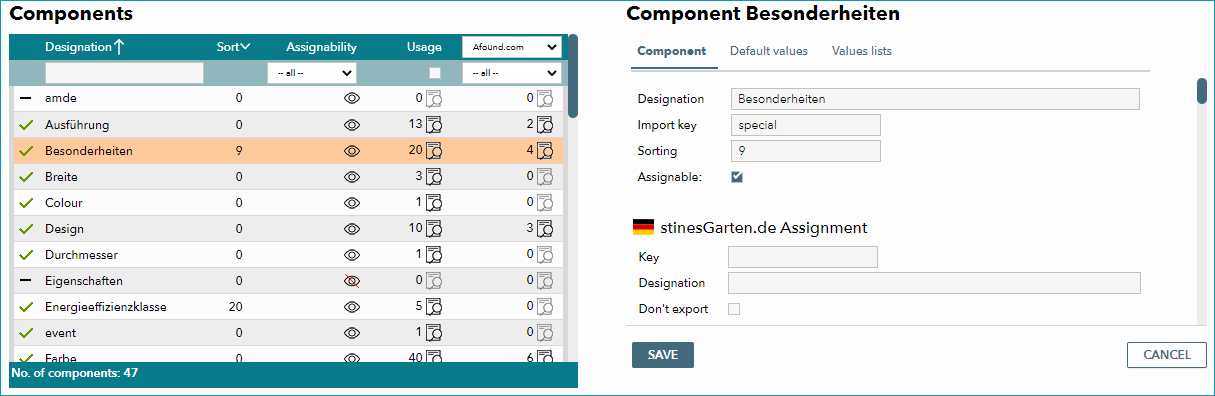
In the menu "Basic data > Properties > Components" you can create properties your products and articles may have, which you can later assign and transfer to the channel. Some basic components already exist after the initial activation of TB.One. These are properties that are commonly required, such as color, size, design, etc. Click on a component to edit it. To create a new component, open the tab "Pages" in the left navigational bar and click on "Create new component". This will cause the component editing menu to appear on the right.
FIELD |
DESCRIPTION |
|---|---|
Designation |
Assign a designator for your new component. Note that components directly promote sales! Therefore, you should make the component's designation as meaningful as possible rather than using an internal shortcut. The components need not be in German (you can also rename the predefined components). |
Import key |
If you would like to import master data later, you need to define an import key. It must not contain any umlauts or other special characters such as &, %, etc. |
Sorting |
With the sorting you can specify the order in which the components are displayed at the product in TB.One. If no conflicting logic is defined via the channel, the components will be exported in the indicated order as well. Without sorting data, export will be in alphabetical order. |
Assignable |
In order to avoid deleting components, you can disable them instead. This will hide them from the selection at the product/article. However, current assignments will persist even if the component is deactivated. |
CHANNEL-SPECIFIC FIELD |
DESCRIPTION |
Designation |
Here, you can change the component designators for the export to the channel. This is used, among other things, to translate the component's designation into other languages. If your components are not in the channel's language, enter a translation in this field. |
Do not export |
This checkbox allows you to disable certain components from being exported to the channel. This is especially useful, if you want to create a component for one particular channel but do not want to publish it on other channels. |
DEFAULT VALUES
Values from this list can later be assigned to the product (menu "Article > Product list", click on the product name and open the tab "Product description") via the arrow button next to the component field. Values entered manually in the product's component field can be added to the default values by marking the checkboxes indicated in the screenshot below ("Quote component value in the proposal list").

Components and the values from the default list can also be used for a single article (menu "Articles > Article list", click on the article number, open the tab "Article properties"). However, values entered here can not be added to the default list.
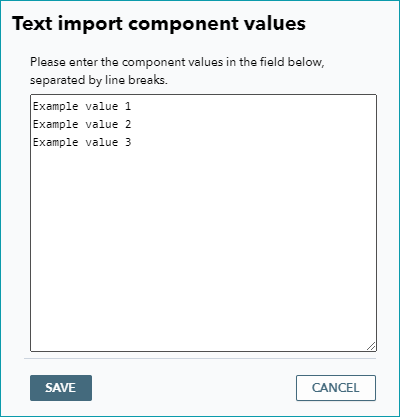
To submit a default list, either enter the values one by one and save after each line, or click on the button "Text import" at the bottom. This will open a window into which you can either enter the values manually or paste an externally generated list.
ATTENTION: |
VALUES LISTS
Values lists can be used in attribute sets to indicate which values are selectable in a component template. You could, for example, store different lists of colors for brand 1 and brand 2, and then assign the two lists to the attribute set based on the brand. As with the default values described above, you can also use the text import to fill the list.
FILTERING COMPONENTS
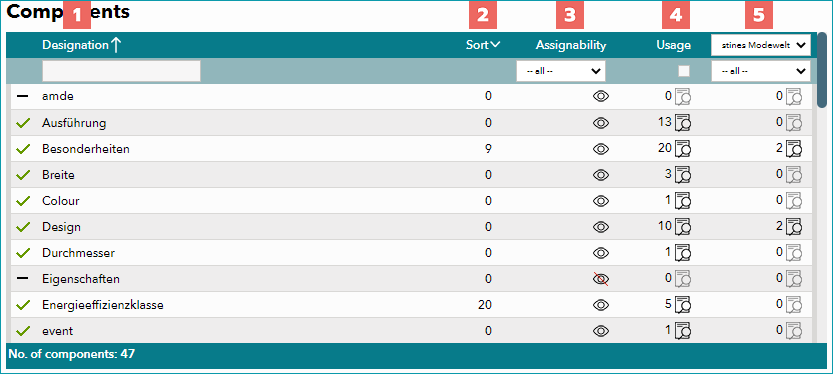
Above the component list at "Basic data > Properties > Components" are two bars which you can use to filter the component list.
NUMBER |
DESCRIPTION |
|
|---|---|---|
|
The arrow next to the label "Designation" indicates the current sorting of the list for this column.
Based on the direction of the arrow you can see that the the list is ordered from "small" to "large", in this case that means A to Z. Clicking on the arrow would change the sorting direction (i.e. it would be Z to A). The arrow would then point downwards. In the text field below, you can filter for components. Enter (part of) the search term and press the enter key to filter the list accordingly. |
|
|
The arrow in the column "Sort" follows the same rules as the one in the "Designation" column. The column shows the sorting value of the component (default value = 0; can be changed in the component menu on the right side). |
|
|
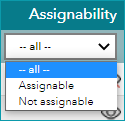
You can filter the column "Assignability" for assignable and non-assignable components. This filter determines whether or not the component is visible at the product. The value results from the checkbox "Assignable" in the component menu on the right side. |
|
|
The column "Usage" indicates the number of products and articles the respective component is assigned to. Clicking the checkbox below the headline will hide all components that are currently not in use. |
|
|
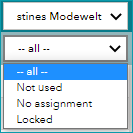
The final column shows indicates the number of products and articles the respective component is assigned to on the channel specified in the upper drop-down menu. The two drop-down menus can be combined: "Not used": shows only components that are not in use at the selected channel. "No assignment": shows all components that do not have have a channel-specific designation or key. These values can be set in the component editor that opens on the right side of the screen when clicking on a component. The channel-specific designations are set at the bottom of that menu. This filter is helpful if you want to translate your component designations for a foreign channel. "Locked": filters the list for components which are blocked from export to the selected channel. |
|

 A to Z
 Z to A
 Column does not affect the sorting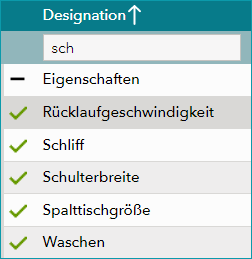




For further information, see also:
•Assigning components to a product manually
•Assigning components to an article manually
•Assigning components to a product via CSV
•Assigning components to an article via CSV
•Assigning components to a product via XML
•Assigning components to an article via XML
•Value mapping for components