Marketplaces > Marketplaces T-Z > Zalando > Error Messages for Zalando > How to Solve PABLO_01
How to Solve PABLO_01
Description
The "PABLO_01" error code in your Zalando Article Status Report (ASR) means the article is blocked on Zalando because it is no longer being transmitted from TB.One. This happens automatically when you intentionally deactivate an article, or when there is an error in the product/article data that prevents the article from being exported to Zalando.
Generic issue - Article blocked by the merchant. |
Solution:
Follow these steps to investigate and resolve the PABLO_01 error:
1. Check the Article Status in TB.One
•Go to the article list ("Articles > Article list") and open the article.
•Check the section "Article activation" to see whether the article is active. If "No" is selected here, the article is not exported to any channels.
•Check the section "Channel-specific article activation".
o"Zalando (Hauptkanal)" must be selected, otherwise the article will not be exported to any Zalando channels.
oAny country-specific Zalando channels where you want to sell the article must also be selected.
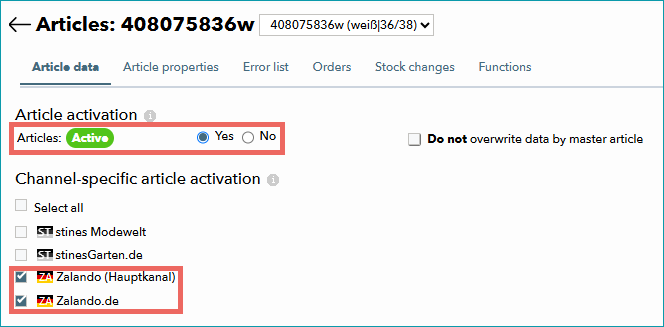
Both the general article activation and the channel-specific activation are set. This article will be exported to Zalando.de.
•If the article was deactivated on purpose: No further action is required on your side. The "PABLO_01" code will continue to appear for this article, notifying you that it is deactivated.
•If the article was deactivated by accident: Reactivate the article in TB.One. This will enable it for exports to Zalando.
ATTENTION: Activation columns in CSV files: •General activation: "a_active" •Channel-specific activation: "a_active[channel sign]" Activation nodes in XML files: •General activation: <A_ACTIVE> •Channel-specific activation: <A_ACTIVEDATA><A_ACTIVE channel="channel sign"> Example: XML activation for Zalando.de
|
2. Check Errors in the Article Error Hub
If the article is currently active in TB.One but you are still receiving the PABLO_01 error, there might be other underlying data issues blocking the article.
•Open the Article Error Hub ("Articles > Article error hub").
•Check for any error messages related to the affected article and resolve the errors.
3. Wait for the Next Export to Zalando
•When you have activated the article and fixed any errors found by the Article Error Hub, wait for the next daily Zalando export.
•Monitor the status in zDirect to confirm that the error is resolved.