Marketplaces > Marketplaces T-Z > Zalando > Error Messages for Zalando > How to Solve PSERR_132
How to Solve PSERR_132
Description
The PSERR_132 error happens when products have two different size dimensions. For example jeans (width and length, e.g., W32/L30) or bras (alpha and cup sizes, such as 75B, 90C).
It occurs for one of the following reasons:
•Only one of the two dimensions is transmitted to Zalando.
•Multiple of the product's articles share the same variant-forming properties. For example, two EANs have the same color ("blue") and both use the size ("W32/L30").
To fix this error, correctly define and map both size dimensions in TB.One.
Article rejected, because 2 EANs from the same article variant have the same size. Please check all EANs within the color variant and remove any duplicate sizes (or combination of size and length). |
Solution
Follow these steps to correctly structure and map your size and length data in TB.One:
1. Verify Your Product Data Structure
Confirm that your TB.One product data supports dual size dimensions:
•Size Grid: Products must have a size grid attribute that describes their primary size dimension.
•Length Grid: Products must have a length grid attribute that describes their secondary size dimension.
•Specific Size Information: Check that individual articles or variants contain both size and length data. You can use two separate variant dimensions or combine both pieces of information in one variant dimension (for example, "W32/L34").
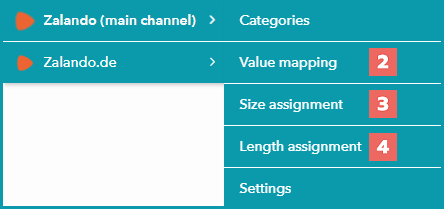
Fig.1: The value mapping menus for steps 2, 3, and 4
2. Assign Size and Length Grids in Value Mapping
Zalando uses a two-stage sizing process. First, assign your internal size and length grids to Zalando's grids:
•Go to the Zalando value mapping menu "Channels > Zalando (main channel) > Value mapping" (see Fig.1, number 2).
•In the left column, select "global assignment".
•Map your product's size grid to a Zalando size grid using the "size register" property (Key: sizeRegister).
•Map your product's length grid to a Zalando length grid using the "length register" property (Key: lengthRegister).
3. Assign Specific Size Values
Next, map your size values to Zalando's size values:
•Go to "Channels > Zalando (main channel) > Size assignment". (see Fig.1, number 3).
•Select the Zalando size grid that you have assigned to your own size grid in step 2.
•Assign your size values (such as S, M, L, XL or W32, W34, W36, Cup Size A, B, C, D) to matching Zalando size values.
4. Assign Specific Length Values
Next, map your length values. This step is crucial for products with two size dimensions.
TIP: |
•Go to "Channels > Zalando (main channel) > Length assignment" (see Fig.1, number 4).
•Select the Zalando length grid that you have assigned to your own length grid in step 2.
•Assign your length values (such as L32, L34, L36 or bra size 75, 90 etc.) to matching Zalando length values.
5. Wait for Resubmission of the Product to Zalando
•After making changes, wait for the daily export to Zalando.
•Monitor the status in Zalando's zDirect to confirm that the error is resolved.
Need Further Assistance?
If the issue persists, contact Zalando support. Ask them to clarify what data is missing or incorrect.
For further information, see also: