Marketplaces > Marketplaces T-Z > Zalando > Error Messages for Zalando > How to Solve PSERR_144
How to Solve PSERR_144
TIP: |
Description
The PSERR_144 error message indicates that a product you submitted to Zalando is missing crucial information required by their system.
At least one mandatory attribute for the Outline / Article Type is missing. Please check the provided Details and the requirements for this Outline / Article type, map the missing mandatory attribute and submit the article again. |
Solution
1. Identify the Missing Information
Read the error message carefully. The "Details" section of the message will often specify which information is missing.
2. Check the Value Mapping
•Open the value mapping ("Channels > Zalando (main channel) > Value mapping").
•Select "--global mapping--" in the left column.
•Go to the middle column and search for the missing information required by Zalando. At the top of the table, you can switch between name-based and key-based view if necessary (see Fig.1).
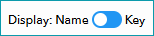
Fig.1: Switch name/key based display.
•Check if something is assigned in the drop-down menu (see Fig.2). If nothing is assigned, select a component or attribute and save.

Fig.2: An attribute or component must be assigned in the drop-down menu.
•Note the name of the attribute or component you have assigned.
•In the left column, click  and select your product's category.
•Go to the middle column and search for the missing information required by Zalando.
•Check if something is assigned in the drop-down menu. If nothing is assigned, go to step 3. If there is an assignment, note the name of this component/attribute instead of the one mapped at the global level.
TIP: |
3. Check the Product Data
The most common reason for the error is that the required information is missing at the product itself.
•Go to "Articles > Product list" and open your product.
•Switch to the tab "Product description".
•Go to the sections "Product components"/"Product attributes"
•Check whether the component or attribute noted in step 2 is assigned to the product.
•If the component/attribute is missing, add it and select a value. Note the value's name.
•Save your settings.
4. Recheck the Value Mapping
•Open the value mapping menu ("Channels > Zalando (main channel) > Value mapping").
•Reopen the affected Zalando-property at the global or category level (depending on where it was mapped in step 2).
•In the right column, check whether a Zalando value is assigned to the value you noted in step 3.
•If nothing is assigned, select a Zalando value here.
•Save your settings.
5. Wait for the Next Export to Zalando
•When you have configured all settings, wait for the next daily Zalando export.
•Monitor the status in zDirect to confirm that the error is resolved.
For further information, see also: