TB.One > Product and Article Data > Manual Master Data Creation > Creating Products > Product Description
Product Description
New products will automatically receive a unique product ID (displayed in parentheses left of the product name). Submit product texts and assign product components and attributes. Provide as much information as possible to be prepared for the requirements of different channels.
Click on the respective product in the product list and open the tab "Product description" to access the editing menu.
PRODUCT TEXTS
Before product texts can be added, it is necessary to configure the input fields for product data, and to create the required brands.
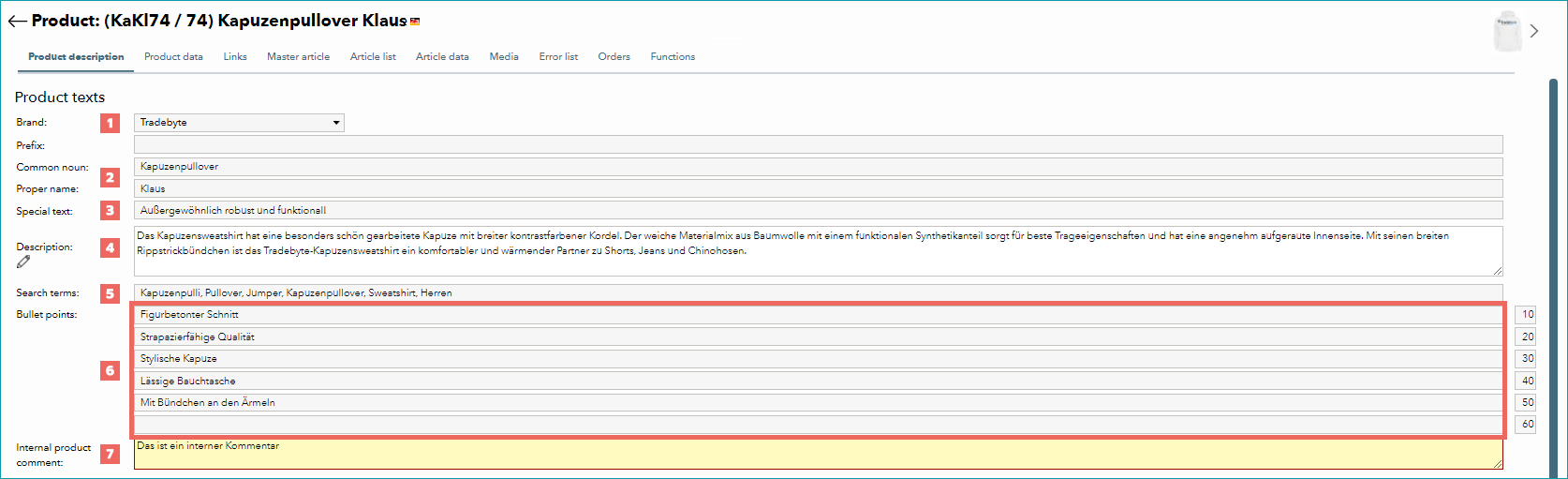
FIELD |
PURPOSE |
|---|---|
|
If you did not enter the brand during product creation, select it from the drop-down list. Specifying a brand is mandatory for most channels. |
|
If necessary, change the common noun, and add a product-specific proper name if you have not done so during product creation. The designations of articles belonging to this product will usually consist of common noun and proper name of the product appended by variant properties. The common noun is always mandatory, the proper name helps distinguish the products in the product/article list and the channel store. It is therefore strongly recommended to provide proper names. Together, both fields must not contain more than a total of 255 characters (they should, however, usually be shorter than that).
|
|
The field "Special text" can be used to add a short and concise additional text. Depending on the channel, this text may be used as a subtitle or a short description. A maximum of 255 characters can be stored in this field, but it is recommended to stay significantly below this limit (approximately 100-150 characters). |
|
Each product needs a description text (as detailed as possible and channel-neutral). Do not include any advertisements (e.g. for another online shop). The description text should be a concise, continuous text. It should not contain bullet points or formatting. Make sure to mention any product features which are not clearly visible on the media. To open a larger editing window, click on the icon ( |
|
Enter up to 5 comma-separated search terms with a maximum of 50 characters each. If a channel supports search terms, they are usually important and enable customers to find your products in the shop. |
|
Enter three to eight or your product's characteristics, so customers get a quick overview of the product highlights. A bullet should contain up to five words. Only use bullet points that are not part of the product's components. By default, only one text box is displayed here. As soon as you fill this box, the next box will appear. Each bullet point needs to be entered in a separate box. In the smaller boxes to the right of each line, you can determine the order in which the bullets are listed.
|
|
This field may be used for internal comments. Its contents are not exported to the channels. |


 If a channel does not support the division into common noun and proper name, TB.One will combine the fields during export.

 ) below the word "Description". You can enlarge this window by dragging the lower right corner of the text box.


PRODUCT COMPONENTS AND PRODUCT ATTRIBUTES
You need to create components and attributes before you can assign them. Create component sets if applicable.
FIELD |
PURPOSE |
|---|---|
|
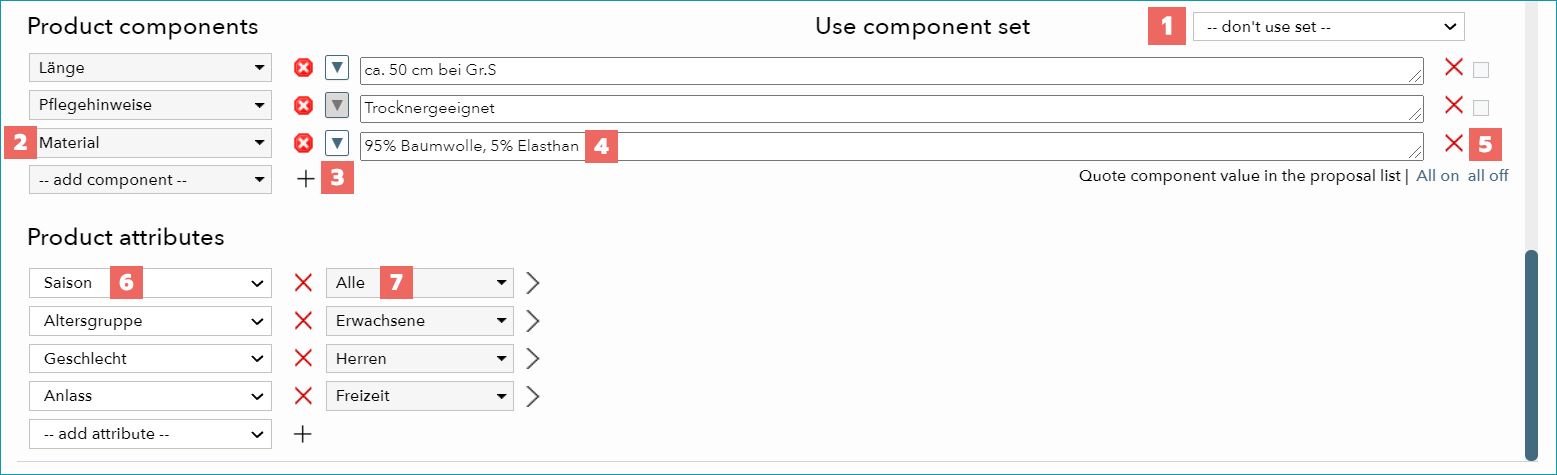
If component sets were defined in advance, you can select a matching template from the list "Use component set" and apply it by clicking "Save". All components (and their values where applicable) will be added to the product and can then be adjusted. |
|
Add all non-variant-forming properties by selecting the corresponding component from the list. By clicking the delete button ( |
|
If a list of proposed values was added during component creation, you can display it by clicking the arrow and select a value to enter in field 4. The drop-down list is searchable. When you type a letter, it will be filtered accordingly. |
|
Once a component is selected in field 2, you can enter the corresponding value here. By clicking the delete button ( |
|
Frequently used values can be added to the component's list of proposed values. To do so, select the checkbox in the relevant component row or choose "All on" in the dialogue "Quote component value in the proposal list" to select all current values. Upon clicking "Save", the values will be added to the list. |
|
Analogous to the components, use the drop-down menu to select an attribute. |
|
Select an attribute value from the list. Attributes only take values that were predefined in their value lists. You may add multiple values to one attribute. Click the arrow button ( |
 ) you can remove a component (do not forget to save).
 ) to add another value.
For further information, see also:
•Manual master data creation - overview