Marketplaces > Marketplaces T-Z > Zalando > Error Messages for Zalando > How to Solve PSERR_151
How to Solve PSERR_151
Description
The Zalando error PSERR_151 occurs when an article's EAN matches an article that already exists at Zalando, but it has a different category assigned in TB.One than what is stored in zDirect. Zalando refers to categories as "Silhouettes" or "article types".
Possible Causes:
a)Zalando might have changed the category during article onboarding on their own behalf to match the category in their shop.
b)You have unintentionally changed your product's category in TB.One after initial article onboarding.
ATTENTION: Note the Zalando "Content-Freeze" |
The submitted article matches an existing one that has a different "article_type". Update the "article_type" to correct the error. Note that after updating, you may need to adjust the article's attributes to match the new article_type. |
Solution: Update the Channel Category in TB.One
1. Determine the Correct Zalando Category
•If you haven't received information from Zalando about the correct category ("silhouette"/"article_type"), contact Zalando support to find out which category to use.
•You can also check Zalando’s guidelines in the Partner University for reference.
2. Adjust the Zalando Category in TB.One
•Go to "Articles > Product list" and open the affected product.
•Switch to the "Product data" tab and go to the primary category assignment for "Zalando (Hauptkanal)" (see Fig.1).
•Update the field with the correct category as determined in step 1.
•Save your settings.
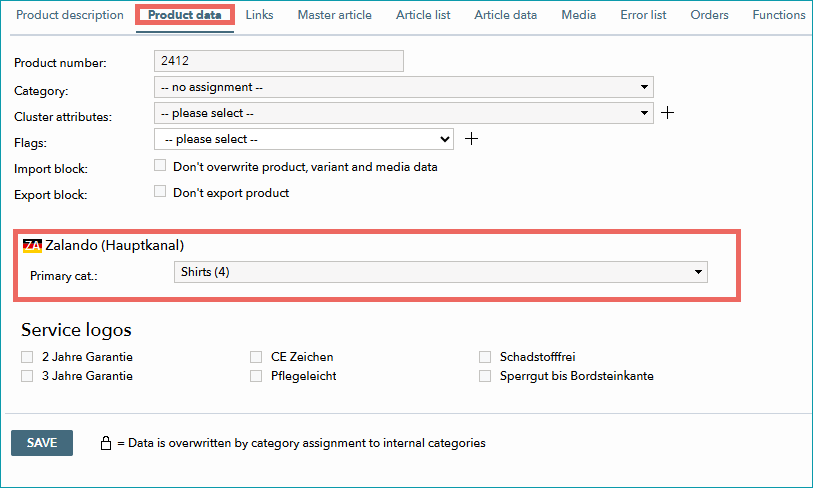
Fig.1: Assigning a category
3. Verify Property Assignments
•Changing the category may impact property mappings. Check if category-level properties (such as size, material, color) need adjustments. If you map at the global level only, no further adjustments are needed.
•Go to "Channels > Zalando (main channel) > Value Mapping" and ensure all mandatory properties are correctly assigned for the new category.
4. Check Your Import and Clusters
•If you import your product data into TB.One, update the category mapping in your import files to prevent the error from recurring.
•If you use clusters, update the Zalando category in the affected cluster as well ("Basic data > Classification > Cluster").
5. Wait for the Next Export to Zalando
•When you have configured all settings, wait for the next daily Zalando export.
•Monitor the status in zDirect to confirm that the error is resolved.
For further information, see also: