TB.One > Product and Article Data > Manual Master Data Creation > Creating Products > Product Categorisation
Product Categorisation
Before you can categorize products, the channels have to be activated, and you may need to import channel categories in the channel menu.
The product categorization can be done for many products simultaneously by using the bulk editing feature, if appropriate criteria exist by which the list can be filtered.
ATTENTION: |
To categorize your products in the channel shops, you need to indicate at least one category to which the product belongs for each channel. Depending on the channel, your products may be listed in more than one category. Therefore, indicate a primary and, where applicable, a secondary category, a product type, or a commodity group for each channel on which the product will be sold. This information (categories, product types, commodity groups, etc.) essentially works in the same way, but the designation may differ from channel to channel.
Some channels require a two-stage categorisation. If this is the case, it will be mentioned in the respective channel's pages in the section "Channel documentation". It may also be necessary to configure some settings at "Channels > [Channel] > Categories" or at "Basic data > Classification > Typification", to add the required categories to the respective drop-down menus.
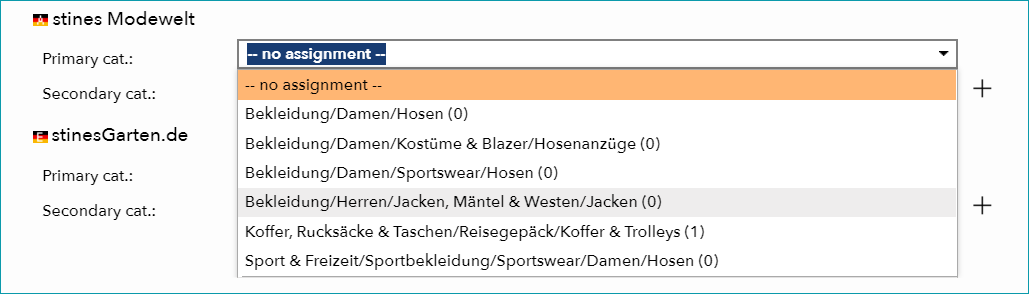
Select the appropriate entry from the drop-down list and save your settings. If the channel allows for multiple mappings, you can change the order using the numbering on the right side of the drop-down menus. Existing assignments can be removed by clicking the "delete" icon ( ). By marking the checkbox next to the lock icon (
 ), you can specify that the information in the corresponding drop-down should not be overwritten by imports (this feature is only available for some category trees).
For further information, see also:
•Manual master data creation - overview