Marketplaces > Marketplaces T-Z > Zalando > FAQ - Zalando > What are Zalando High Value Attributes?
What are Zalando High Value Attributes?
This article provides you with an overview of what Zalando high-value attributes are, and how to make the most out of them.
ATTENTION: Important note before you start reading! In this article, the term "attribute" is based on the Zalando platform's terminology and does not correspond directly to TB.One attributes. Zalando refers to any TB.One product/article property as "attribute". In TB.One, this information may correspond to components, attributes, or other properties. |
What's a Zalando high-value attribute (HVA)?
At Zalando, a high-value attribute (HVA) is an optional product detail that customers look for on the website's product pages.
This can be, for instance, a product or article detail that's particularly interesting to customers (e.g. details about trouser rise, washing instructions, ...).
After identifying which optional information is particularly important, Zalando flags it as "high value" based on an analysis of how customers interact with such information on product detail pages.
To optimize your articles' performances and visibility, it is essential to correctly identify high-value attributes in zDirect, and map them in TB.One.
TIP: Why using high-value attributes? Providing high-value attributes is likely to have a positive impact on your commercial performance. They help customers discover articles and make informed purchase decisions. Adding at least 70% of the recommended HVAs in a category can double add-to-basket rates and lower return rates by up to 6%. |
How to identify high-value attributes (HVAs) in zDirect
Zalando provides reports that show what information you should map to provide high-value attributes:
1.Open zDirect, then switch to the "Articles" tab and navigate to the "Attribute insights" dashboard (see Fig. 1). We recommend to always review the full list.
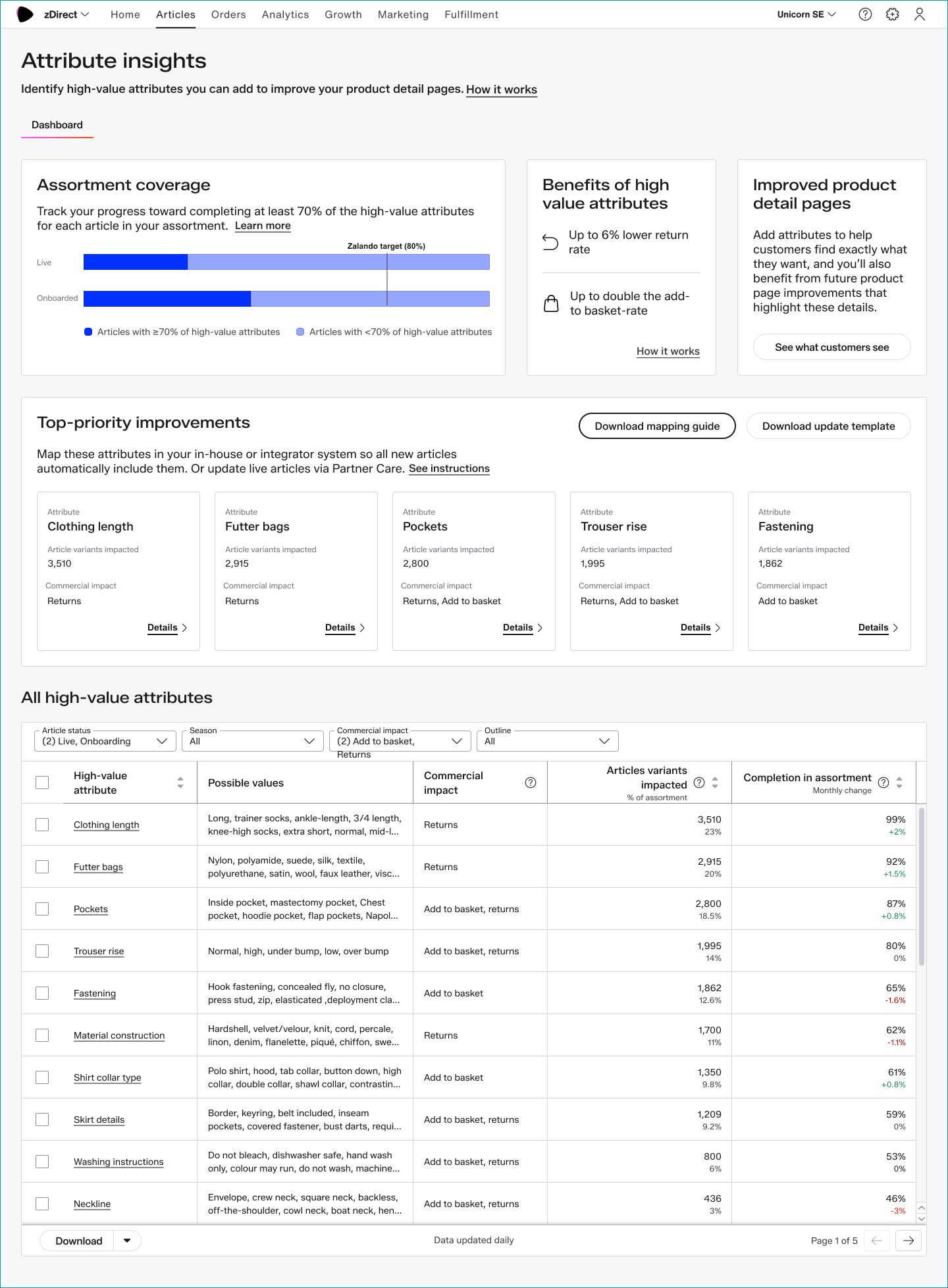
Fig. 1: The "Attribute insights" dashboard in zDirect
2.On the "Attributes insights" dashboard, go to the "All high-value attributes" section. Use the the "Outline" filter to see the high-value attribute list of a specific category (e.g. "Coats").
3.First, assess feasibility - Check whether you have already maintained that data in TB.One. The "Possible values" column (see Fig. 2) helps you understand which type of values are expected for each attribute. To get more details about each attribute, click on the attribute’s name to see the attribute detail page.
4.Then, assess its impact - The "Article variants impacted" column (see Fig. 2) allows you to prioritize attributes for action by identifying those with the highest number of missing article variants.
5.In the first column ("High-value attribute", see Fig. 2), select the check boxes for all attributes you'd like to work on based on feasibility and impact.
6.Click "Download" and select "Mapping guide" to download the mapping instructions for the selected attributes.
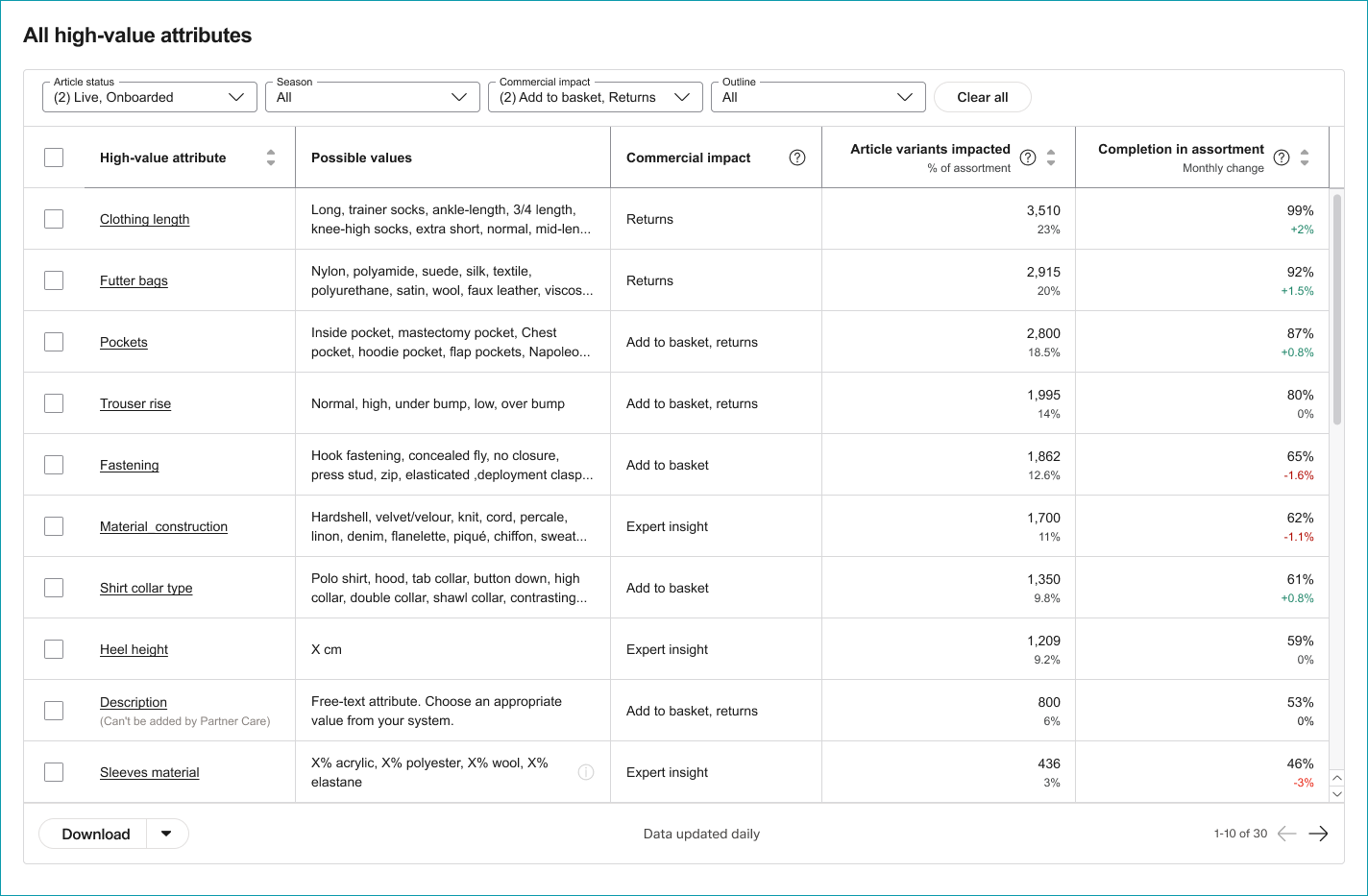
Fig. 2: Overview of the high-value attributes table in zDirect
ATTENTION: You cannot change attributes for articles that already exist in Zalando's system through TB.One! Only new articles that you transfer to Zalando will benefit from the high-value attributes you map. For existing articles, please request an update directly from Zalando. You can check which HVAs can be updated in zDirect before requesting a change: 1.Use the "All high-value attributes" table (see Fig. 2 above) to create a custom list of which high-value attributes to update. 2.Click "Download" in the bottom left corner of the table. 3.Select "Article update template" to add high-value attributes to live articles with the support of Partner Care (select the topic "Article onboarding and request type: Content update"). |
How to map Zalando high-value attributes (HVAs) in TB.One
1.Open the mapping downloaded previously in zDirect.
2.Go to the "Missing attributes overview" tab, and find the "Technical attribute name (XML feeds)" column (see Fig. 3 below), which contains the high-value attributes' keys.
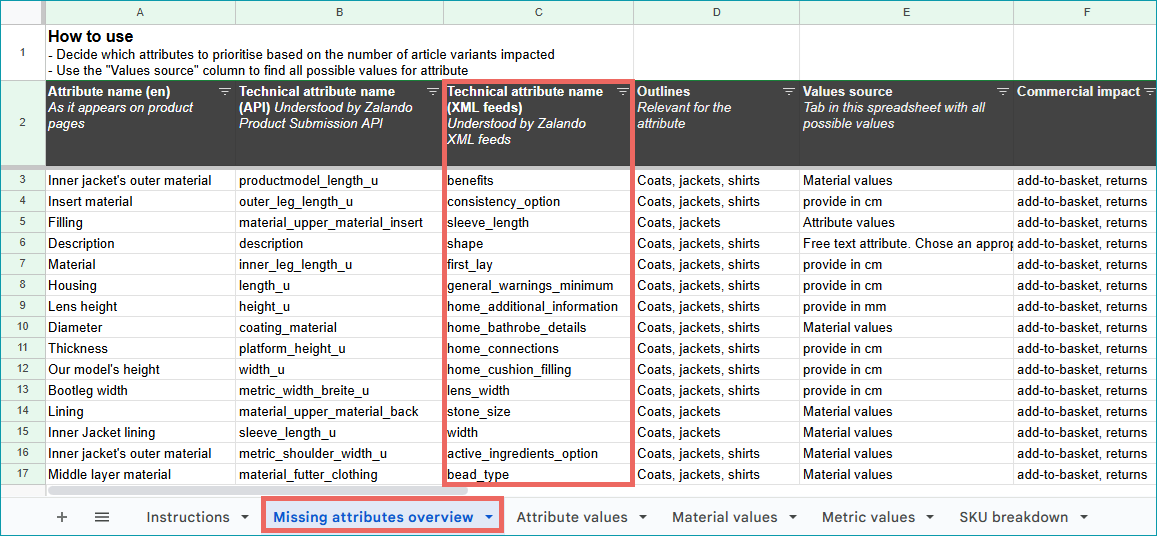
Fig. 3: The "Missing attributes overview" tab and "Technical attribute name (XML feeds)" column in the mapping spreadsheet
3.In TB.One, open the value mapping menu of your Zalando channel ("Channels > [Your Zalando channel] > Value mapping").
4.You can now map your values:
•Across all Zalando categories (called "Outlines" at Zalando) - click on "-- global mapping--" in the left column to display the Zalando attributes in the central column.
•For a specific category/outline only - Click the  icon and select a category or outline from the list.
5.Switch the display to the key-based mapping using the "Display" toggle (see Fig. 4):
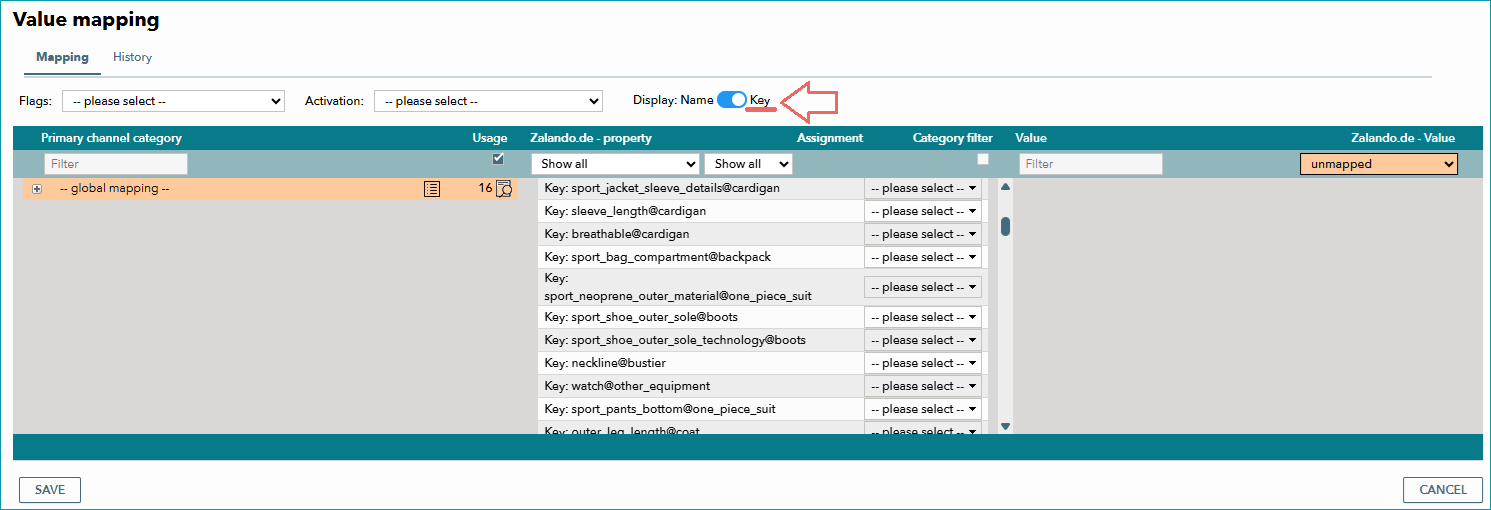
Fig. 4: Switching the display to a key-based mapping in TB.One
6.Use your browser's search feature (usually "Ctrl+F") to search for the keys listed in the mapping guide in the column "Technical attribute name (XML feeds)".
7.For each HVA, open the drop-down menu in the central column and select the corresponding TB.One property (a component or attribute).
8.Go to the right column and filter for unmapped values. Assign a Zalando value for each entry in the list (see Fig. 5):
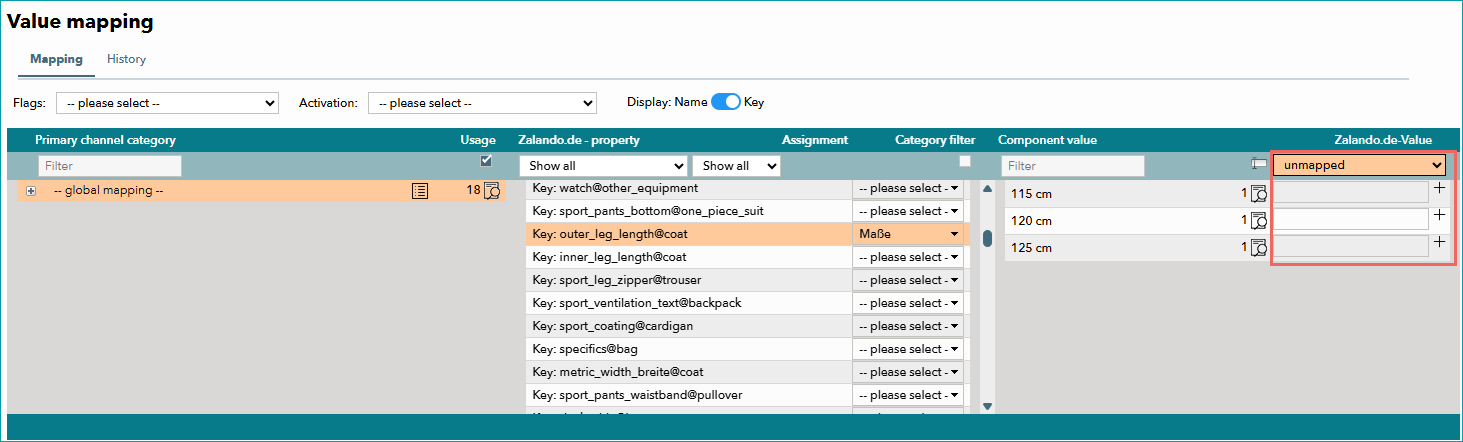
Fig. 5: Unmapped values of a Zalando channel's value mapping in TB.One
9.Save your settings to finish.
ATTENTION: Some values are restricted! This means that they can only be used in specific outlines or categories. We recommend mapping these values at the category level to avoid complications. To find out which values are restricted: 1.Open your mapping guide. 2.Go to the tab "Attribute values" and compare the columns "Attribute value [en]" and "Outline". 3.If there are restrictions, the column "Outline" shows in which categories a value is permitted (see Fig. 6): 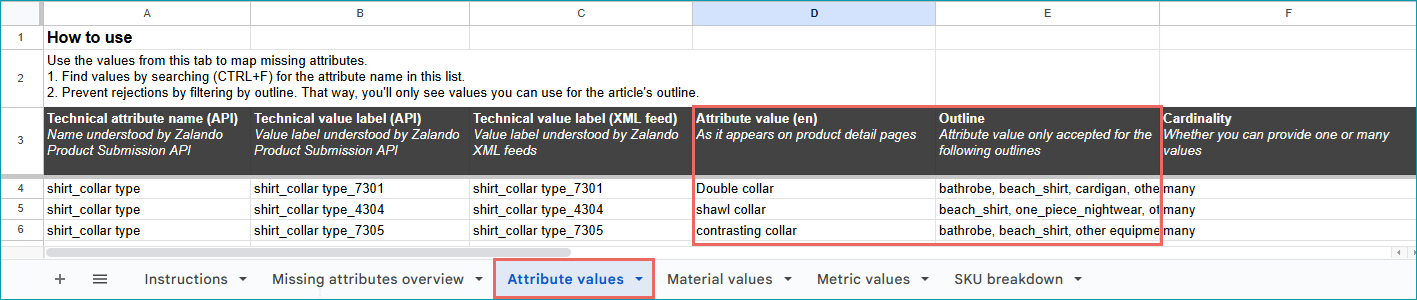 Fig. 6: Example of restricted values in a mapping guide |