TB.One > Order Data and Order Processing > FAQ - Order Data and Order Processing > View and Manage My Receipts
View and Manage My Receipts
In this guide, you’ll learn:
•How to view your receipts in TB.One
•How to update receipt statuses in TB.One
•How to print receipts and export electronic payment information
For each order processed via TB.One, an invoice or a credit note including the following information will be generated:
Information Type |
Details |
|---|---|
Receipt information |
Date and number |
Customer information |
Name |
Payment information |
•Payment type •Status (paid or executed) •Total amount •Number of items included in the payment •Transaction data |
Order information |
Order ID and number |
Your receipts are available in TB.One, from where you can manage their statuses, print them or export electronic payment information.
How to view your receipts in TB.One
To find the complete list of receipts in TB.One:
1.Go to “Orders > Receipt list”.
2.You’ll find the receipts for all your orders (see Fig. 1):
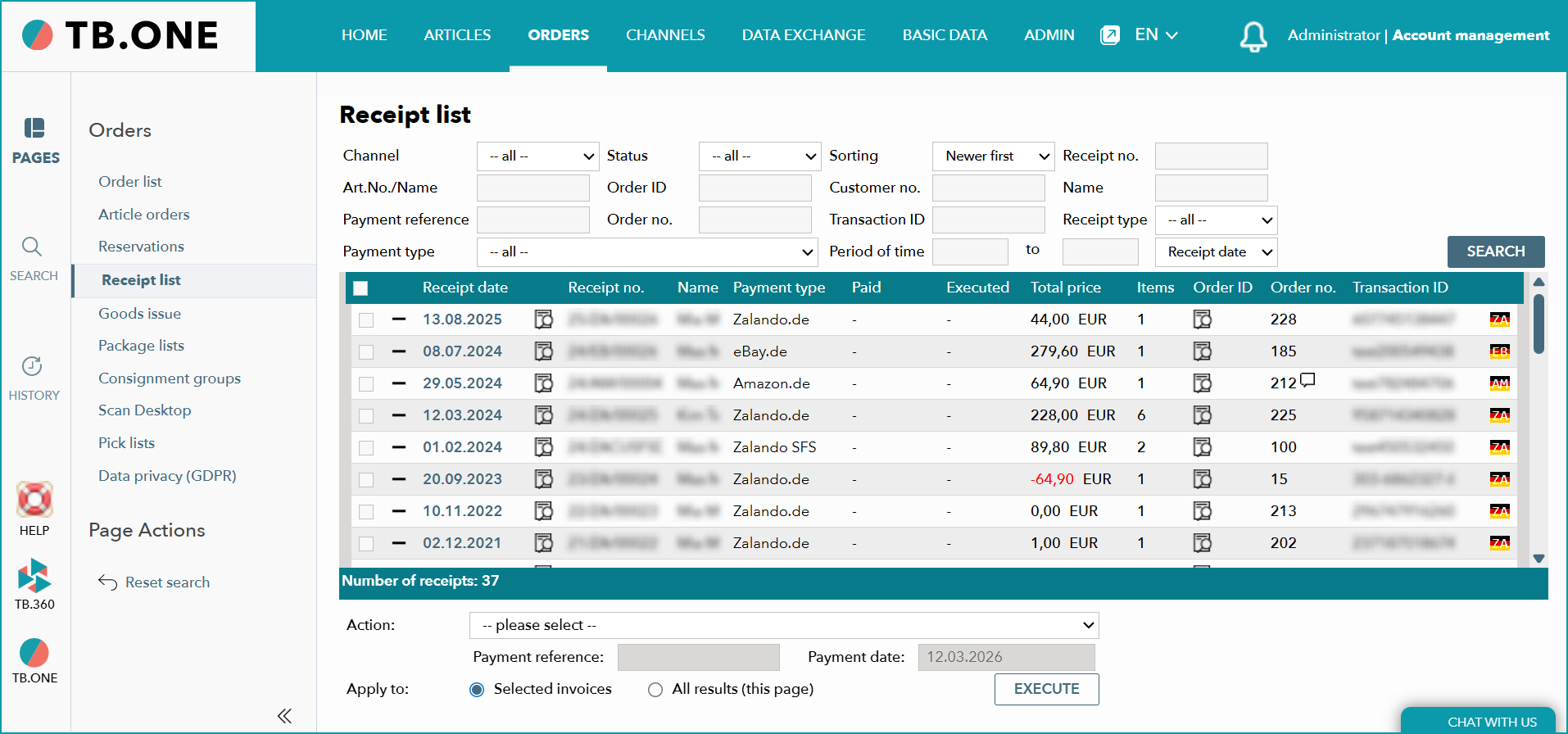
Fig. 1: Overview of the receipt list in TB.One
You can filter the list for quick searches (see Fig. 2):
Filter |
Purpose |
|---|---|
1. Channel |
Receipts for a specific main channel |
2. Art.No./Name |
Filters the list by article number or name |
3. Payment reference |
Receipts for a specific payment reference |
4. Payment type |
Receipts for a specific payment type defined for each channel |
5. Status |
Filters the list by:
Channel transmission status
•Not transmitted •Transmitted
Payment status
•Not processed •Executed •Executed + not paid •Not paid •Paid |
6. Order ID |
Receipts for a specific order ID |
7. Order number |
Receipts for a specific order number |
8. Sorting |
Sorts receipts from newest or oldest first |
9. Customer no. |
Receipts for a specific customer number |
10. Transaction ID |
Receipts related to a transaction ID |
11. Period of time |
Filters the list by receipt date, execution date, payment date, order date or specific timeframe |
12. Receipt no. |
Search for a specific receipt number |
13. Name |
Receipts under a specific customer’s name |
14. Receipt type |
Invoice or credit note |

Fig. 2: Filters of the receipt list in TB.One
How to update receipt statuses in TB.One
You can switch the status of your receipts to:
•“Mark as paid” - Paid receipts
•“Mark as processed” - Receipts you’ve processed
•“Delete” - To delete receipts
To update the status of one or more receipts in TB.One:
1.Open your receipt list, and select one or more receipts using the check boxes.
2.At the bottom of your screen (see Fig. 3), open the drop-down menu next to “Action”, and choose a status.
3.Click “Execute” to finish.

Fig. 3: Example of a receipt status update to “Mark as processed”
ATTENTION: If you need to update the status of your entire receipt list at once, select “All results (this page)” next to “Apply to” at the bottom of the page. |
How to print receipts and export electronic payment information
1.Open your receipt list, and select one or more receipts using the check boxes.
2.At the bottom of your screen (see Fig. 4), open the drop-down menu next to “Action”, and choose:
o“Print” to print the receipt(s)
o“Export DTAUS records” to get an electronic payment information export
3.Click “Execute” to finish.

Fig. 4: Example of a receipt print request in TB.One
TIP: Need to print or export information for the entire receipt list at once? |