TB.One > Order Data and Order Processing > Test Order Generator > TEST ORDER GENERATOR - OVERVIEW
TEST ORDER GENERATOR - OVERVIEW
During the integration of a new channel, you can use the "Test order generator" to simulate orders and review your channel-specific order management.
Navigate to “Orders > Order list”. The tool is listed in the left sidebar on the tab "Pages" in the section "Page Actions". Click on the menu item “Test order generator” to open it. In the pop-up, select a channel and the articles included in the test order and configure some additional settings.
Testing the channel-specific order process reduces the risk of losing real order information during daily business. This may happen if pieces of information are forwarded to the wrong place or not transferred at all, resulting in unwanted delays. The handling of the Test order generator is intuitive and efficient: Create a test order with only a few clicks. Then, edit and process it the same way you would with any regular order.
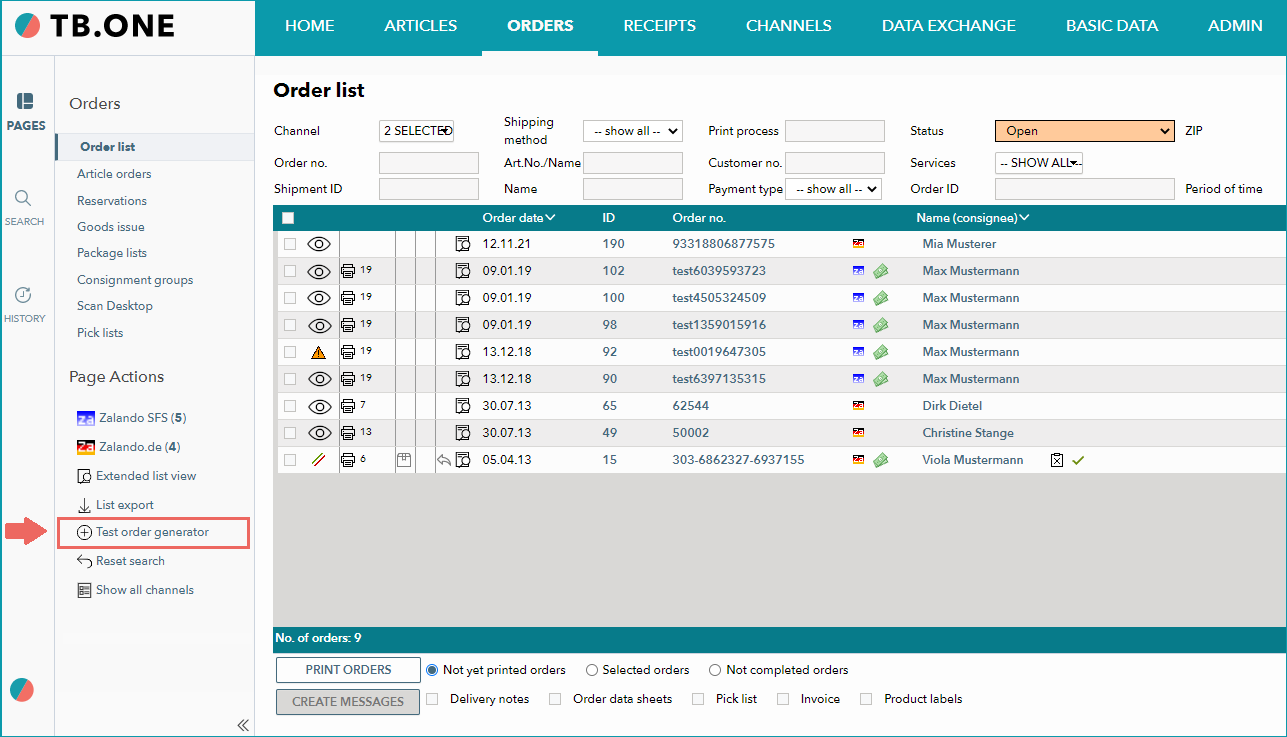
The test orders are entirely virtual and designed to simulate the order process. They allow you to test the printing of documents/labels and the technical transfer of orders to your system.
ATTENTION: Expand the accordion below to find a complete overview of all channels for which the test order generator is available. Test order generator - Channel availability list
|
ADVANTAGES AND CAPABILITIES AT A GLANCE
▪Test the order process using realistic order data to identify and solve problems even before the actual live test
▪Test the existing set-up after changes and adjustments of the systems
▪Generates realistic test orders according to the channel’s supported scheme
▪The test order process exactly simulates the channel-specific order process
HOW TO USE THE TEST ORDER GENERATOR
For a guide on how to use the Test order generator, see Creating test orders - Step by Step
For further information, see also:
•Manual order processing - overview