TB.One > Product and Article Data > FAQ - Product and Article Data > How to Activate an Article for a Specific Channel?
How to Activate an Article for a Specific Channel?
TIP: You can activate articles via TB.One's graphical user interface, or by importing a product catalog via TB.Cat/XML or PANDA/CSV. |
The article activation has two steps:
1.General activation: Controls the articles' availability globally.
2.Channel activation: Activates the articles for the target channels.
Articles are not exported until both settings are active.
A) Activating Articles in the Graphical User Interface
You can find the activation settings for each article in the article details on the tab "Article data".
Activating articles in the GUI – step-by-step
1. General Activation This first activation step indicates that you've completed the article creation process and that the article is ready for export. •Open the article list ("Articles > Article list"). •Open an article by clicking on the article number. •Go to the menu section "Article activation" and select "Yes". •Save your settings. 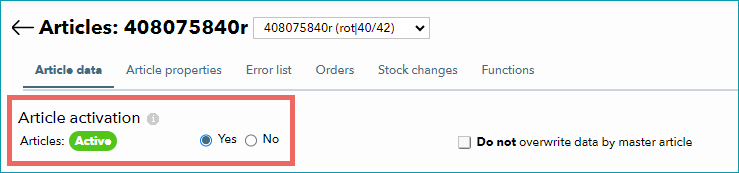 Step 1: Activate the article globally
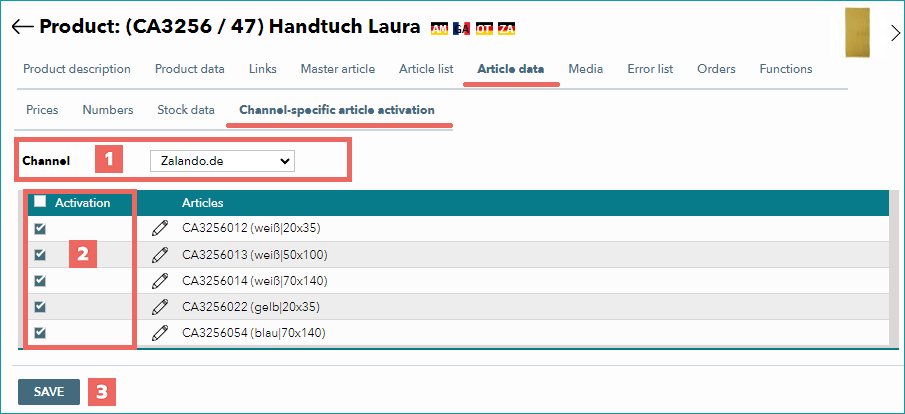
2. Channel Activation •Open the article list ("Articles > Article list"). •Open an article by clicking on the article number. •Go to the menu section "Channel-specific article activation" and select each channel where you want to sell your article. •Save your settings. The article is now active and will be exported to all target channels with the next regular data exchange. 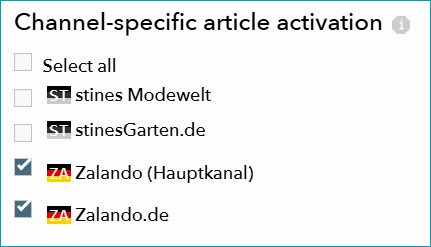 Step 2: Activate the article for a channel (here: Zalando.de)
|
B) Activating Articles via XML
The latest version of the TB.Cat XML schema is 1.4. If you are using the version 1.2 or 1.3, you cannot activate individual articles for a channel. Instead, you activate the entire product.
ATTENTION: |
TIP: •1 = active •0 = inactive |
How to activate articles via TB.Cat 1.4
1.Set the global activation in article's child node <A_ACTIVE>. 2.Configure channel-specific activations in the child nodes of <A_ACTIVEDATA>. Each child node is named <A_ACTIVE>. Indicate the target channel by providing its channel sign (for example, "zade" for Zalando.de) in the XML-Attribute "channel". Both activations must be set for articles to go live.
|
How to activate products via TB.Cat 1.2/1.3
1.Activate the product in the child nodes of <P_ACTIVEDATA>. Each child node is named <P_ACTIVE>. Indicate the target channel by providing its channel sign (for example, "zade" for Zalando.de) in the XML-Attribute "channel". 2.Activate each article via its <A_ACTIVE> node. Articles that are deactivated here will not be exported to any channel. Both activations must be set for articles to go live.
|
C) Activating Articles via CSV
There are two ways to activate articles via CSV.
ATTENTION: A CSV file containing both columns "a_active[channel]" and "p_active[channel]" will be rejected. |
Option 1: Control the channel-specific activation at the article level
Provide the columns "a_active" and "a_active[channel]" in the CSV file (PANDA) you import. The column "a_active" sets the global activation state for the article. •Enter the value "1" to make the article exportable. •Enter the value "0" to block the export. The column "a_active[channel]" sets the channel-specific activation state. •Replace [channel] with the target channel's sign in square brackets (for example, "a_active[zade]" for activation on Zalando.de). •Enter the value "1" to activate the article for the channel. •Enter the value "0" to deactivate the article for the channel. |
Option 2: Control the channel-specific activation at the product level
Provide the columns "p_active[channel]" and "a_active" in the CSV file (PANDA) you import. The column "p_active[channel]" sets the channel-specific activation state for the product. All of the product's articles are activated for the channel. •Replace [channel] with the target channel's sign in square brackets (for example, "p_active[zade]" for activation on Zalando.de). •Enter the value "1" to activate the product for the channel. •Enter the value "0" to deactivate the product for the channel. The column "a_active" sets the global activation state for the article. •Enter the value "1" to make the article exportable. •Enter the value "0" to block the export. |