TB.One > Product and Article Data > Manual Master Data Creation > Creating Articles > Creating Several Variants of one Product (Variant Article)
Creating Several Variants of one Product (Variant Article)
If your product has several variants (e.g. different colors and/or sizes), you need to store the appropriate variant dimension(s) before you can create variant articles. Articles are created on the "Article list" tab in the product details.
1. DEFINE VARIANT DIMENSIONS
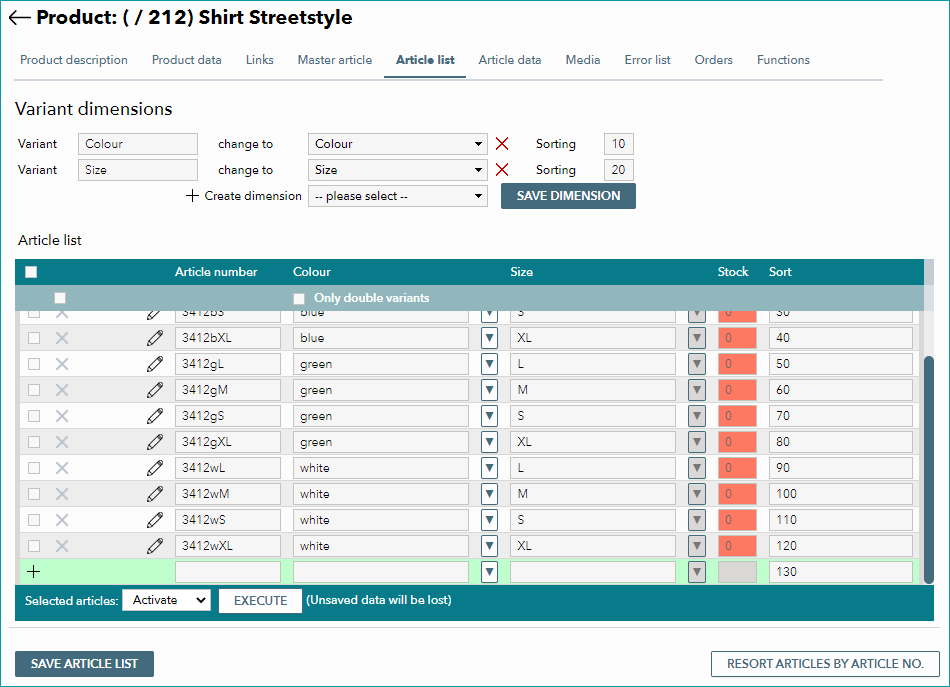
To create variant dimensions, open the drop-down menu "Create dimension". Here, you can select one of your components. Save your entry by clicking the button "Save dimension". You can then add further dimensions in the same way.
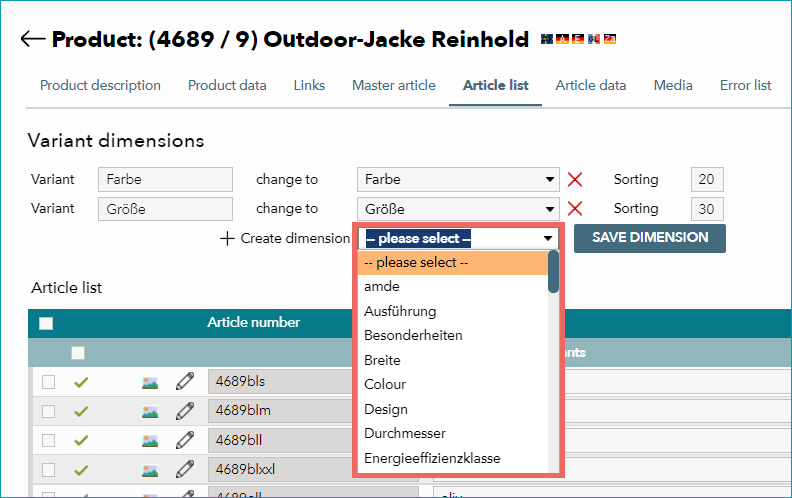
Use the field "Sorting" on the right to determine the order of the dimensions by entering numeric values. If you would like to remove an existing dimension, you can do so by clicking the "Delete" icon ( ) and confirming by clicking "Save dimensions".
ATTENTION: |
2. VARIANT CREATION
There are several ways in which you can create articles manually. If you need to create many variants for one product, using the variant wizard may expedite the process.
2.1 USING THE VARIANT WIZARD
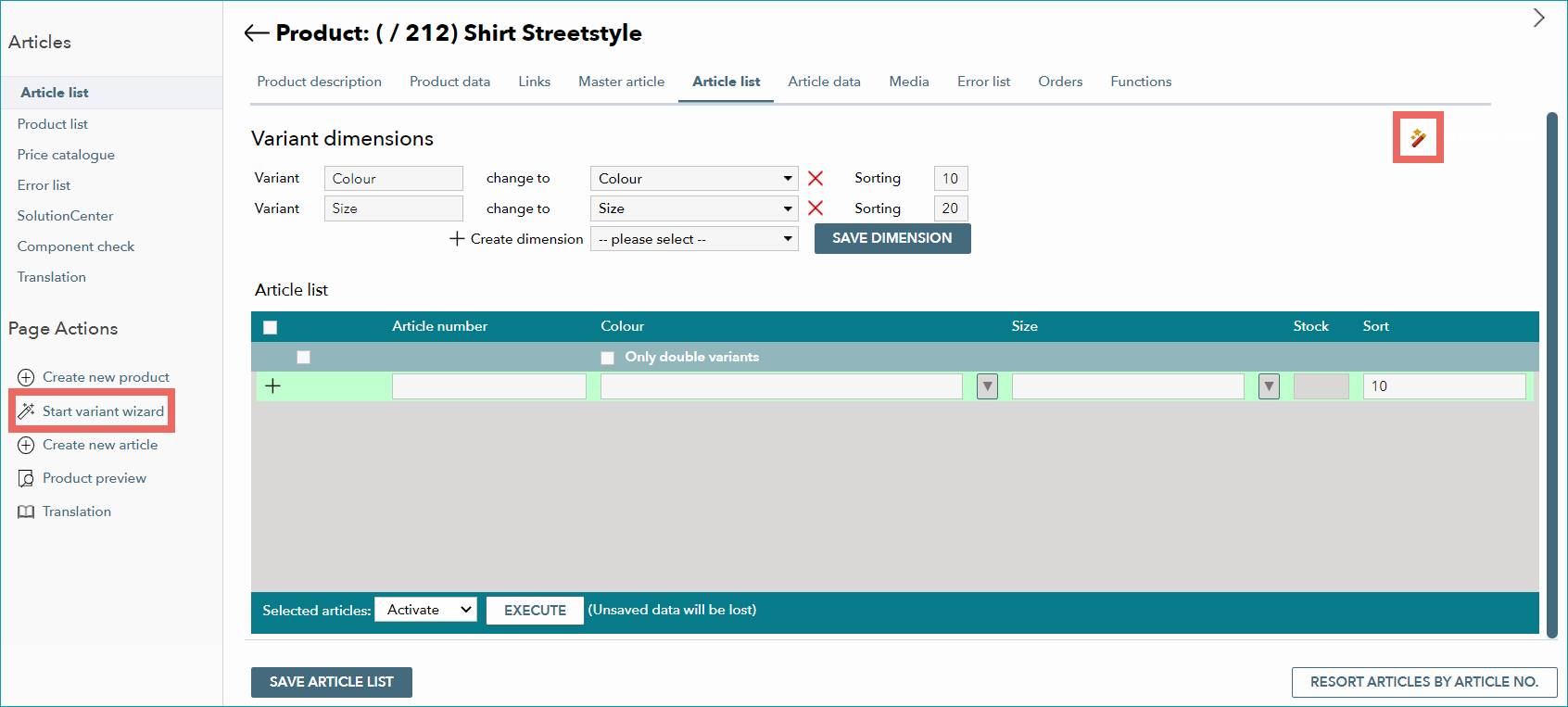
Open the newly created product's "Article list" tab and click on the option "Start variant wizard" in the top right corner of the menu. Alternatively, you can select the tab "Pages" in the left navigation bar and click on "Start variant wizard" there.
ATTENTION: |
Fill the required fields in the variant wizard. In the example, variants are created for a sweater which comes in three different colors and four sizes. For the size, a predefined variant template is used.
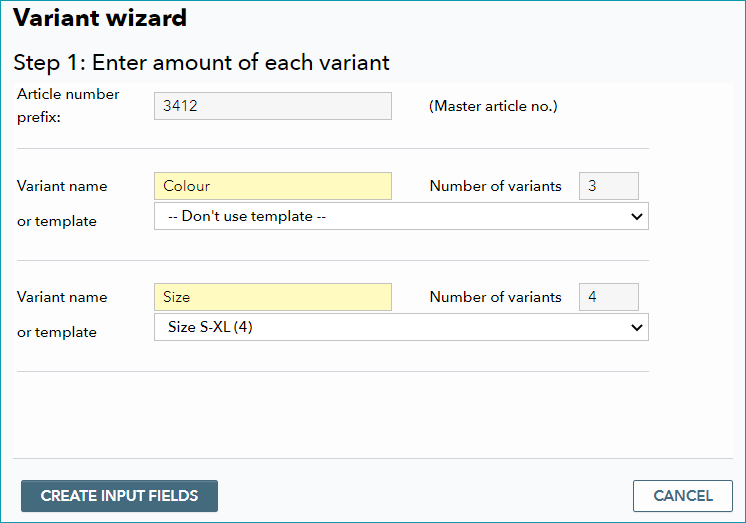
Enter an article number prefix in the variant wizard. Usually, this is the product number or the master article number. Note that article number suffixes defined in the template only apply if a prefix is specified. Add the number of variants or select the appropriate template for each variant dimension. When you are done, click on "create input fields".
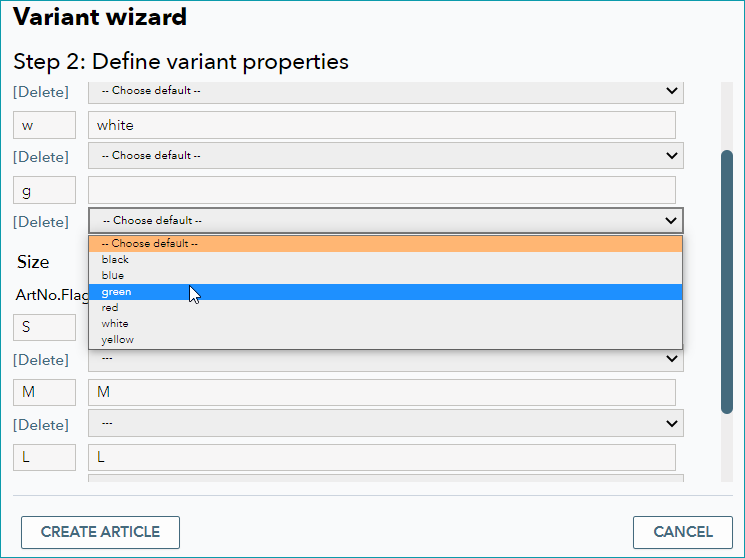
In the next screen, article number flags can be adjusted and the property values are added (or modified if they differ from the template). Confirm your input with the button "Create article". Now, the completed article list will be displayed; you may amend it at any point in time. If you did not specify article numbers they will be formed automatically by combining the product ID and consecutive three-digit numbers.
2.2 MANUAL ARTICLE CREATION
To create articles individually open the tab "Article list" in the product details. Here, you can either select the tab "Pages" in the left navigation bar and click on "Create new article" or enter the article numbers and details into the article list directly. In both input masks you can click on the arrow symbol to select values from the respective components' value lists. Save your new article by clicking "Create article" or "Save article list". If you create articles via the editing window, you will be taken directly to the article data detail view upon saving.
For further information, see also:
•Manual master data creation - overview