TB.One > Product and Article Data > Manual Master Data Creation > Creating Products > Copying a Product
Copying a Product
You can create a new product by copying an existing one. In this case, information such as the description text, assigned attributes, components, channel activations and categorisations will be taken over in the new product.
ATTENTION: |
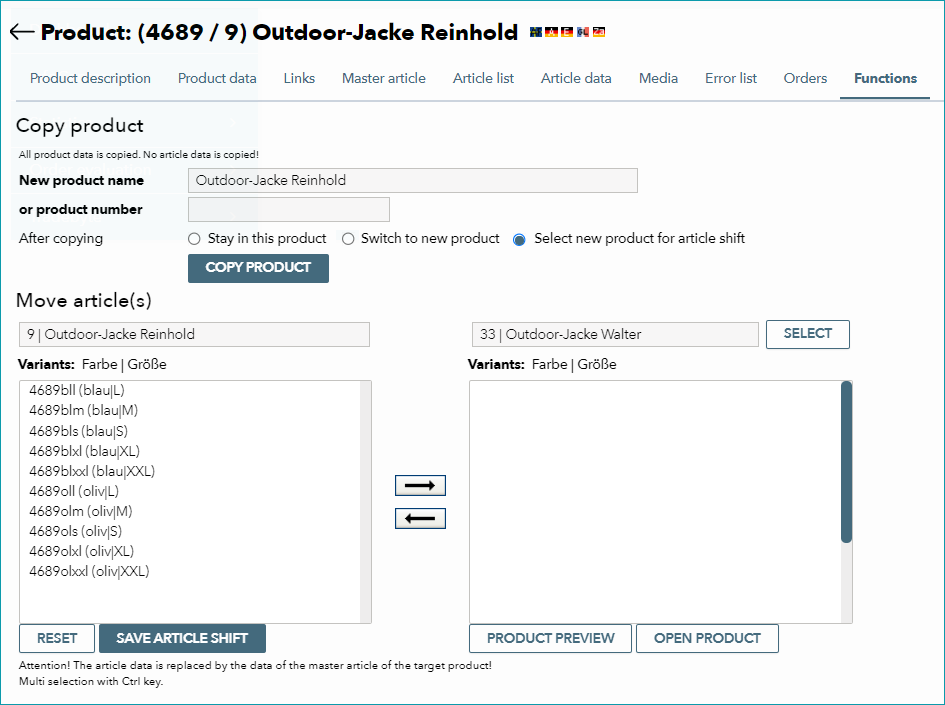
Open the product you want to copy and go to the tab "Functions". In the section "Copy product", you will see two text boxes where you can enter a new product name and product number for the duplicate.
Clicking the button "Copy product" creates a new product. Select one of the radio buttons below to choose what to do once the copy has been created: stay in the current menu, switch to the new product or switch to the article shift option.
The latter option will open two lists in the section "Move article(s)" (directly below "Copy product"). By using the arrow symbols between the two lists, you can move the articles (including all corresponding media) from the original to the newly created product.
ATTENTION: |
If you want to keep the original product intact (including all its articles), you will have to create the articles for the new product from scratch.
For further information, see also:
•Manual master data creation - overview