Some channels can process product links you create. TB.One supports various types of links, such as cross-selling, up-selling, accessories, etc.
ATTENTION: |
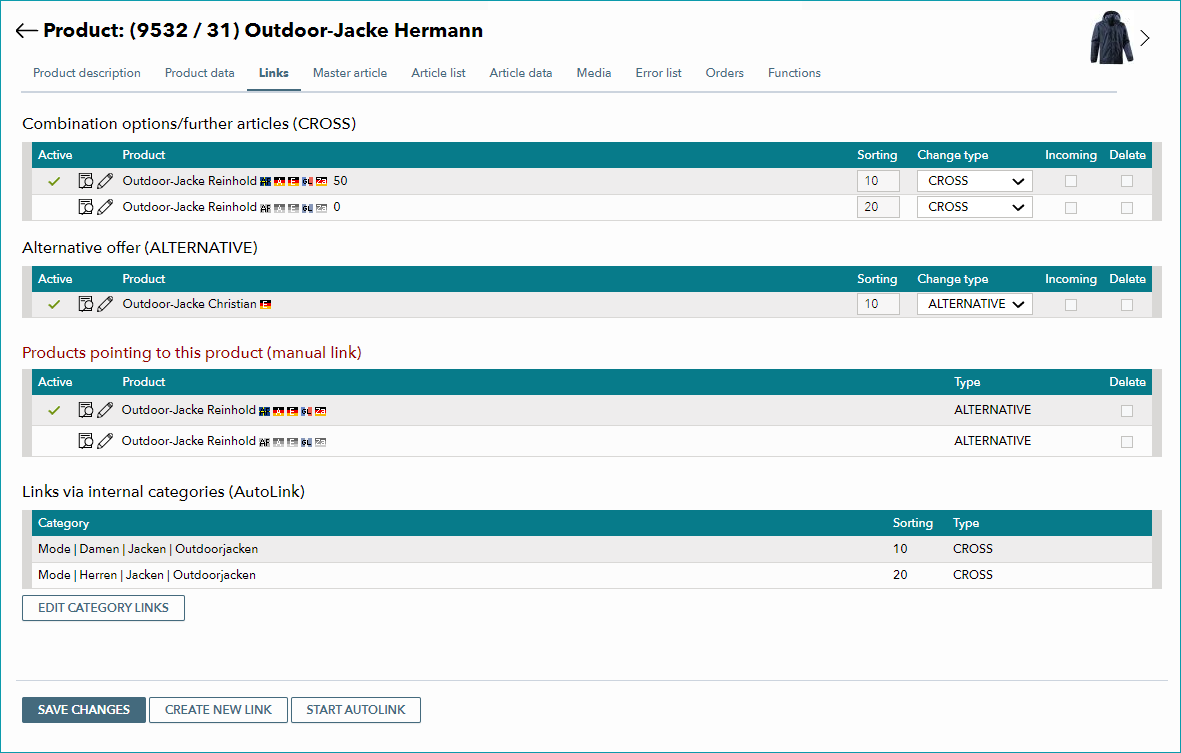
While you can generate links between internal categories automatically, you can also create them manually. To set up links for your product range, open the tab "Links" in the product details. The tabs distinguishes between the different product link types.
CREATING LINKS MANUALLY
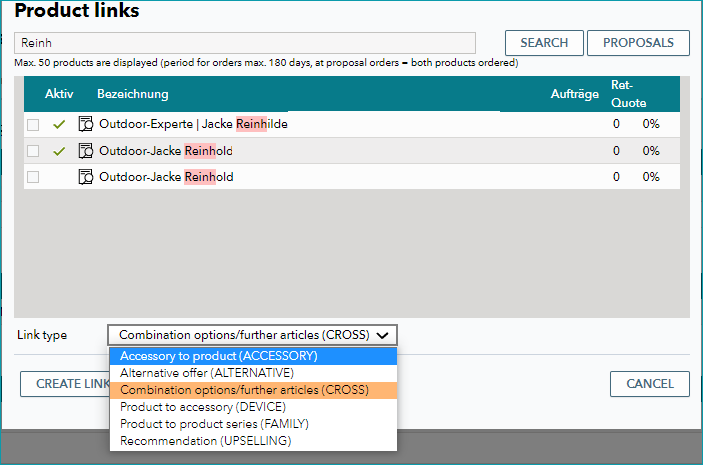
Click on "Create new link". In the editing window, select the products which should be linked and define the type of the connection. Either use the text box to search for a suitable product, or have TB.One recommend products (button "Vorschläge"). TB.One will only propose products that were ordered within the last 180 days.
Select matching products from the search results by marking their checkboxes. Use the drop-down menu "Link type" to specify the type of connection (there are six different types to choose from). Click on "Create links". The new links will now appear in the selected link type's section.
The links will only be applied once you click on "Save changes"!
If necessary, you can change the order of links in each link type's "Sorting" column, change link types, or remove a link with the checkbox "Delete". If you mark the box "Incoming" you can establish a link in the opposite direction (the two products will then refer to each other). After you save, these links will be displayed in the section "Products pointing to this product".
All entries must be confirmed with "Save changes".
LINK TYPES
Links between categories and links between products can be combined. The following cross-selling types exist in TB.One:
LINK TYPE |
DESCRIPTION |
|---|---|
cross |
combination option/further articles |
accessory |
accessory for the product |
device |
product for the accessory |
family |
part of the product family |
upselling |
recommendation |
alternative |
alternative offer |
AUTOLINK
The AutoLink feature establishes links between products of certain categories based on the configuration of the internal categories.
If you want to create AutoLinks, note the settings at "Admin > Default settings" regarding the minimum stock numbers for linked products. AutoLinks can only be created if the an internal category was assigned to the product and at least one link is configured for that category.
Click on "Start AutoLink" to assign the defined links. The button "Edit category links" will take you directly to the product's internal category, where you can make adjustments if needed.
For further information, see also:
•Manual master data creation - overview
•Comparison of internal categories and clusters