TB.One > Product and Article Data > Clusters and Internal Categories > Internal Categories > Defining Internal Categories
Defining Internal Categories
Internal categories can be created manually or via import (XML). Configuring them (see below) is optional and can only be done manually.
Internal categories usually have a tree structure. Only the lowest node of an internal category may contain products and each product can only be part of one internal category.
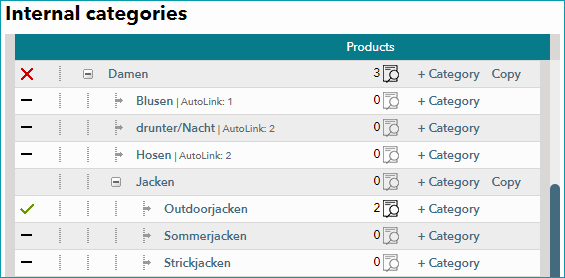
You can assign an internal category via a cluster, but not the other way around.
CREATING INTERNAL CATEGORIES
Internal categories are created at "Basic data > Classification > Internal categories". Select the tab "Pages" in the left navigation bar and choose the option "New main category". The editing window will open on the right side. Here, you can create up to 10 main categories simultaneously.
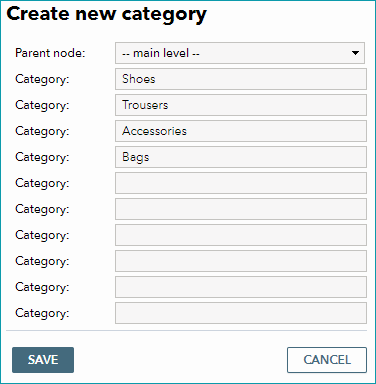
Enter the category names and save your data to create the categories. To create subcategories, either select "+ Category" at the end of a row or click on "New main category" again. The only difference is that "+ Category" will preselect the parent node. Enter all subcategories you need for the selected parent node and save your entries.
If you have created a complete branch and find that you need the same (or a very similar structure) again, you may copy the branch and paste it with a new name. To do so, click the option "Copy" (next to "+ Category).
ATTENTION: |
By selecting "Pages" in the left navigation bar and clicking on "Export to Excel", you can download the complete structure. Once you have created your structure, configure the individual categories.
CONFIGURING INTERNAL CATEGORIES
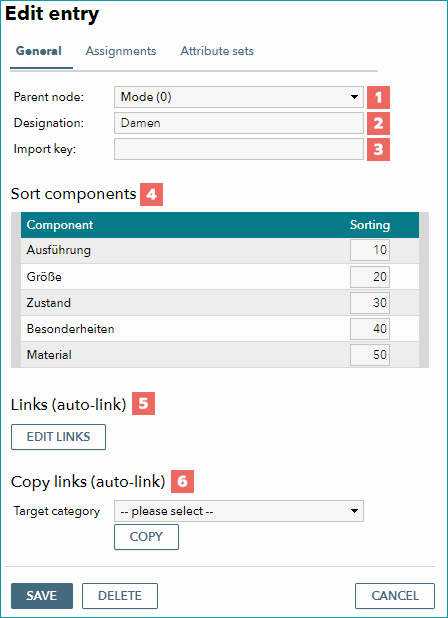
Click on an internal category to open the editing window on the right side.
NUMBER |
DESCRIPTION |
|---|---|
|
Hierarchical placement of the category. Select the direct parent category here. If the category is on the highest hierarchical level, select "--main level--". |
|
Designation of the category |
|
Key by which the category is referred to during import |
|
The section "Sort components" automatically lists all non-variant-forming components of the products assigned to the respective category. Via the column "Sorting" you may sort these components uniformly across all related products. |
|
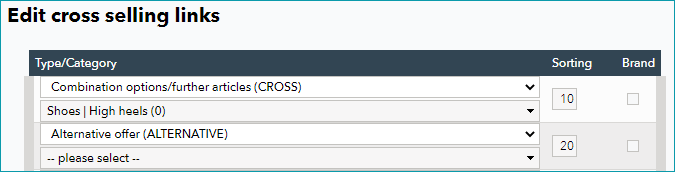
The section "Links (auto-link) is used to automatically create cross-sellings which link products. Click the button "Edit links", to open the editing window, where you can define a maximum number of ten links per internal category. For each link, select a type from the first drop-down list and indicate the linked category in the second list. Optionally, you may sort the links and restrict the validity of links to products of the same brand via the checkbox "Brand".
|
|
By selecting a category in the section "Copy links (auto-link)" and clicking the "Copy" button, the links configured above will be transferred to the selected category (any preexisting links in the target category will be lost). |



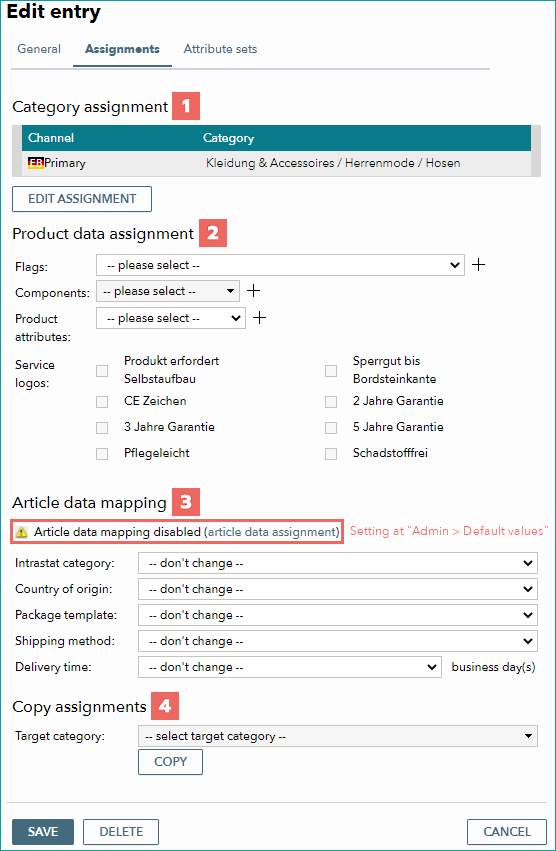
If and when an assignment will be applied, is configured at "Admin > Default values". If an assignment is blocked, this will be indicated in the respective section of the "Assignments" tab.
NUMBER |
DESCRIPTION |
|---|---|
|
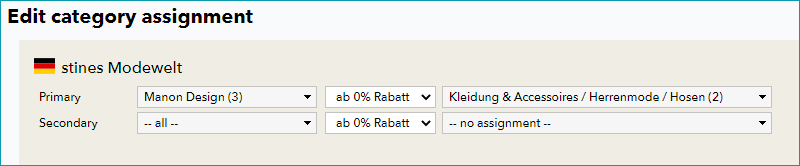
Assignments to primary/secondary channel category can be made in the editing window (button "Edit assignment") and may be based on a brand or discount.
Which assignments are possible depends on the channel. Before choosing categories here, you need to make them available via the menu "Channels > [Channel] > Categories [or similar]", e.g. by importing them from a master list. In case the channel offers other options, selection lists for these options will be displayed (e.g. "Product type" at Amazon or "Commodity groups" for Otto). Assigning a secondary category is not mandatory for most channels and may, in some cases, be subject to an additional fee. |
|
As with clusters, you can pre-assign various product data. You may choose flags, components, product attributes (with values if required), and service logos. |
|
At the article level you can specify the IntraStat category, country of origin, package template, shipping type, and delivery time in business days. The values entered here will overwrite any preexisting default settings. |
|
Select a target category here to transfer the settings made above to other internal categories. Any settings configured in the target category will be overwritten when you click "Copy". |
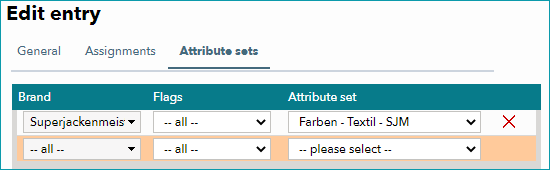
On the tab "Attribute sets" you can assign previously created attribute sets to an internal category. The use of an attribute set for the products of an internal category can be defined based on a brand or a flag. Therefore, it is possible to assign several attribute sets to one internal category.
Settings made on this tab will take effect upon saving, even without a new assignment run.
ASSIGNING INTERNAL CATEGORIES
To assign the configurations to your products/articles without using the import, select "Pages" in the left navigation bar and click on "Repeat assignment run". A green info bar at the top of the screen will inform you when the assignment run is complete.
For further information, see also:
•Assigning internal categories manually
•Importing internal categories via CSV
•Assigning internal categories via CSV
•Importing internal categories via XML
•Assigning internal categories via XML
•Comparison of internal categories and clusters
•Configuration of the application of internal categories