TB.One > Product and Article Data > Templates > Creating Twig Templates > MANAGE TWIG TEMPLATES
MANAGE TWIG TEMPLATES
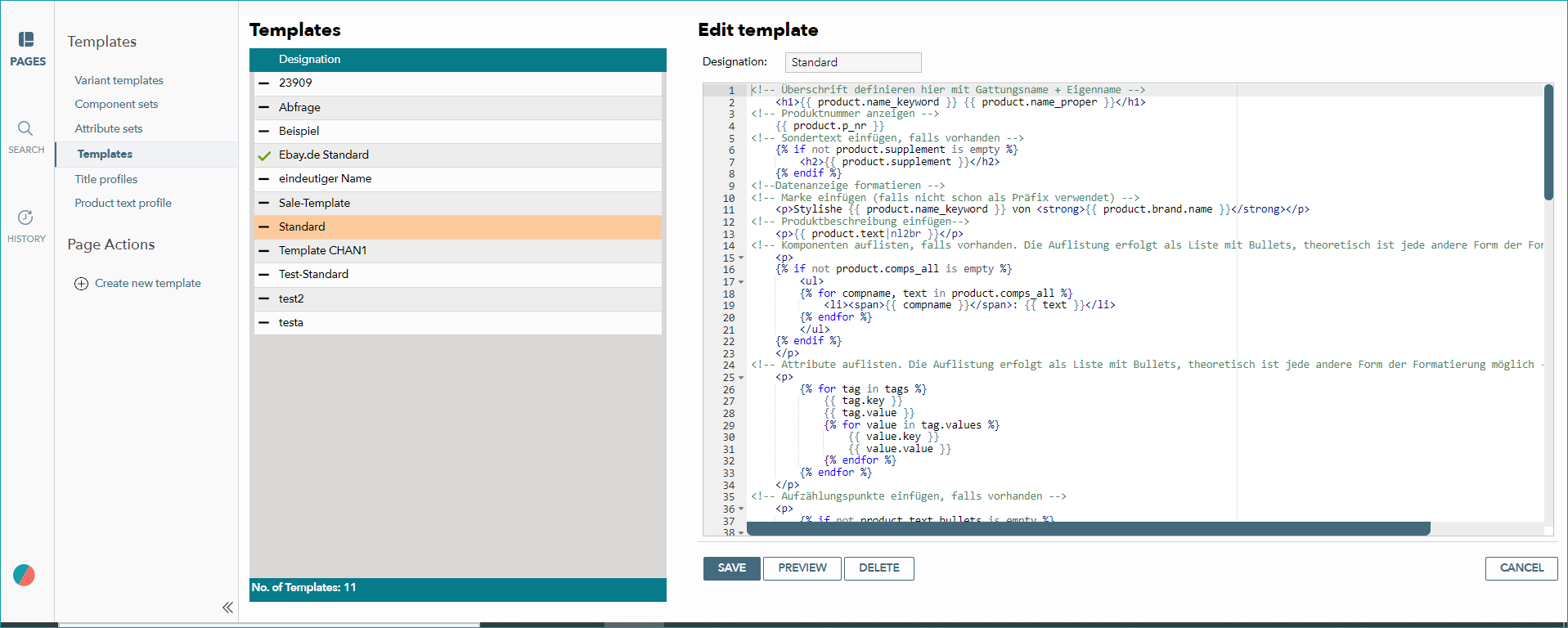
You can find the Tradebyte standard template for presenting your products/articles on different channels under "Basic data > Templates > Templates".
CREATING NEW TEMPLATES
You can create your own templates by clicking on "Create new template" on the tab "Pages" in the left navigation bar. A new window will pop up. Enter a name for the new template and choose, what it is based on (empty template, standard template, or any other previously created template).
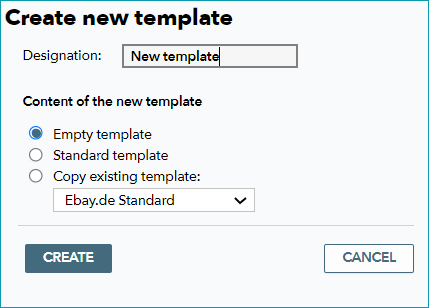
Select one of the options and click on "Create". The template will then appear in the list and can be edited.
TIP: |
EDIT AND PREVIEW TEMPLATES
To edit a template, click on its name in the list at "Basic data > Templates > Templates". Here, you can either paste a template copied from an external source or work directly in TB.One.
At the bottom of the menu, you can find several action buttons. The "Save" button is only active if you have changed the template.

Clicking on "Save" will automatically open the preview window, so you can check the effects your changes will have before you overwrite the template.
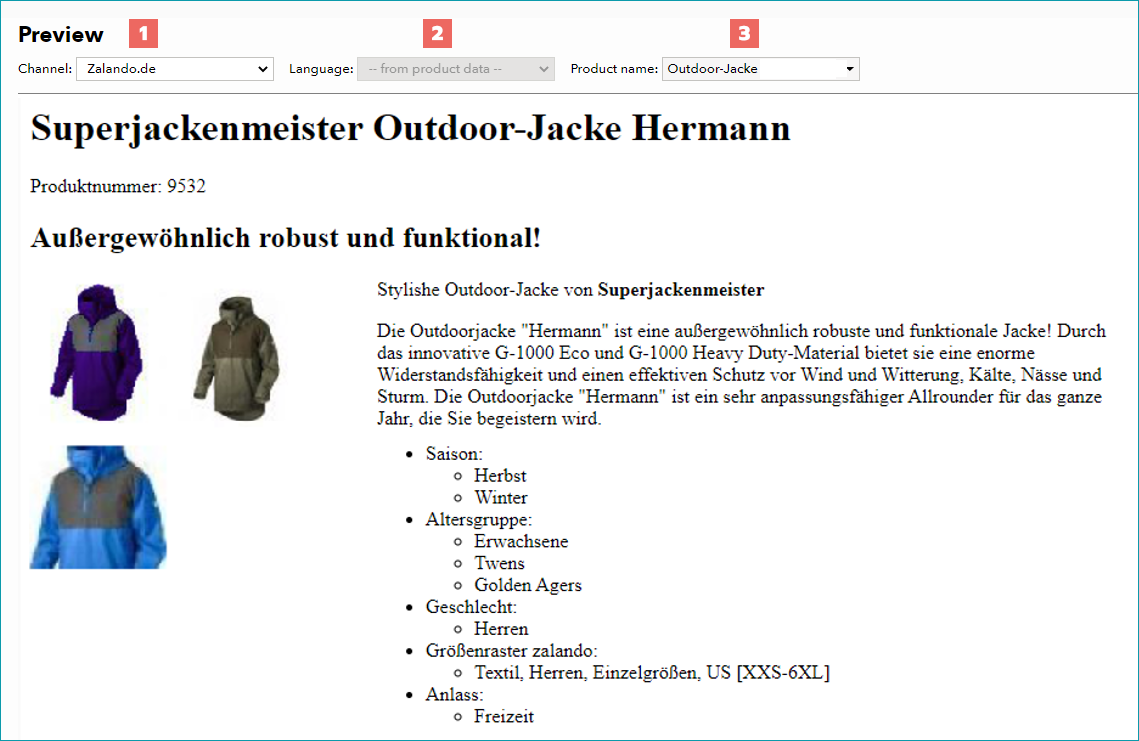
Choose a channel from the drop-down menu at the top (1). Switch to the field "Product name" (3) and select the product you want to preview. In this field, you can search for a specific product by typing the first letters of its name. The field takes all products which are active on the selected channel into account.
By default, the field "Language" (2) is set to the language selected in the channel's settings. If several languages were configured for the channel, you can switch between those languages. Once a product has been selected, the template will be applied to the product data and you can see the effects in the preview window. When you click "Save" in this window, your changes will be applied.
For further information, see also:
•Twig Templating Language - Overview
•Using the Twig Templating Language
•Twig Templating Language - Field descriptions