TB.One > Product and Article Data > Templates > Creating Twig Templates > USING THE TWIG TEMPLATING LANGUAGE
USING THE TWIG TEMPLATING LANGUAGE
If you do not want to use the default template because you e.g. want to change the order or presentation of the information it contains, you can use the Twig Engine to create a custom template. In this case, you would reference a CSS file to format the presentation of your products. A detailed documentation for using the Twig Engine to create templates can be found at twig.symfony.com.
Generally, values are provided in two curly brackets which are separated from their content by exactly one space.
{{ someVariable }} |
To take over e.g. line breaks contained in the product description, add a marker (nl2br) to the variable call. The variable and the marker have to be separated by a so-called pipe (|). This way, every line break from TB.One will be transferred as a <br> tag and create line breaks in the text output. The marker is valid for calls regarding the product description, service text, and environmental text.
<p>{{ product.text | nl2br }}</p> |
Operations are enclosed by curly brackets and percent signs. For example, the following statement would assign the value "1" to the variable "some variable":
{% set someVariable = 1 %} |
The following expression verifies whether the value in "some variable" is "1" and will return it if that is the case:
{% if someVariable == 1 %} {{ someVariable }} {% endif %} |
RETRIEVING AVAILABLE VARIABLES
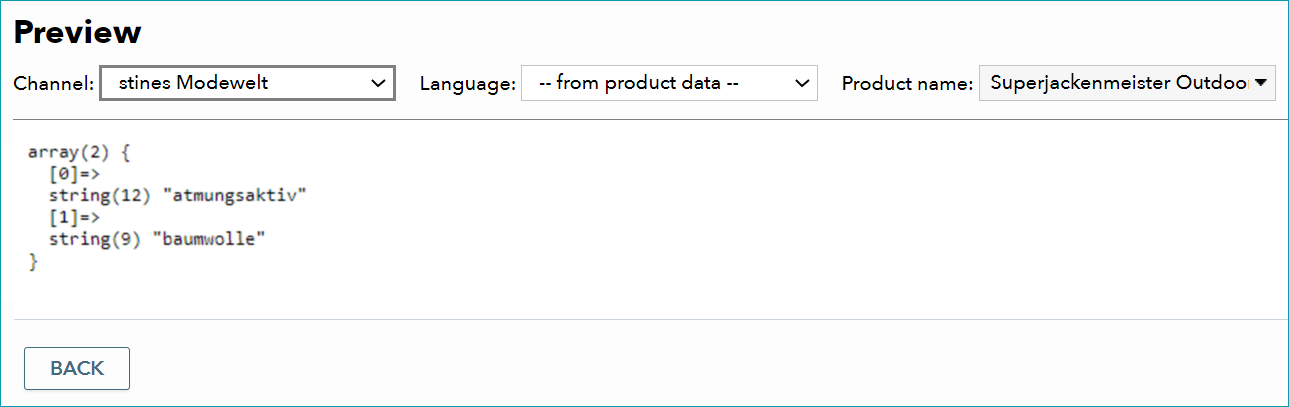
It is possible to retrieve any information that is available for a node in TB.One via the template screen ("Basic data > Templates > Templates"; open the detail view for a template). To do this, creating a new empty template is recommended to avoid altering preexisting templates by accident. Request a list of available fields by using the command "dump(NODE)". Pre-format the request for a better overview:
<pre>{{ dump(product.text_bullets) }}</pre> |
Open the template preview and select a product to see a list of all information contained in the referenced node.
FIELD DESCRIPTIONS
Most product and article fields from TB.One can be referenced via the template. A complete list of field descriptions can be found here.
CALLING ARTICLES
To call an article, you first need to call the corresponding product (i.e. you need to reference the parent node first, so the correct articles can be found). The following example would list the article number, EAN, and pack dimensions for every article of the referenced product.
{% for article in product.articles %} <!-- Insert article number --> {{ article.a_nr }} <!-- Insert EAN --> {{ article.a_ean }} <!-- Packaging width x length x height --> {{ article.packaging.width }} cm x {{ article.packaging.length }} cm x {{ article.packaging.height }} cm {% endfor %} |
CALLING MEDIA
It is possible to filter by media type (MANUAL, IMAGE, AMBIENT, COLOR, FRONTVIEW, MATERIAL, ASSEMBLYGUIDE, CAREINSTRUCTION, SKETCH, REARVIEW, RATING, PREVIEW) by referencing the field "type".
FIELD NAME |
PARENT |
TYPE |
DESCRIPTION |
|---|---|---|---|
type |
media |
String |
Media type (IMAGE, etc.) |
Currently, media can only be transferred by means of a template via the eBay picture service. The template-based media export is not possible for other channels. To export a piece of media via the EPS link, the "media" call must contain the parameter "eps_url ()". The value in parentheses indicates the target format.
Listing all product media (including HTML):
{% for media in product.media %} <img src="{{ media | eps_url(10) }}" /> {% endfor %} |
Listing all article media (including HTML):
{% for article in product.articles %} {% for media in article.media %} <img src="{{ media | eps_url(10) }}" /> {% endfor %} {% endfor %} |
If you have provided an image with several variants (e.g. an image for each of the sizes "S", "M", "L" and "XL" for the variant "blue"), the call above would list the image four times. To suppress this behaviour, you need to adjust the media listing for duplicate images:
{% for row in media %} <img src="{{ row | eps_url(10) }}" /> {% endfor %} |
To only call the first product image, use the image-ID.
{% if not product.media is empty %} <img id="Bild0" class="artikel_gross" src="{{ product.media|first|eps_url(10) }}" alt="{{ product.brand.name }}{{ product.name_proper }}" /> {% endif %} |
If you only want to transfer the first article image (e.g. because you have not provided any product images in your data), use the following call:
{% if not product.articles is empty %} {% if not product.articles|first.media is empty %} <img id="Bild0" class="artikel_gross" src="{{ product.articles|first.media|first|eps_url(29) }}" alt="{{ product.brand.name }}{{ product.name_proper }}" /> {% endif %} {% endif %} |
eBay supports a number of formats that can be specified in parenthesis in the parameter "eps_url()".
PARAMETER |
DIMENSIONS |
PARAMETER |
DIMENSIONS |
|
|---|---|---|---|---|
eps_url(10) |
1200x1200 |
eps_url(30) |
115x115 |
|
eps_url(32) |
1000x1000 |
eps_url(0) |
96x96 |
|
eps_url(3) |
800x800 |
eps_url(17) |
80x80 |
|
eps_url(20) |
600x600 |
eps_url(6) |
70x70 |
|
eps_url(12) |
500x500 |
eps_url(14) |
64x64 |
|
eps_url(27) |
480x480 |
eps_url(22) |
60x60 |
|
eps_url(1) |
400x400 |
eps_url(33) |
48x48 |
|
eps_url(29) |
300x300 |
eps_url(13) |
42x42 |
|
eps_url(24) |
298x298 |
|||
eps_url(31) |
225x225 |
eps_url(4) |
640x480 |
|
eps_url(2) |
200x200 |
eps_url(16) |
400x300 |
|
eps_url(7) |
150x150 |
eps_url(11) |
310x90 |
|
eps_url(26) |
140x140 |
eps_url(9) |
200x150 |
|
eps_url(15) |
125x125 |
eps_url(5) |
100x75 |
CALLING ICONS
If you want to transfer a brand image to the channel, save it with the exact same name you transfer to the channel as the brand name. Use the following call:
<img src="http://meinserver.de/images/{{ product.brand.name|url_encode }}.jpg" alt="{{ product.brand.name }}"> |
Example:
<img src="http://meinserver.de/images/adidas.jpg" alt="adidas"> |
Servicelogos cannot be transferred via template.
CHANNEL FILTER
You can display individual pieces of information based on the channel. To do so, use the channel sign as a filter:
{{ channel.short.name }} |
PRODUCT LINKS
FIELD NAME |
PARENT |
TYPE |
DESCRIPTION |
|---|---|---|---|
link |
links |
Array |
A single product link |
type |
link |
String |
CROSS, ACCESSORY, DEVICE, UPSELLING, ALTERNATIVE |
target |
link |
String |
Contains details about the link's target |
p_nr |
target |
String |
Product number of the target |
prefix |
target |
String |
Prefix of the target |
name_keyword |
target |
String |
Common noun of the target |
name_proper |
target |
String |
Proper name of the target |
media |
target |
Array |
Piece of media from the target (also see the section "Media call" above) |
channel_data |
target |
Array |
Channel-specific data of the target |
item_id |
channel_data |
Integer |
Item ID (eBay only) |
Example:
{% if channel.short_name == "ebde" %} {% set fittingArticles=[] %} <!-- Insert max. 8 product links --> {% set links=product|collect_ebay_links(8) %} {% if not links is empty %} <div> <h2> Weitere Empfehlungen</h2> {% for link in links %} {% set fittingArticles=fittingArticles|merge([link.target.p_nr]) %} {% endfor %} </div> {% endif %} {% endif %} |
For further information, see also:
•Twig Templating Language - Overview
•Managing templates
•Twig Templating Language - Field descriptions