TB.One > Setup, Configuration & User Accounts > Dynamic Article List Filters > CONFIGURING DYNAMIC ARTICLE LIST FILTERS
CONFIGURING DYNAMIC ARTICLE LIST FILTERS
THE FILTER SECTION
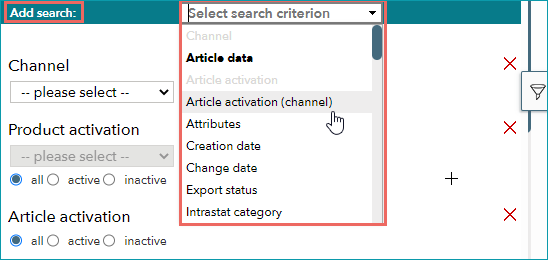
In the filter menu, you can add and remove filters according to your needs. Select up to eight search criteria from an extensive list in the drop-down "Add search".
ATTENTION:
|

Use the following two buttons to add and remove search criteria and selection fields:
 Remove
 Add
Add
TIP: |
RADIO BUTTONS
Some search criteria are defined in more detail via radio buttons:
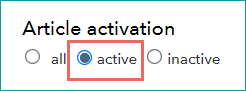
Activate the button for to the rule which should apply to the dynamic filters (the active button is filled in with a blue circle).
In the example below for “Article activation”, all active articles are selected from the article list:
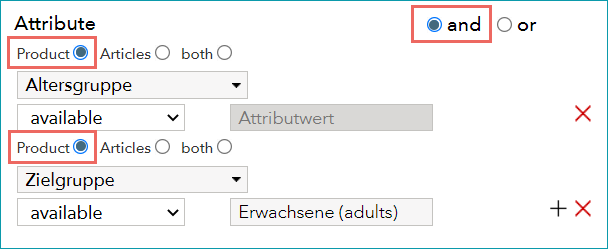
With some search criteria, you can define additional filter rules using and (both rules must apply) / or (one of the rules must apply) to filter by multiple characteristics.
Furthermore, you can define whether the respective criterion applies to “Product”, “Articles” or “Both”, see the example “Attribute”:
DROP-DOWN SELECTION WITH/WITHOUT FREE TEXT FIELD
Several search criteria contain a drop-down selections that facilitate precise configuration of the filter.
Individual information in free text fields
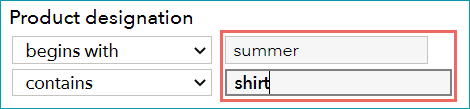
Besides simple drop-down lists, there are drop-downs with an associated free text field. The drop-down selection defines a rule for the value in the free text field. This allows you to customize the dynamic filter, as you can see in the example “Product designation”.
TIP: |
Matching via text entries and values using search parameters
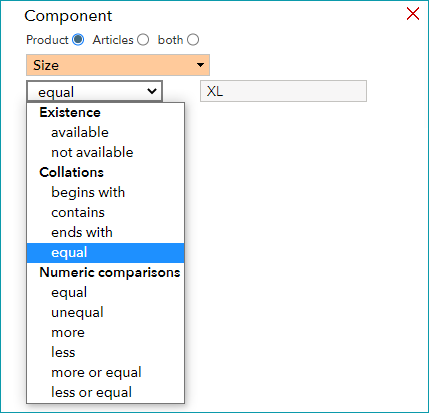
For some search criteria, parameters are available in the drop-down that allow filtering via "Collations" and "Comparisons" to the entered texts and values, e.g. "contains", "equal", "less", etc.
Example:
In the component filter, select the parameter "equal" from the drop-down to find exact matches for your search term, e.g., a specific component value. The example below shows a search for products with the value "XL" for the component "Size" (exact matches).
LIST ENTRY
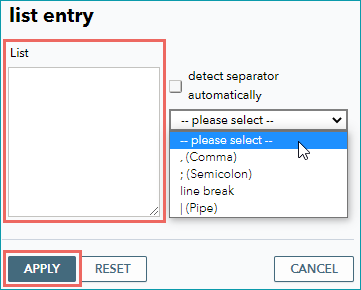
For some of the search options, you can enter lists of values, for example, a list of article numbers.
The button for the list entry  is located to the right of the filter menu at the respective criterion.

A click on the list entry button , opens a pop-up window. Copy the list of search terms from a CSV file, select the separator, and confirm with "APPLY".
ATTENTION: |
CHANNEL-SPECIFIC FILTER SETTINGS
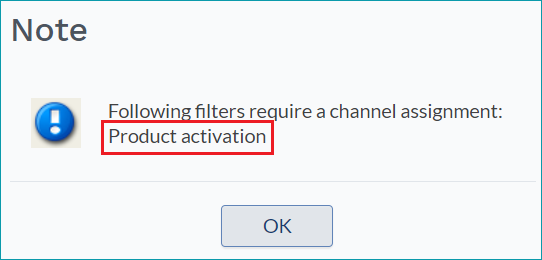
Some of the search criteria are channel-specific. That means, you have to select channels along with the criteria . If no channel was selected, you will be reminded to do so in a pop-up window, see this example “Product activation”:
Examples for channel-specific filter criteria:
Article activation (channel), Channel article number, Channel purchase price, Commission, Product activation, Retail price.
THE ACTION BUTTONS
This section describes the function of the buttons at the bottom of the menu:

"SEARCH": APPLYING FILTERS
When you have selected and configured your criteria, click on the "SEARCH" button. The filtered article list is displayed and the filter menu is folded in.
TIP: |

ATTENTION: "Impatient multiple clicks" on the filter menu button should be avoided in the meantime. Otherwise, this could interfere with the filtering process and lead to incorrect results. |
"RESET FILTER" AND "DISCARD CHANGES"
“RESET FILTER”:
All settings you have defined for the search criteria are removed. The selected search criteria remain.
“DISCARD CHANGES”:
All changes to the filter made after the last search are removed. The search filter is restored to the status of the previous search.
"SEARCH PROFILES": SAVE FILTER SETTINGS
You can save your filter settings as search profiles and recall them at a later time to perform searches.
Click on the button "SEARCH PROFILES":
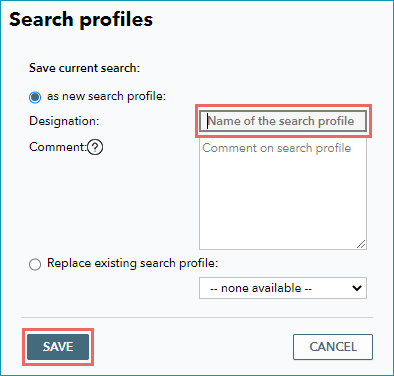
The window "Search profiles" pops up.
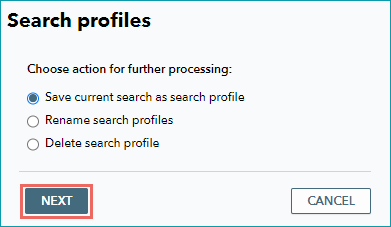
Select the operation you want to put into effect and click on "NEXT". Give your search a unique name (designation) and click on "SAVE".
TIP: |
See also: