TB.One > Setup, Configuration & User Accounts > Basic Settings for Order Processing > Set Up Automated Palletization
Set Up Automated Palletization
Automated palletization facilitates logistics and customs processes for your international shipments. Here’s how you can configure it in TB.One.
TIP: Who needs this feature? You’ll need it only if you ship to countries outside of the European Union using a third-party logistics provider. |
What are consignment groups and automated palletization?
Consignment groups allow you to collect packages and hand them over to a carrier in one large shipment.
This method is particularly useful if you ship to countries outside the EU (e.g. Switzerland) using a third-party logistics provider that handles customs-related processes for you.
With consignment groups, you can export customs tariff numbers directly to your logistics partner using product attributes in TB.One.
Why use consignment groups and automated palletization?
With this feature, you can benefit from:
•Simplified international shipping and customs - Consolidate packages and streamline customs handling with logistics partners for your international shipment outside of the EU
•Automated customs data - Automate the export of customs tariffs numbers via TB.One to speed up customs processing and reduce errors
•Improved logistics management - Handle one unique large shipment instead of multiple individual packages to keep logistics organized and efficient
•Automated documentation and file transfer - TB.One generates and transfers the required shipping documentation to minimize manual work and errors
How to set up automated palletization in TB.One
The setup takes place in 3 stages:
1.Create a consignment group type.
2.Configure the new consignment group type.
3.Get in touch with Tradebyte Support to coordinate the automation.
The guides below contain detailed step-by-step instructions for each of these steps.
Create a Consignment Group Type
1.Go to "Basic data > Shipping > Consignment group types". 2.Click on the page action "Create consignment group type" in the left navigation bar. 3.Select a name for the consignment group. 4.In the drop-down menu "Type" choose "Generisch". 5.In the field "Import key", define a unique import key for this consignment group type.
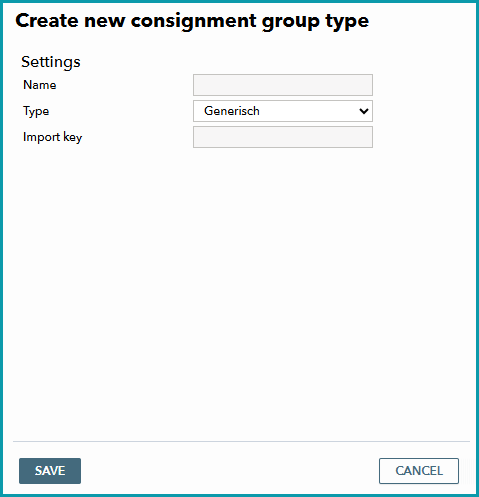 Fig.1: Creating a new consignment group type |
Configure the New Consignment Group Type
Select the new consignment group type from the list shown at "Basic data > Shipping > Consignment group types". The editing menu (see Fig.2) will open on the right.
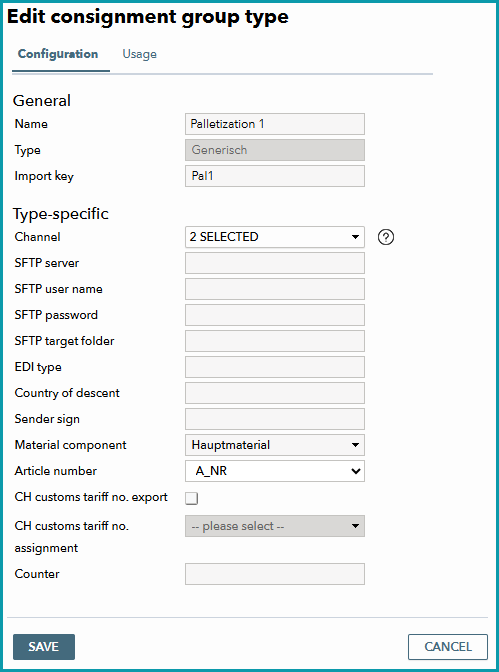 Fig.2: Configure consignment group type
Under “Type-specific”, the fields you need to fill in (top to bottom) are:
When you have filled in these fields, save your settings. |
Get in Touch with Tradebyte Support to Coordinate the Automation
After setting up the consignment group type, contact Tradebyte Support to coordinate the automation schedules for:
•Package collection in consignment groups interval: Defines when a consignment group closes and the next one opens. •Shipment file generation: Defines how often shipment information files are created for each group. •Export frequency: Defines how often files are exported. |