TB.One > Setup, Configuration & User Accounts > Order-Related Basic Data > Consignment Groups
Consignment Groups
With consignment groups, you can collect packages and hand them over to a carrier in one large shipment. This is useful when you ship to countries outside the EU (for example to Switzerland) and use a carrier that handles the customs process for you. Among other things, consignment groups allow you to export customs tariff numbers to your logistics partner directly via a product attribute.
1) SET UP CONSIGNMENT GROUP TYPES
CREATING CONSIGNMENT GROUP TYPES
Generally, your Tradebyte Solution Delivery Manager will set up consignment group types during integration if necessary.
ADJUSTING CONSIGNMENT GROUP TYPES
If you need to adjust the settings for your consignment group types, you can do so at “Basic data > Shipping > Consignment group types”. Coordinate any changes made here with your carrier.
EXPORTING CUSTOMS TARIFF NUMBERS
If you ship to Switzerland with the carrier MS Direct, you can export customs tariff numbers with your consignment groups:
1.Create an attribute containing the customs tariff groups at “Basic data > Properties > Attributes”.
2.Use the customs tariff group attribute to assign a tariff number to each product you will potentially ship to Switzerland.
3.Open the consignment group type you use to ship to Switzerland (“Basic data > Shipping > Consignment group types”) and select the option “CH customs tariff no. export”.
4.Select your customs tariff group attribute from the drop-down list “CH customs tariff no. assignment” and save your settings.
2) CREATE CONSIGNMENT GROUPS
A consignment group lists all packages that go in the same shipping container and forwards the necessary information to your carrier.
There are two different ways of working with consignment groups. Which one applies to you depends on the consignment group type you use:
1. GENERIC CONSIGNMENT GROUP TYPE (AUTOMATED CREATION)
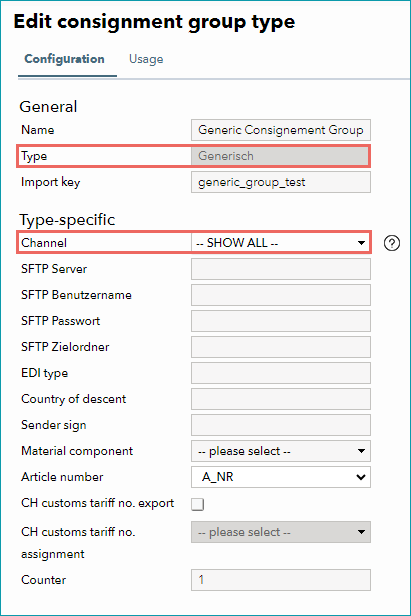
Fig.1: Generic consignment group type
This consignment group type automatically opens consignment groups, assigns packages, and closes the consignment groups.
1.Go to the consignment group type settings (“Basic data > Shipping > Consignment group types”) and select your consignment group type from the list on the left. The editing menu opens on the right.
2.The field “Type” must contain the value “Generic”.
3.The type-specific settings below show the channels for which this consignment group type is being used.
4.TB.One will automatically open consignment groups, add all packages for the selected channels to those consignment groups, and finalize/close the groups.
2. OTHER CONSIGNMENT GROUP TYPES (MANUAL PROCESSING)
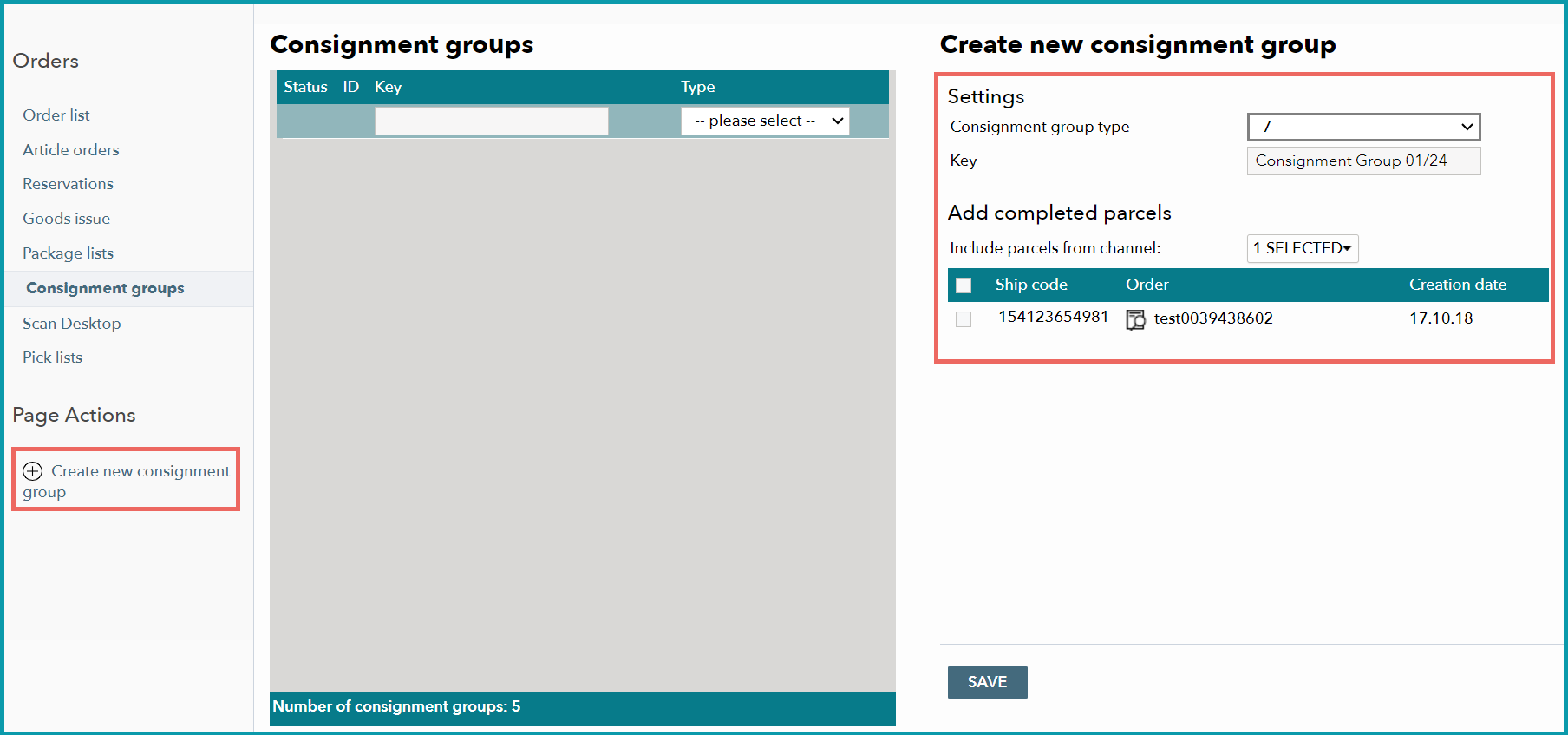
Fig.2: Manual consignment group processing
Go to the consignment group type settings (“Basic data > Shipping > Consignment group types”) and select your consignment group type from the list on the left. The editing menu opens on the right. If the field “Type” does not contain the value “Generisch”:
1.Process your orders and create a list of the ship codes or container IDs of all packages that will be part of a single consignment group.
2.Go to “Orders > Consignment groups” and click on the page action “Create new consignment group” on the tab “Pages” in the left navigation bar.
3.In the editing section on the right, select a consignment group type from the drop-down menu “Consignment group type” and enter a key.
4.Select the channels for which you want to use the consignment group from the drop-down menu “Include parcels from channel”.
5.Now you have two options to proceed:
a.TB.One will display a list of all parcels that are ready to be shipped for these channels. Mark all parcels you want to include in the consignment group and click on “Save”.
b.Save the consignment group first. Now you can add parcels via their reference numbers (that is by entering their ship code or container ID). Click on “Save” again when you are done.
6.Once the consignment group is complete, click on “Finalize consignment group”. You can then print a list of packages or a label for that consignment group with a click on the respective button.