TB.One > Order Data and Order Processing > Test Order Generator > CREATING TEST ORDERS - STEP BY STEP
CREATING TEST ORDERS - STEP BY STEP
WHERE TO ACCESS THE TEST ORDER GENERATOR?
You can access the Test order generator via the order list. Navigate to “Orders > Order list”. The tool is listed in the left sidebar on the tab "Pages" under "Page Actions". Click on the menu item “Test order generator” to open it.
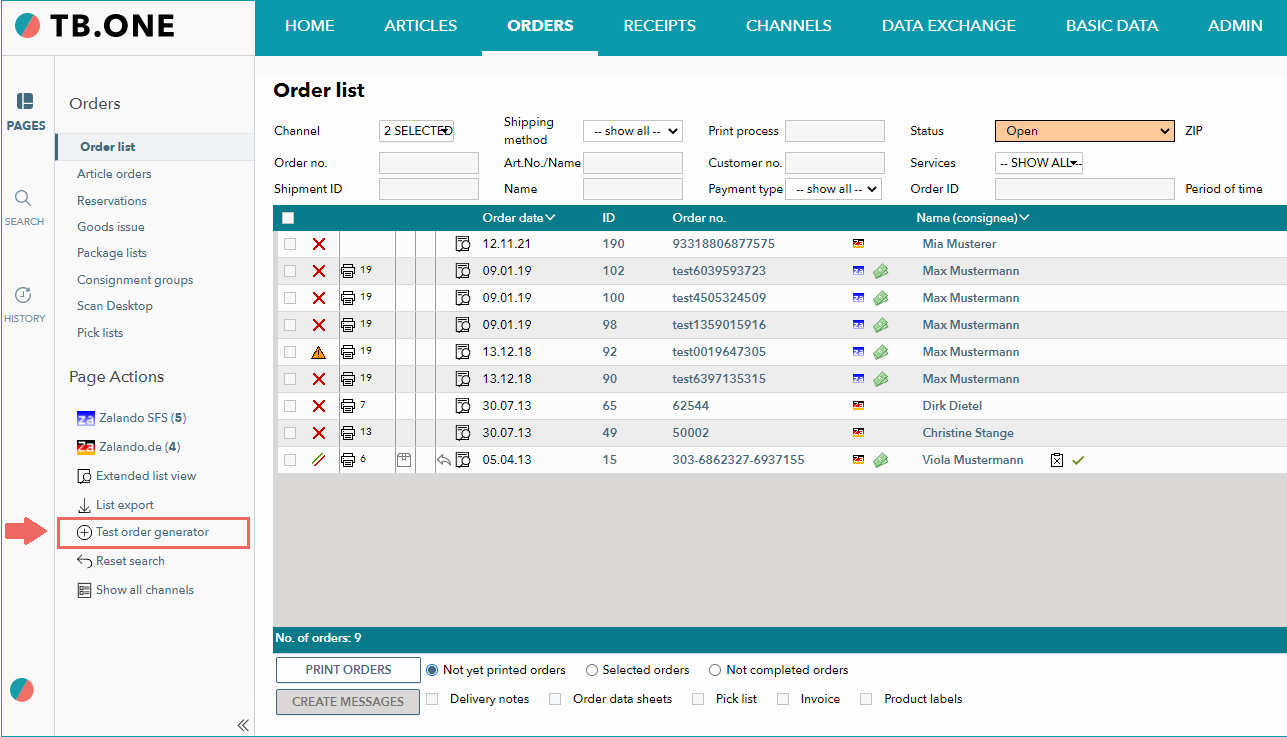
HOW TO CREATE A TEST ORDER?
The Test order generator opens in a pop-up window. Open the three tabs “Channel Template”, “Articles”, and “Address”, one after another. Enter all required settings and information for your test order.
TAB "CHANNEL TEMPLATE"
Select a channel from the drop-down.
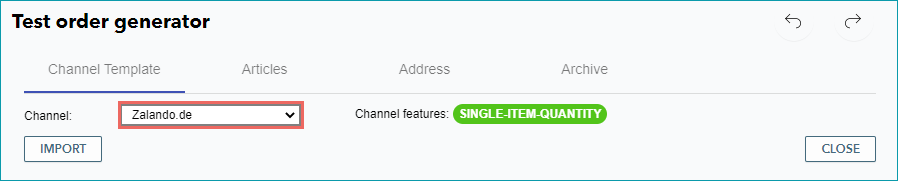
The additional green field titled “Channel features” may appear. It shows channel-specific information relevant to order creation. The mouseover contains further details. “SINGLE-ITEM-QUANTITY” means: Only “1 “can be specified as the quantity on item level in the test order.
TAB "ARTICLES"
First, define the articles(s) for the test order. Articles must be activated for the selected channel and have a price. Fill in the fields for article information. As usual, the auto-search and auto-complete functions facilitate this process. Note: Don’t forget to define the quantity (Qty).
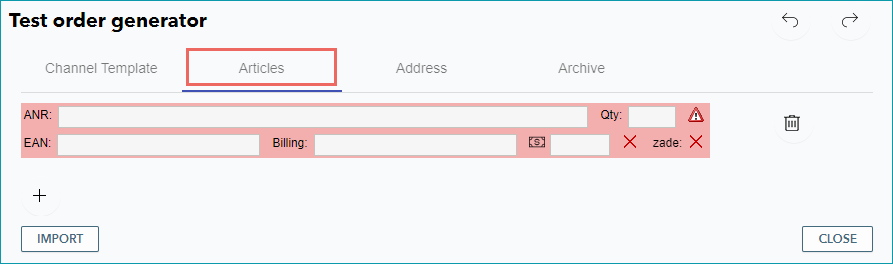
You can add more articles by clicking on the “plus” icon and remove articles with the “delete” icon.
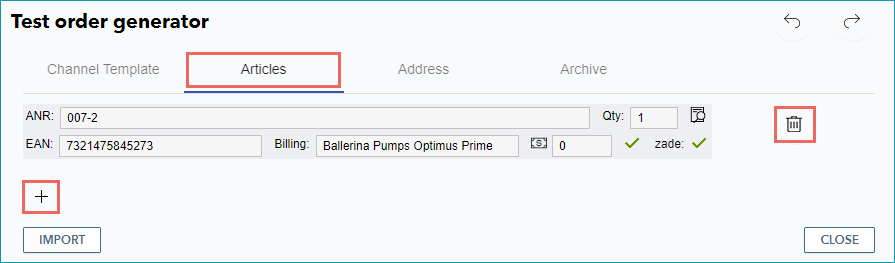
Once you have filled in all fields, the entry mask for article information is no longer highlighted in red.
TAB "ADDRESS"
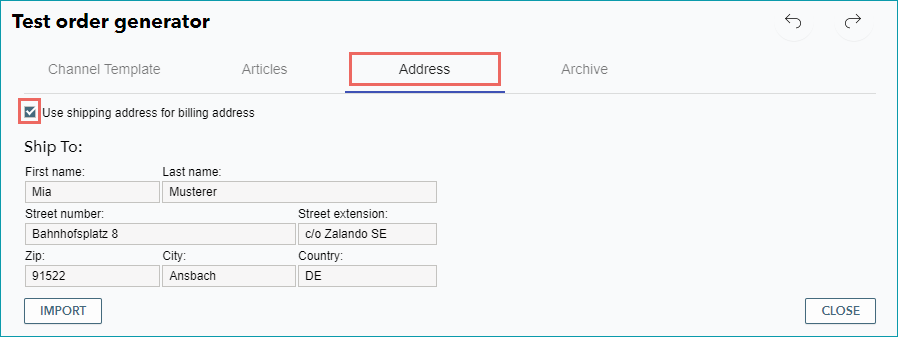
On this tab, enter the required address information. If necessary, activate the checkbox “Use shipping address for billing address”.
BUTTON "IMPORT"
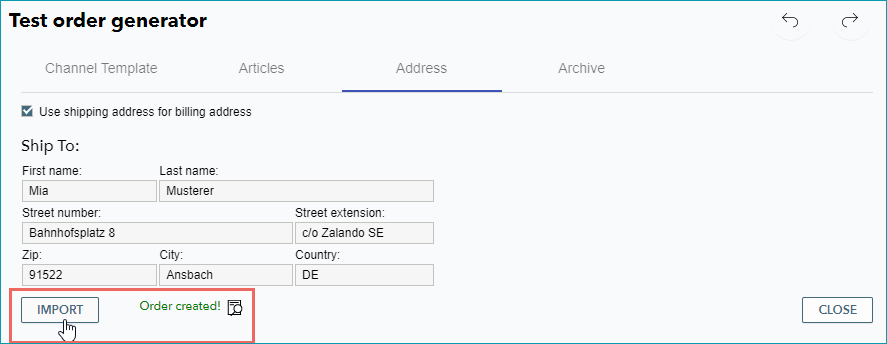
Click on “Import” to generate the test order with the defined settings. You can find this button on all three tabs “Channel Template”, “Articles”, and “Address”.
WHERE TO FIND MY TEST ORDER?
IN THE ORDER LIST
Switch to the order list (“Orders > Order list”) and open the test order you have just created.

IN THE TEST ORDER ARCHIVE
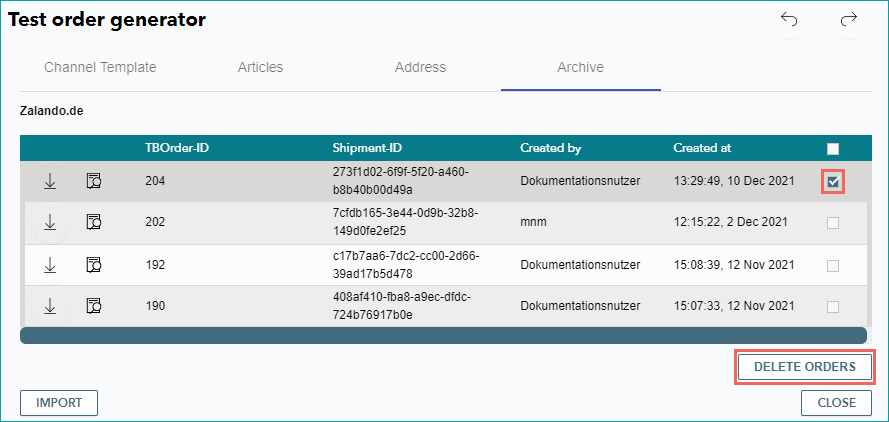
On the tab “Archive” in the editing window of the Test order generator, you can view the test order history. If you want to remove a test order, activate its checkbox and click on the button “Delete orders”.
CHECK THE ORDER PROCESS
In the detailed view of the test order, you can find more information and define settings to check the order processes. Send the ordered articles on a virtual “test trip” and initiate their return. This way you can test all processes you will need later on for your work with real orders.
Find more information on the various order processing options:
•Manual order processing - overview
•Order processing via CSV - overview
•Order processing via XML - overview
HOW TO PREVENT TEST ORDERS FROM BEING CHARGED IN THE TB.ONE USAGE FEE?
Your monthly TB.One usage fee is calculated individually and based on the confirmed orders. This automated process runs smoothly in the background.
ATTENTION:
▪Remove all test orders in the status "cancelled", "shipped", or "returned" from your TB.One as soon as possible.
▪Check the return of your test order within the current month. To do so, start the return timely. |
TIP: |
For further information, see also:
•Test order generator - overview