TB.One > Order Data and Order Processing > Order Processing in TB.One > Structure of the Order List
Structure of the Order List
You can find the order list at "Orders > Order list". By default, the list is pre-filtered to only display open orders. To see pending orders (i.e. orders that the channel has not confirmed yet), you need to set the filter "Status" to "Pending" or go to the menu "Orders > Reservations". In the order detail view (click on an order number in the order list), pending orders are marked as unconfirmed and not ready for dispatch on the tab "Delivery and Cancellation".
The order list consists of three main sections. These are (from top to bottom):
•Filter section (top)
•List displaying orders according to the filter configurations (middle)
•Processing section (bottom)
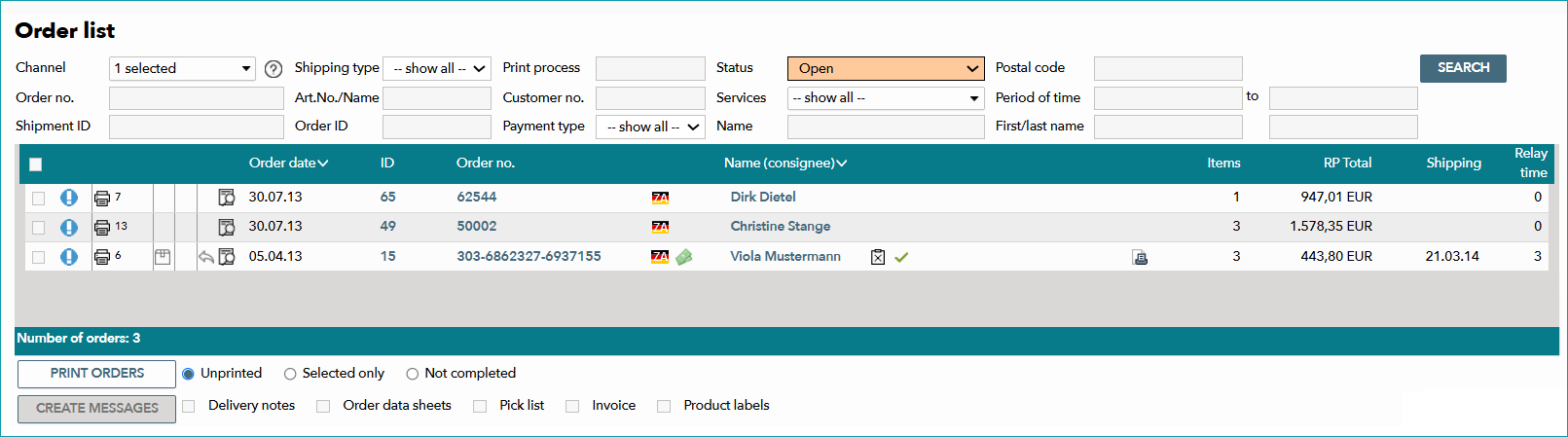
1. ORDER LIST FILTERS
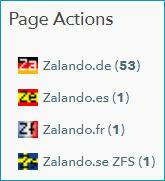
A quick filter can be found in the left navigation bar on the tab "Pages". Here you can see a list of all channels which currently have open orders. Click on "Show all channels" to display a list of all booked channels which are able to create orders. Depending on the number of channels, the list may have a scroll bar.
Click on a channel to filter the list for orders from that channel.
More detailed filters can be found in the filter area above the order list:

TIP: |
FIELD |
DESCRIPTION |
|---|---|
|
In this field, you can configure if you would like to view orders across all channels or for specific channels only. In your personal settings (click on "My Account" in the top right corner), you can determine a default channel filter for the order list that will be applied automatically when you first open the list. |
|
Search for specific order numbers here. By default, this filter searches for exact matches. If you want to look for a partial order number, use "%" as a placeholder/wildcard. |
|
Use this field to search for channel order numbers (order numbers used by the channel to identify orders; for TB.One's order numbers see |
|
Use this field to limit the list to orders using a specific shipping type. Select the shipping type from the drop-down list. |
|
Use this field to search for an article number or a product name. If you would like to search for a partial name or number you do not need to use a placeholder/wildcard. |
|
Use this field to search for orders by the end customer's name (both the recipient of the shipment and the recipient of the invoice can be found with this field). |
|
TB.One assigns a unique ID to each printing process. With this field, you can limit the list to orders that relate to a specific printing ID. |
|
Some channels transmit channel-specific customer IDs along with the orders. With this filter you can to search for orders relating to specific customer IDs. |
|
Use this menu to filter orders by payment type. |
|
The filter status is set to "open" by default. This setting will show you all orders that are confirmed by the channel (i.e. released for processing) but have not been (completely) processed yet. You can change the setting in this filter to search for a certain order or payment status. Use the filters "Not seen" and "Unseen message" regularly, to check whether there are any new notifications, warnings or error messages from the channel. |
|
Use this filter to find orders that were assigned certain order services (e.g. an assembly service). |
|
With this field, you can search for TB.One's internal order ID (the software assigns a number to each order that comes in). Always enter the full ID. |
|
With this field, you can filter the orders by ZIP code. |
|
Use these two fields to filter for orders which were created within a certain time frame. Clicking on one of the fields will open a calendar from which you can select a starting or end date. |
|
Filter by first and last name. |
|
Filter for Multi-Channel fulfillment orders. |


 ). By default, this filter looks for exact matches. If you want to search for a partial order number, use "%" as a placeholder/wildcard.


2. ORDER WINDOW
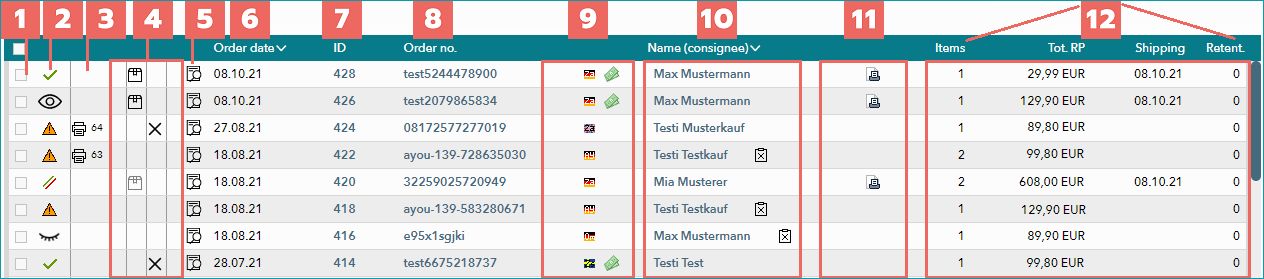
This window displays all orders which match the filter settings.
TIP: |
COLUMN |
DESCRIPTION |
|---|---|
|
Use these checkboxes to mark orders for processing (done in the processing section below the list). |
|
The icon shows the current status of the order:
To configure the order list's message notifications, go to "Admin > System settings > Order processing". |
|
The printer icon ( |
|
These three columns provide information on whether the order was dispatched |
|
Hovering over the magnifying glass icon |
|
This column displays the order date. Use the arrow next to the column header to sort the orders by date (ascending or descending). |
|
Whenever you receive an order, TB.One automatically assigns a unique order ID to it. The ID is displayed in this column. Clicking on a number will take you directly to the respective order's detail view. |
|
The order number assigned by the channel is displayed in this column. A click on the number will take you directly to the respective order's detail view. |
|
This column contains various information, depending on the channel and configuration.
Orders with the hourglass or red stop sign icon must not be processed!
|
|
Further icons may be listed next to the consignee's name. Details are displayed on mouseover.
|
|
If you issue your invoices via TB.One, the printer icon ( The paper clip icon ( |
|
Further details are displayed in the remaining four columns: •Items: Specifies the number of items in the order. •Tot. RP: Total retail price (gross) of all ordered articles. •Shipping: Date on which the dispatch advice was created in TB.One. •Retent.: Number of days that lie between creation of the order and transmission of the order to TB.One. |
 The order has not been viewed yet, i.e. no user has accessed the
  The order was viewed but has not been processed yet.
 There are confirmations (delivery, cancellation) for some of the order's items.
 All order positions are processed.
 There are unread messages for this order: warning.
 There are unread messages for this order: note.
 ) indicates whether any documents were printed for the respective order. The number to the right of the printer icon is the respective print job's ID. It is possible to filter the order list by print-job ID (see "Order list filters" above). A click on this icon will trigger a re-print of the document which was
  , canceled
  , or returned
  . If the icon is displayed in a lighter shade of gray (
 ), the message does not apply to all of the order's items.
 will display all of the respective order's items. A click on the icon will open a new window that displays further information, such as the the shipping address and internal comments. The button "Open order" will take you to the order detail view.
 If the status of your order is "
 If a pending order was canceled, this is indicated by a red stop sign.
 The channel flag indicates the distribution channel which transmitted the order.
 These icons show the order's payment status (paid/payment loss).
 Icons for payment types. You can
 The billing address differs from the shipping address.
 The order was exported to a third-party system.
 The shipping methods for the order items are not uniform.
  Indicator for express shipping.
 ) will be displayed here if an invoice was printed.
 ) means that external documents are available for the order.
3. BULK PROCESSING OF ORDERS
The menu below the order list can be used to print order documents or create dispatch advices in bulk. You can use the checkboxes in the list to select one or multiple orders for an action. The actions only will be carried out for orders that correspond to the current filter.

Use the radio buttons to choose which orders should be affected by the action. The option "Not yet printed orders" is selected by default. If required, change the selection to "Not completed orders" or "Selected orders" (if you use the latter option, all orders with marked checkboxes will be affected).
Below the radio buttons you can find another row of checkboxes. Use these boxes to select the documents you would like to print (may depend on the channel). The button "Create messages" allows you to create order messages in bulk. For a detailed description of this process, see the page "Bulk Order Processing in the Order List". The button may be deactivated by default. You can enable it in the basic settings at "Basic data > Storage > Warehouse settings".
ATTENTION: |
For further information, see also:
•Manual order processing - overview