TB.One > Order Data and Order Processing > Order Processing in TB.One > Order Detail View > Cancellations
Cancellations
To cancel an order (or part of an order), open the tab "Delivery & Cancellation" in the order detail view (go to "Orders > Order list" and open the order in question). All unprocessed items are listed on this tab. In the boxes on the right, you can enter the delivery and cancel quantity. The lower section of the menu is used to specify delivery details (also see "Dispatch Advices").
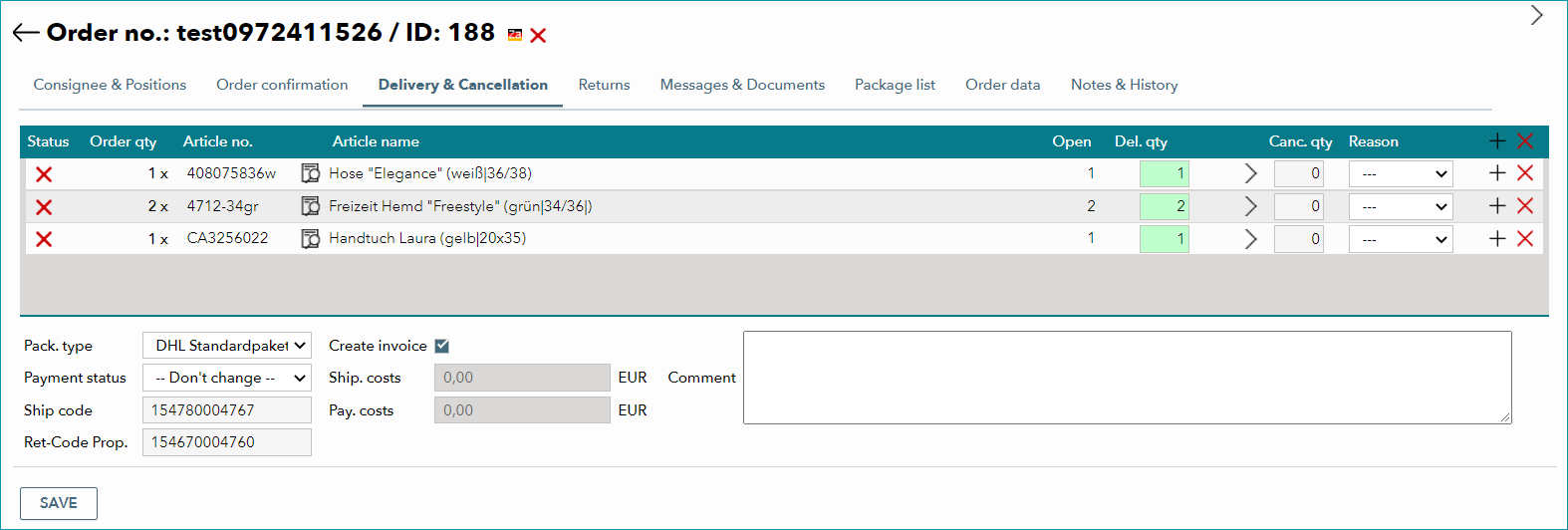
In order to cancel an item, you need to reduce the delivery quantity (set to maximum by default) by the cancel quantity. Either type the number of delivered items in the field "Del. qty" and the number of canceled items in the field "Canc. qty", or click on the arrow ( ) to move items from "Del. qty" to "Canc. qty" one by one. Clicking the arrow will simultaneously reduce the delivery quantity and increase the cancel quantity.
Double clicking on the  icon on the right of a row will cancel the complete ordered quantity for the corresponding item. Clicking the icon only once will set both the delivery and the cancel quantity to zero. If you save at that point, no confirmation (cancellation or dispatch advice) will be issued (see item 3 in the example below).

Specify the reason for the cancellation ("storage" - there are currently not enough articles available; "customer" - the customer canceled the respective quantity) and confirm the message by clicking the "Save" button. Keep in mind that saving will not only issue cancellations but also all specified dispatch advices ("Del. qty" > 0). Further details on dispatch advices can be found here.
In the example above, the following will happen when the "Save" button is clicked:
1. Item 1 (the trousers "Elegance") will be canceled
2. For item 2 (outdoor jacket "Reinhold"), a dispatch advice will be issued
3. No messages will be issued for item 3 (the shirt "Freestyle"), e.g. because the shipment will take place at a later point in time
Once processed, the items will no longer be listed in this menu. Instead, the issued messages can be found on the tab "Messages & Documents".
TIP: 1. Indicate cancellation quantity. 2. Select the reason for the cancellation. 3. Optionally configure settings for other positions. 4. Save. |
ATTENTION: |
For further information, see also:
•Manual order processing - overview
•Dispatch advices and cancellations via Scan-Desktop