TB.One > Order Data and Order Processing > Order Processing in TB.One > View Messages, Documents and History
View Messages, Documents and History
In the order details (click on an order number, order ID or consignee in the order list at "Orders > Order list"), you can view all your messages and issued invoices/credit notes for the respective order on the tab "Messages & Documents". On the tab "Notes & History", you can find the order's history, as well as notifications, warnings and errors relating to the order.
1. MESSAGES AND DOCUMENTS
The list of messages in the upper part of the "Messages & Documents" tab shows all messages relating to the order. The document list below shows the invoices and credit notes.
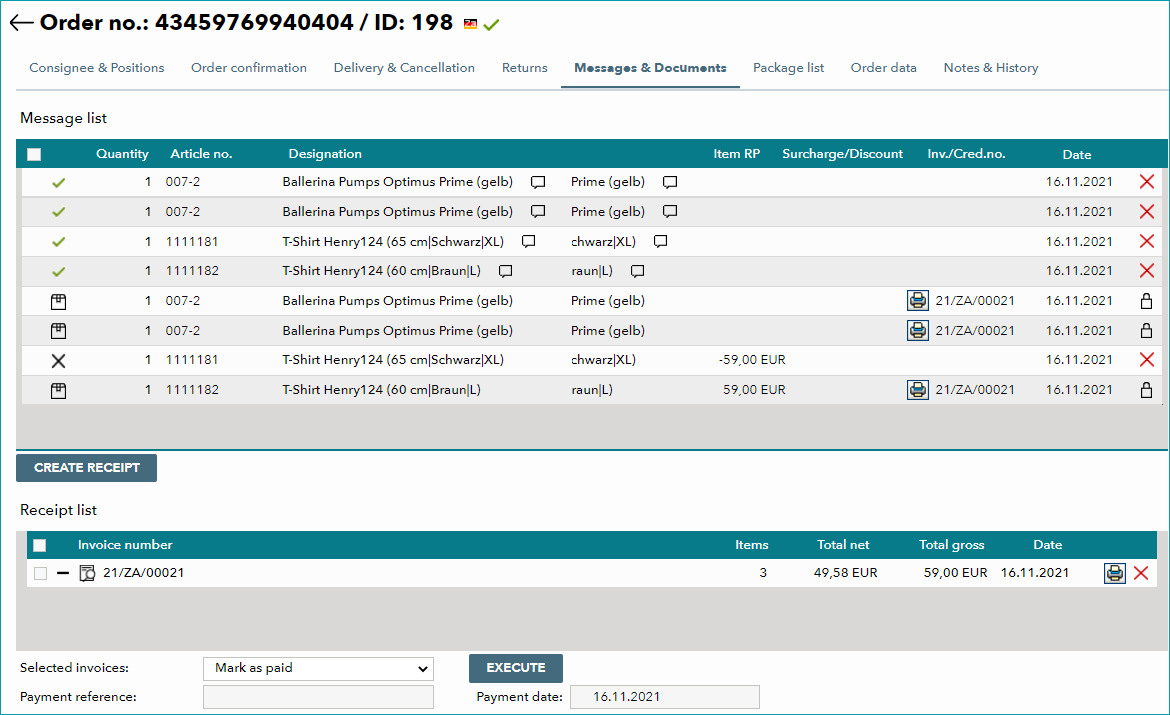
In the message list, the message type is shown as an icon in the left column. On the right, you can see the date on which the message was issued, and its transfer status.
ICON |
MEANING |
|---|---|
|
|
|
|
|
Dispatch advice (Delivery message) |
|
|
|
If you have entered a return cause for a returned item, you can display it by hovering over this icon |
|
Internal comments that were entered for the message can be viewed by hovering over the speech bubble icon |
|
Immediately after you submit a message (without billing), you will generally see this "delete" icon in the rightmost column. This means, that the message has not been transferred to the channel yet. It can still be deleted by clicking this icon. |
|
If the lock icon appears in the rightmost column, it is no longer possible to remove the respective message. This is the case, if the message was already passed on to the channel or if a receipt is available. |


If you need to create documents for one or multiple messages, select the checkbox(es) at the beginning of the corresponding row(s) and click on "Create receipt". You can then view/print the documents and manage the payment status in the bottom section (use the drop-down menu to mark invoices as "paid" or "processed", to print or delete them; if required, enter a payment reference and date before clicking "Execute").
2. NOTES AND HISTORY
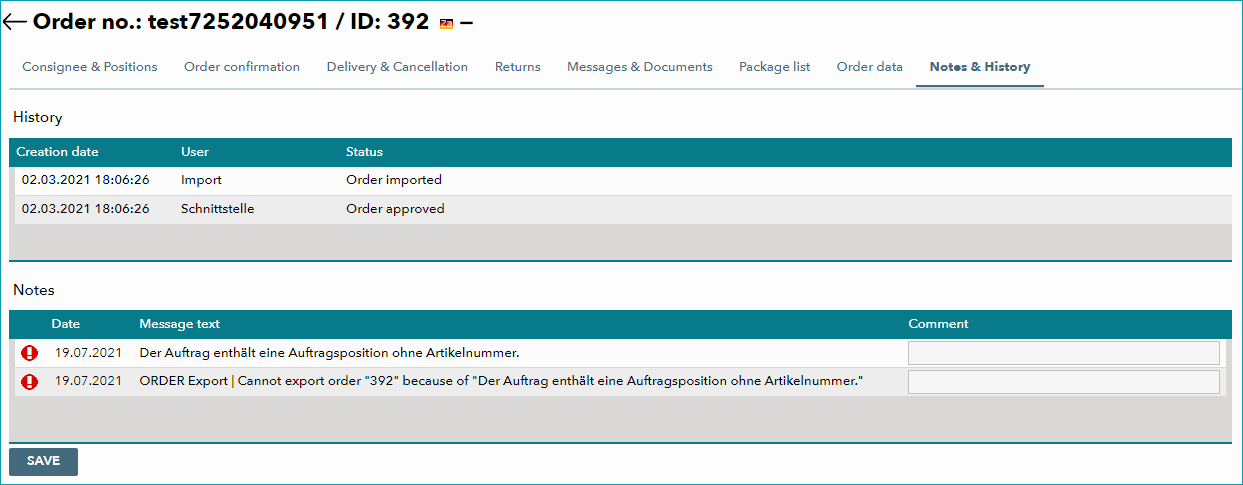
The order history is displayed in the upper section of the "Notes & History" tab. It shows which user handled the order at any given point in time, and what the respective user did. If the order list shows that unread messages are available for an order, you can view those messages here. Always check any unread messages to find out whether there is a problem (e.g. a payment was not received or a dispute case was opened on eBay), and if you need to take action.
To recognize the priority level of an order-specific message, consult the icon in the left column:
|
|
|


For further information, see also:
•Manual order processing - overview