TB.One > Order Data and Order Processing > Order Processing in TB.One > Order Detail View > Dispatch Advices
Dispatch Advices
Dispatch advices can either be issued via the tab "Delivery & Cancellation" in the order details, or in the menu "Orders > Goods issue".
1. DISPATCH ADVICE USING THE "DELIVERY & CANCELLATION" TAB
The tab "Delivery & Cancellation" can be found in the order detail view (open the respective order at "Orders > Order list").
By default, the entire quantity for each position will be set as the delivered quantity. It is only necessary to make any changes in the upper part of the menu if you cannot deliver individual positions (either in part or entirely). How to reduce the delivery quantity or cancel the position entirely is described on the page "Cancellations".
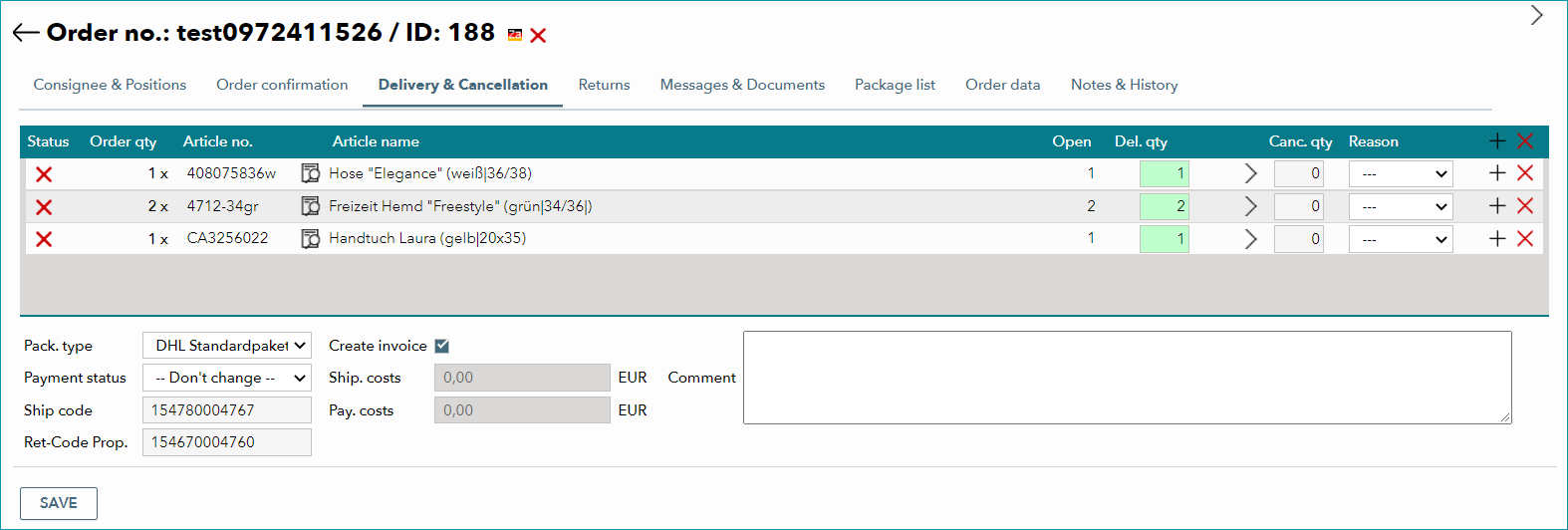
Change the information in the lower section of the window if required:
Select the correct package type from the drop-down menu or change the payment status and, depending on the channel and your settings, the shipping code.
For some channels you also have to provide a return code when issuing the dispatch advice. In that case, provide the return code in the field "Ret-Code Prop." (proposed return code).
Check the box "Create invoice" if you want to generate an invoice when you save the message. Shipping and payment fees may vary depending on your or the channel's terms and can be adjusted if necessary. Complete the dispatch advice by clicking "Save". The processed positions will no longer appear in the list. Instead, the dispatch advice can be viewed on the tab "Messages & Documents". The dispatch advice will be transmitted during the next regular data exchange with the channel.
TIP: 1. Indicate delivery quantity |
ATTENTION: |
2. DISPATCH ADVICE VIA "GOODS ISSUE"
To open the "Goods issue" menu, either click "Report goods issue" on the lower left of the "Consignee & Positions" tab in the order detail view or go to "Orders > Goods issue" and search for an order by order number, order ID , ship code or return code.
The order details are displayed in the upper part of the "Order items" menu, while the ordered items themselves are listed below.
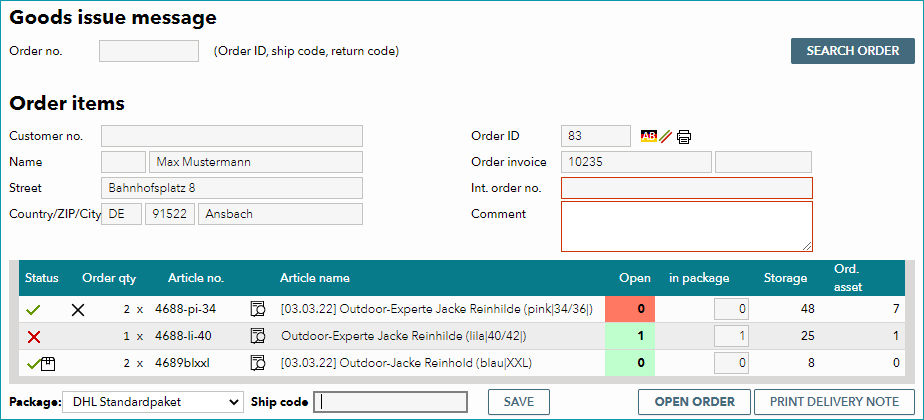
As you can see in the example above, this view includes all previously delivered or canceled items. Only position 2 (one article; article no. 4688-li-40) is still open. You may now change the information in the column "in package" and/or select a different package type from the drop-down list "Package". If the ship code is not entered automatically, you should do so manually. Once you click "Save", the dispatch advice will be created and the message "Order is completed" will be shown in the lower left corner of the window.
With the buttons on the lower right, you can print a delivery note and/or switch to the detailed order view (button "Open order").
TIP: 1. If necessary, adjust the delivery quantity in the column "in package" |
ATTENTION: |
For further information, see also:
•Manual order processing - overview
•Dispatch advices and cancellations via Scan-Desktop
•Configure channel-specific documents